Draw your own sales territories on the map, then search inside them.

Territory Building & Mapping

Lesson overview

This lesson covers the Territory Manager. By the end you'll know how to define a territory by postcode or by drawing on the map, save it, and run filtered searches that respect the boundary you've set.

Step-by-step instructions

  1. 01

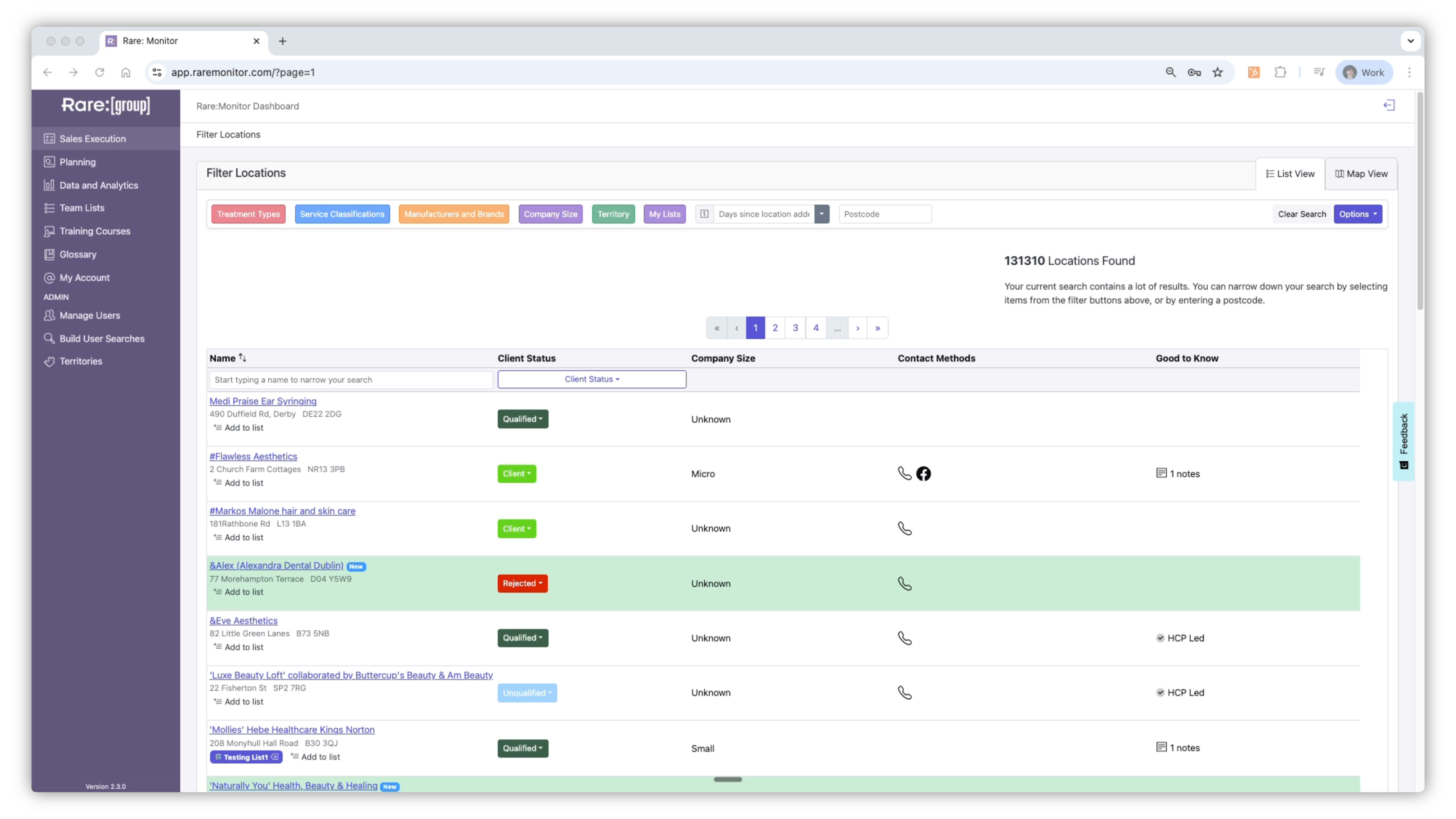
    Open Territory Manager

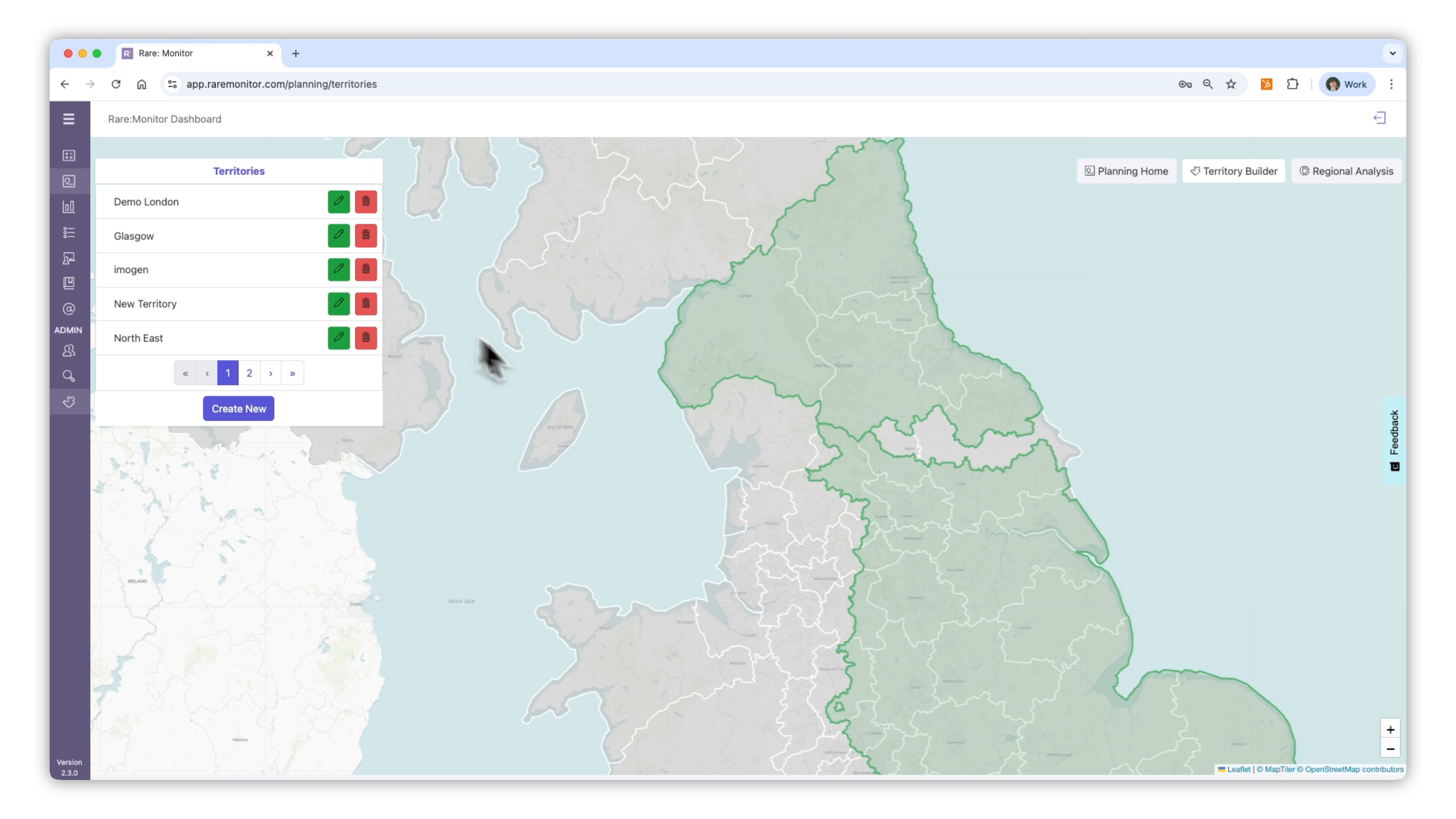
    1. From the left-hand navigation, select Planning. 2. Click Territory Manager to open the workspace. 3. You'll see a list of existing territories and the option to create new ones.
    Screenshot from the Rare.Monitor how-to guide for Territory Building & Mapping, illustrating "Open Territory Manager".
  2. 02

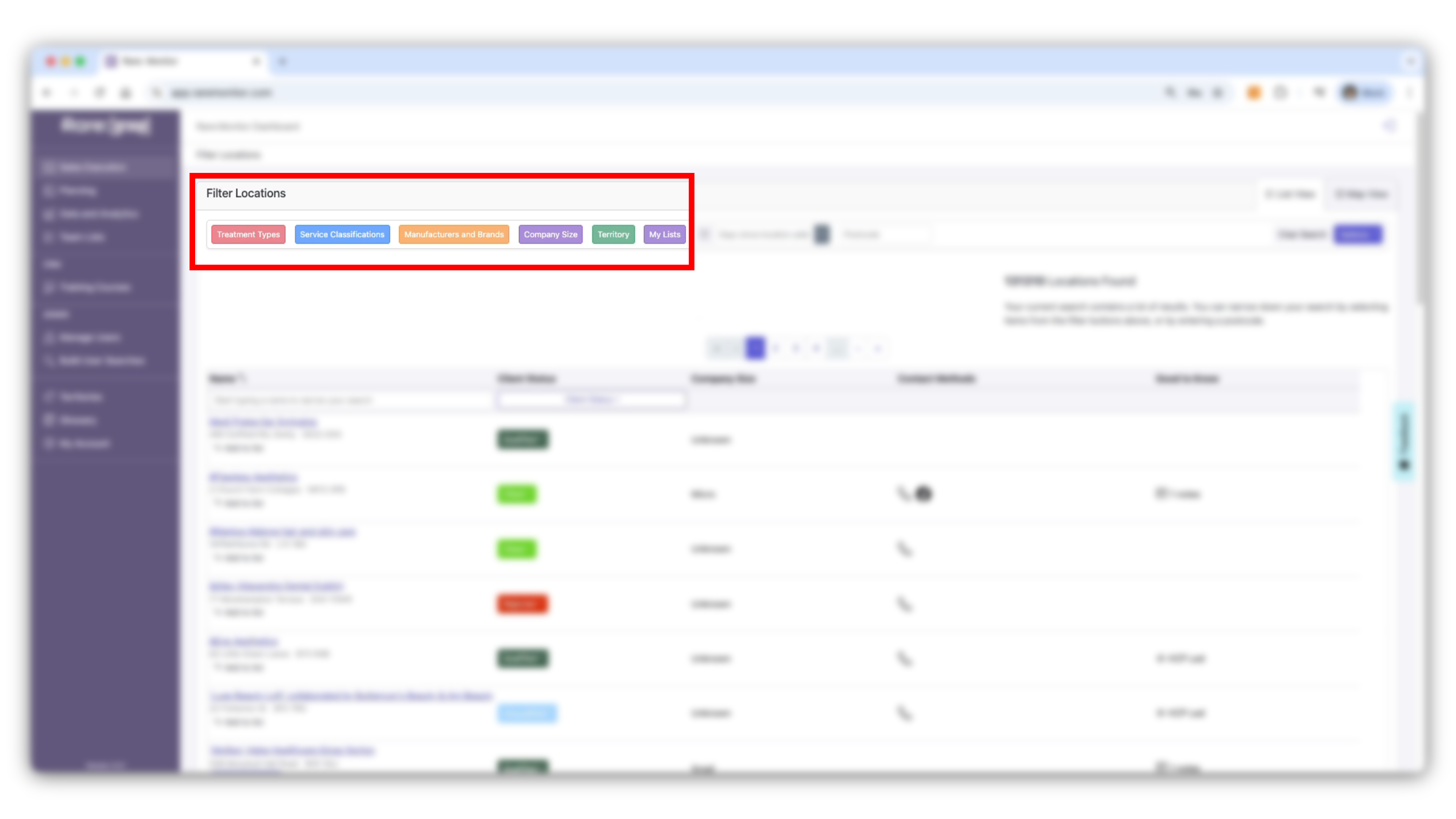
    Create a New Territory

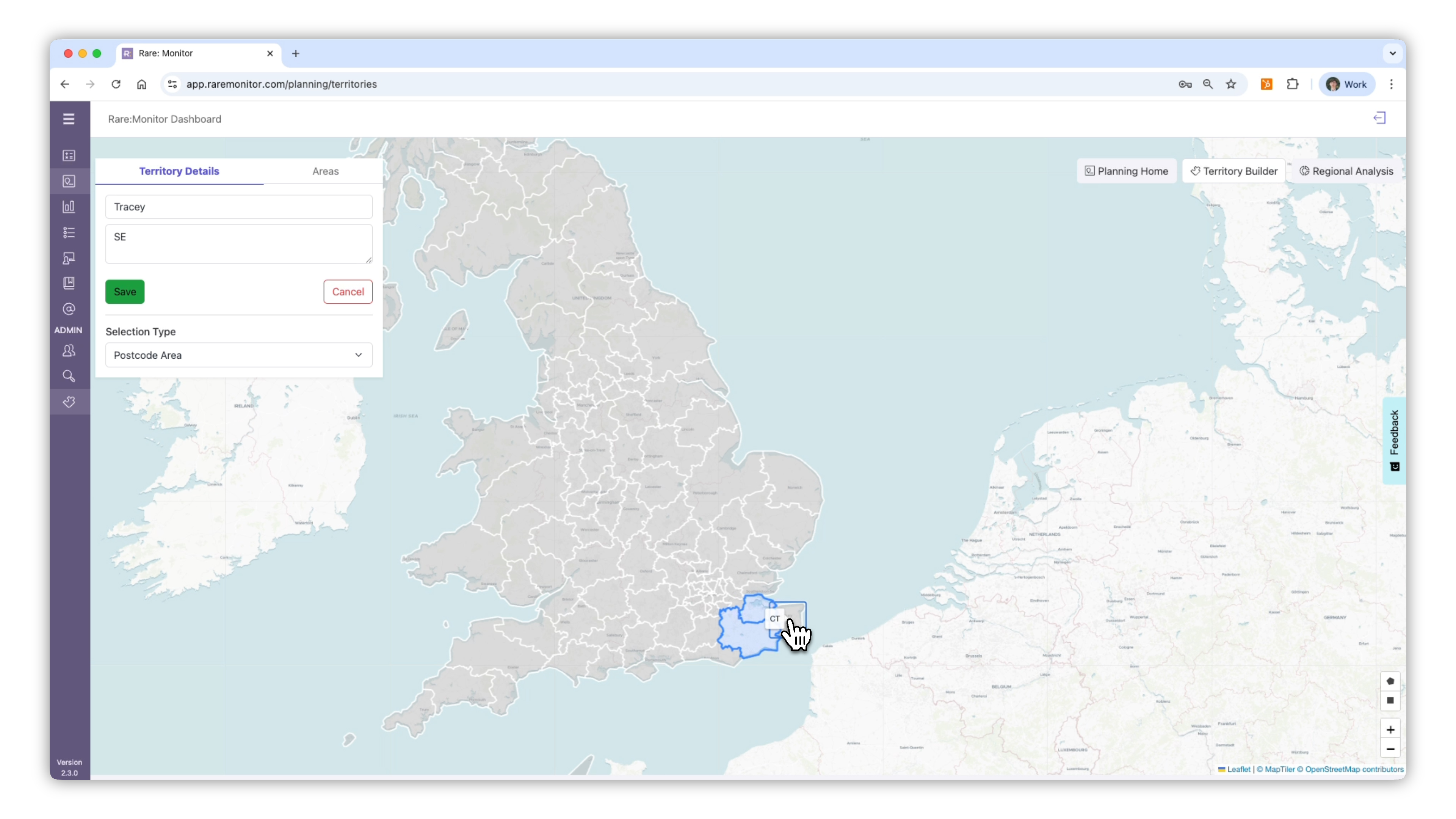
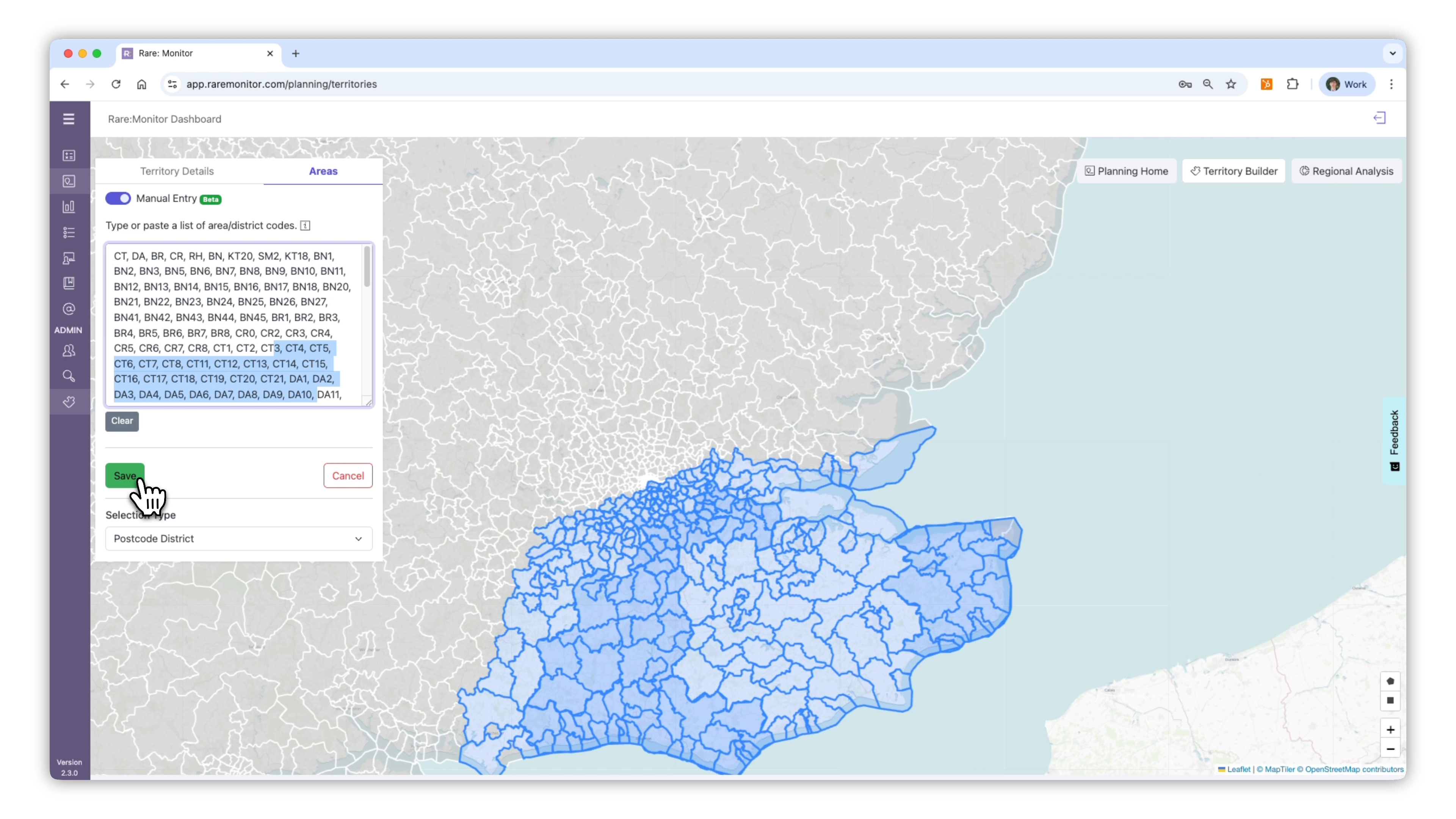
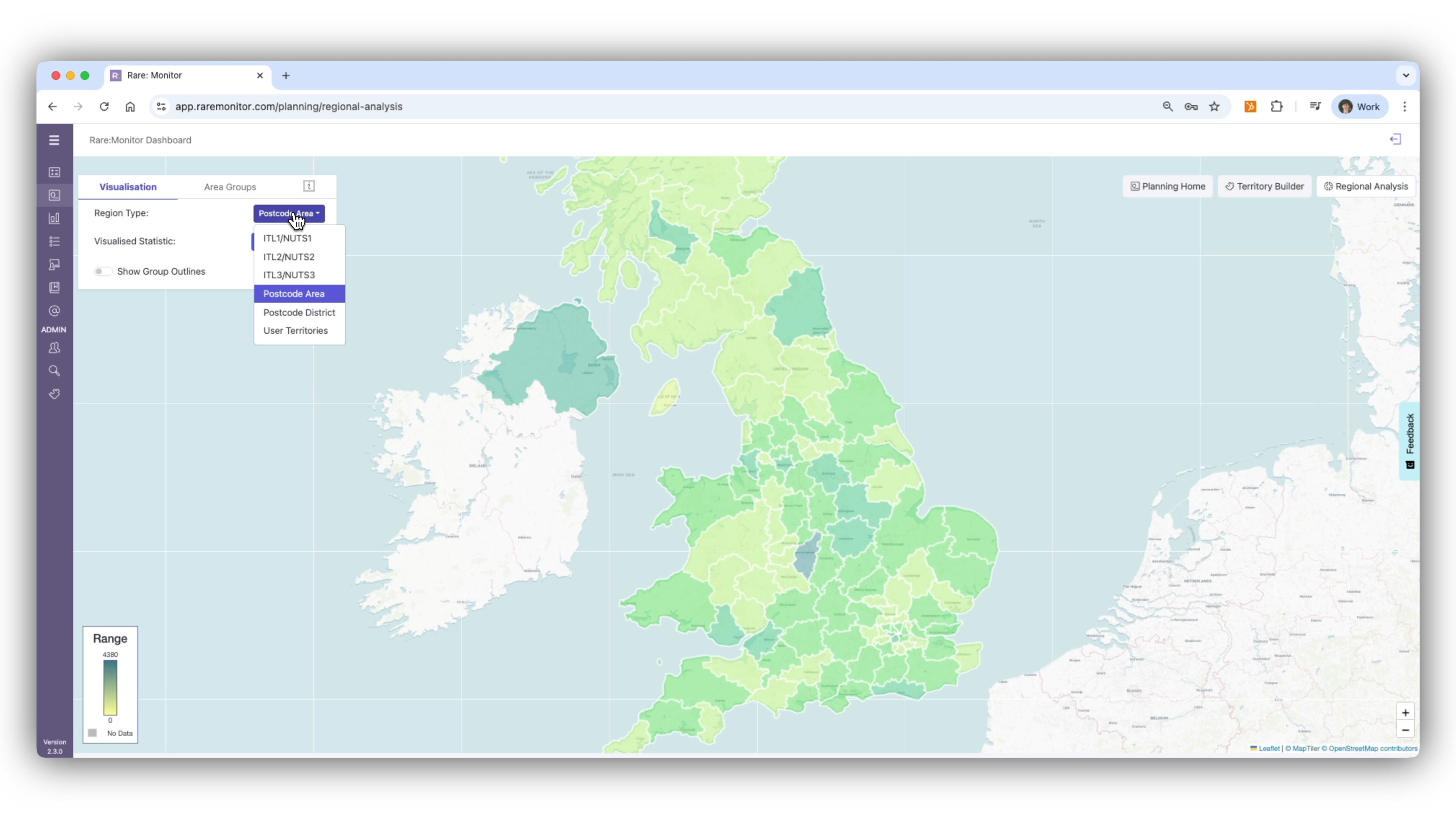
    1. Click Add Territory. 2. Give the territory a clear name, for example "Tracy Southeast". 3. Use the postcode box to type areas directly or select areas manually on the map. 4. Drill down by postcode area or district to define the boundaries precisely. 5. Use the selection tools to draw and adjust your territory as needed. 6. Click Save to confirm.
    Screenshot from the Rare.Monitor how-to guide for Territory Building & Mapping, illustrating "Create a New Territory".
  3. 03

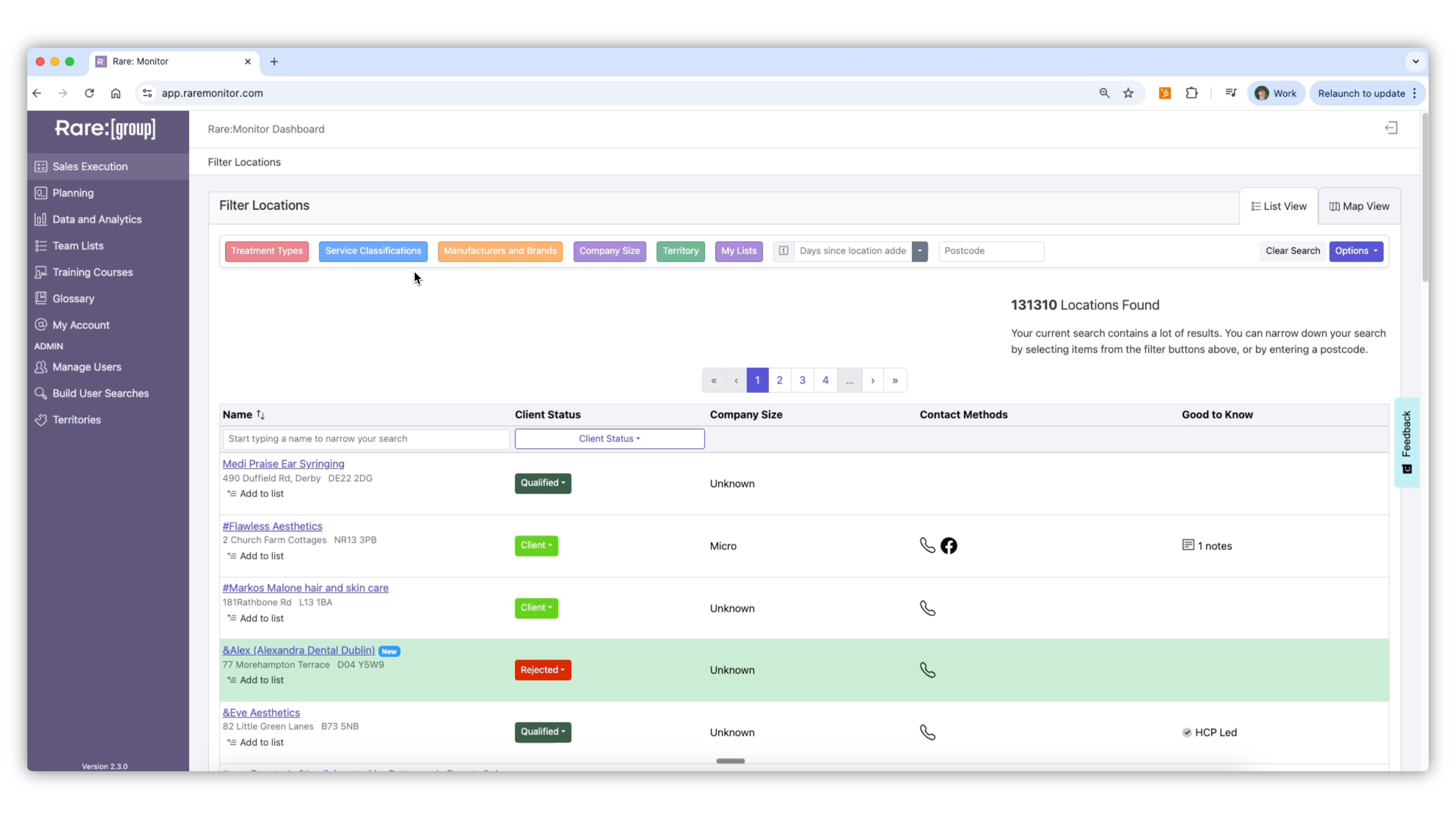
    Run a Search Within a Territory

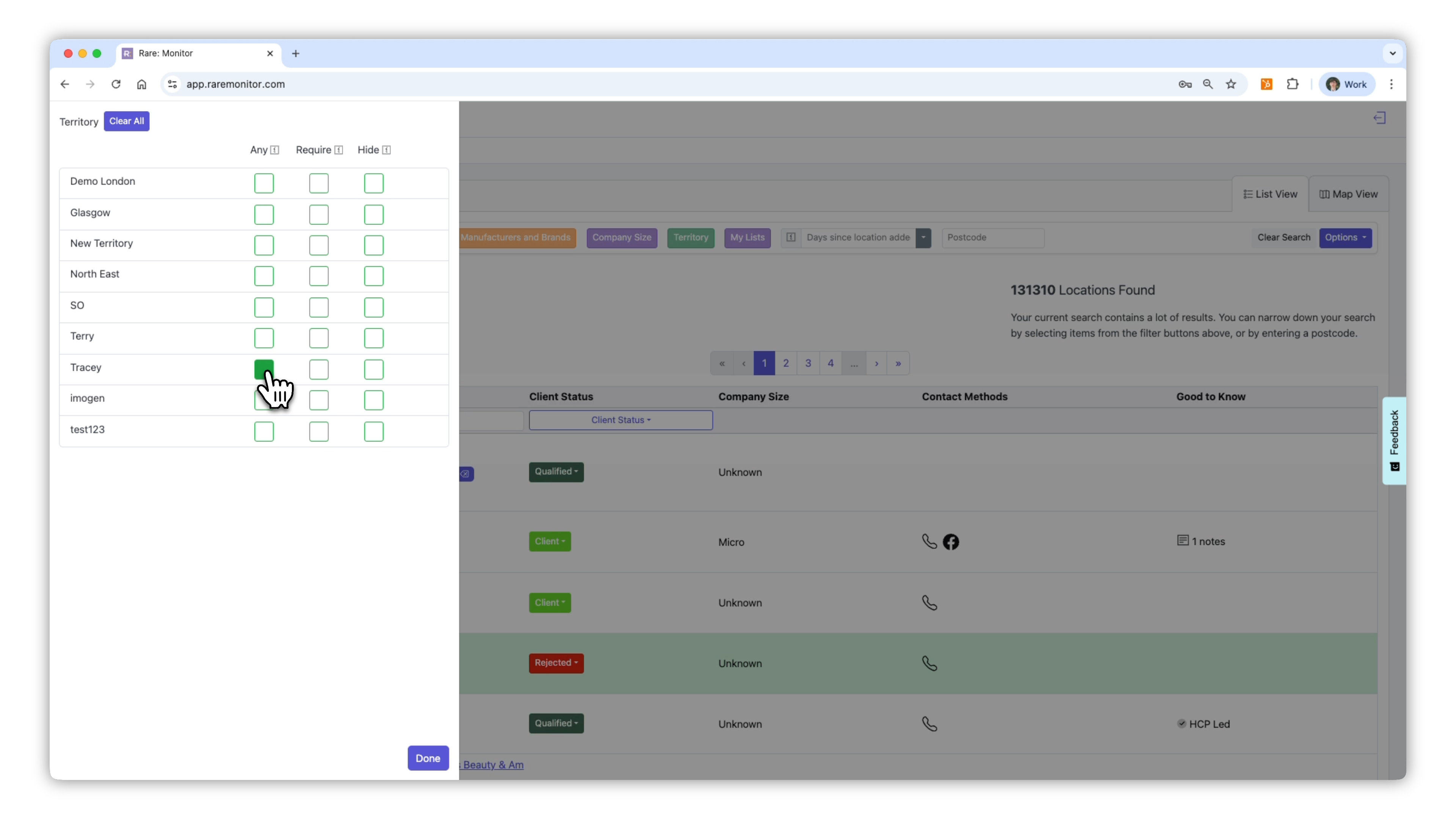
    1. In the search bar, select Territory, then choose your new territory. 2. The system will show all clinics within that region. 3. Use filter options to narrow the results: - Require: must include treatment (e.g. Dermatology Laser). - Hide: exclude a treatment (e.g. Dermal Abrasion). 4. The number of results updates instantly as filters are applied.
    Screenshot from the Rare.Monitor how-to guide for Territory Building & Mapping, illustrating "Run a Search Within a Territory".
  4. 04

    Refine by Postcode or Company Size

    1. Type a specific postcode to focus on a smaller area. 2. Use the Company Size filter to view only micro or small businesses if required.
    Screenshot from the Rare.Monitor how-to guide for Territory Building & Mapping, illustrating "Refine by Postcode or Company Size".
  5. 05

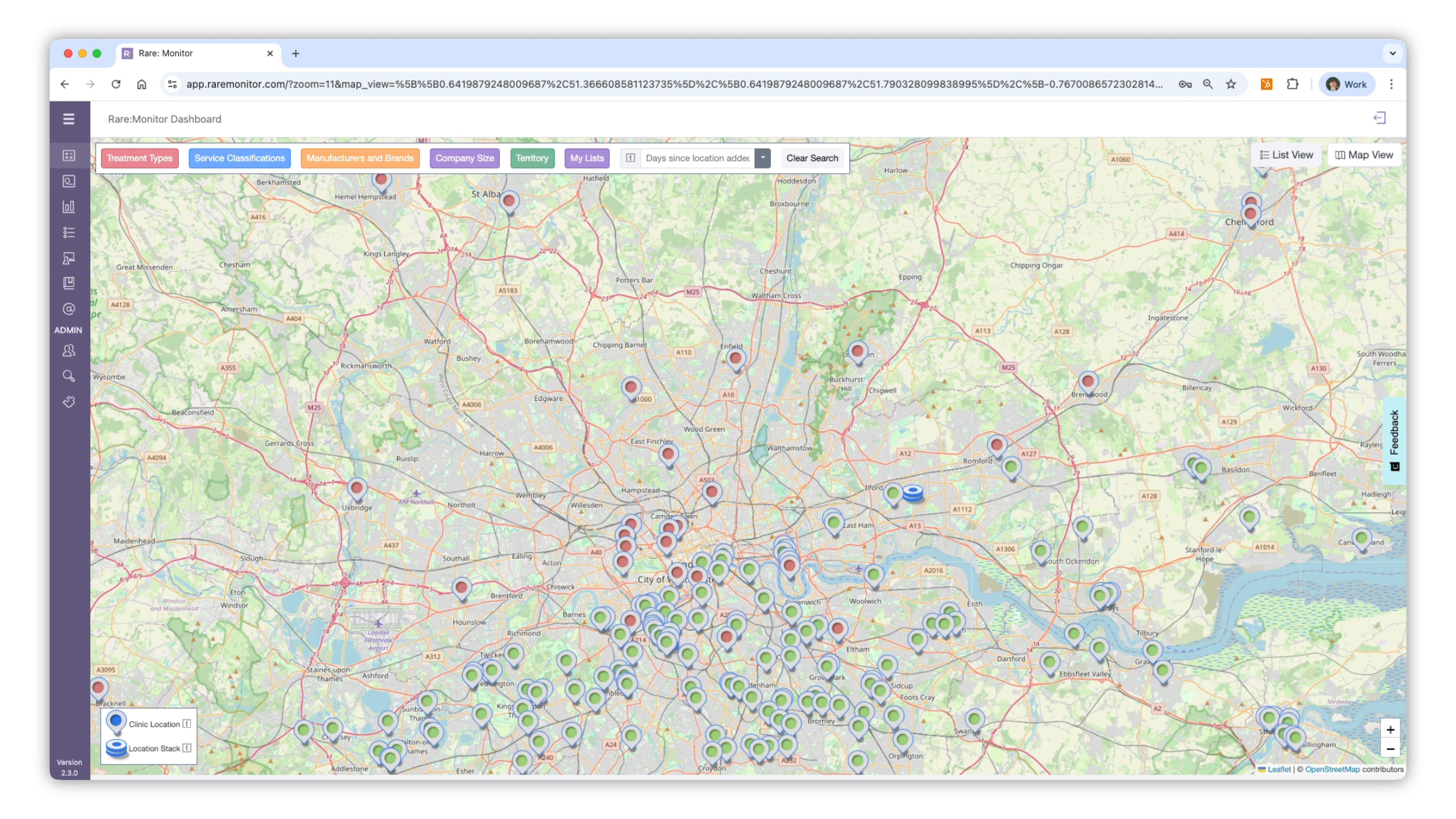
    Visualise Results on the Map

    1. Click Map View to plot your results geographically. 2. Zoom in or out to see how prospects are distributed within your territory. 3. Use this view to plan travel routes and daily visits efficiently.
    Screenshot from the Rare.Monitor how-to guide for Territory Building & Mapping, illustrating "Visualise Results on the Map".

Watch more in this series

Next: Creating and Managing Lists. Once you've defined a territory, the next move is turning the clinics inside it into a saved, exportable list.