Turn a filtered search into a saved, exportable list, then visualise it on the map.

Creating and Managing Lists

Lesson overview

Lists are how Rare.Monitor preserves a search for later use. By the end of this lesson you'll know how to save a filtered search as a list, name it, find it again from Team Lists, export it to your CRM, and plot the clinics on a map for route planning.

Step-by-step instructions

  1. 01

    Run Your Search

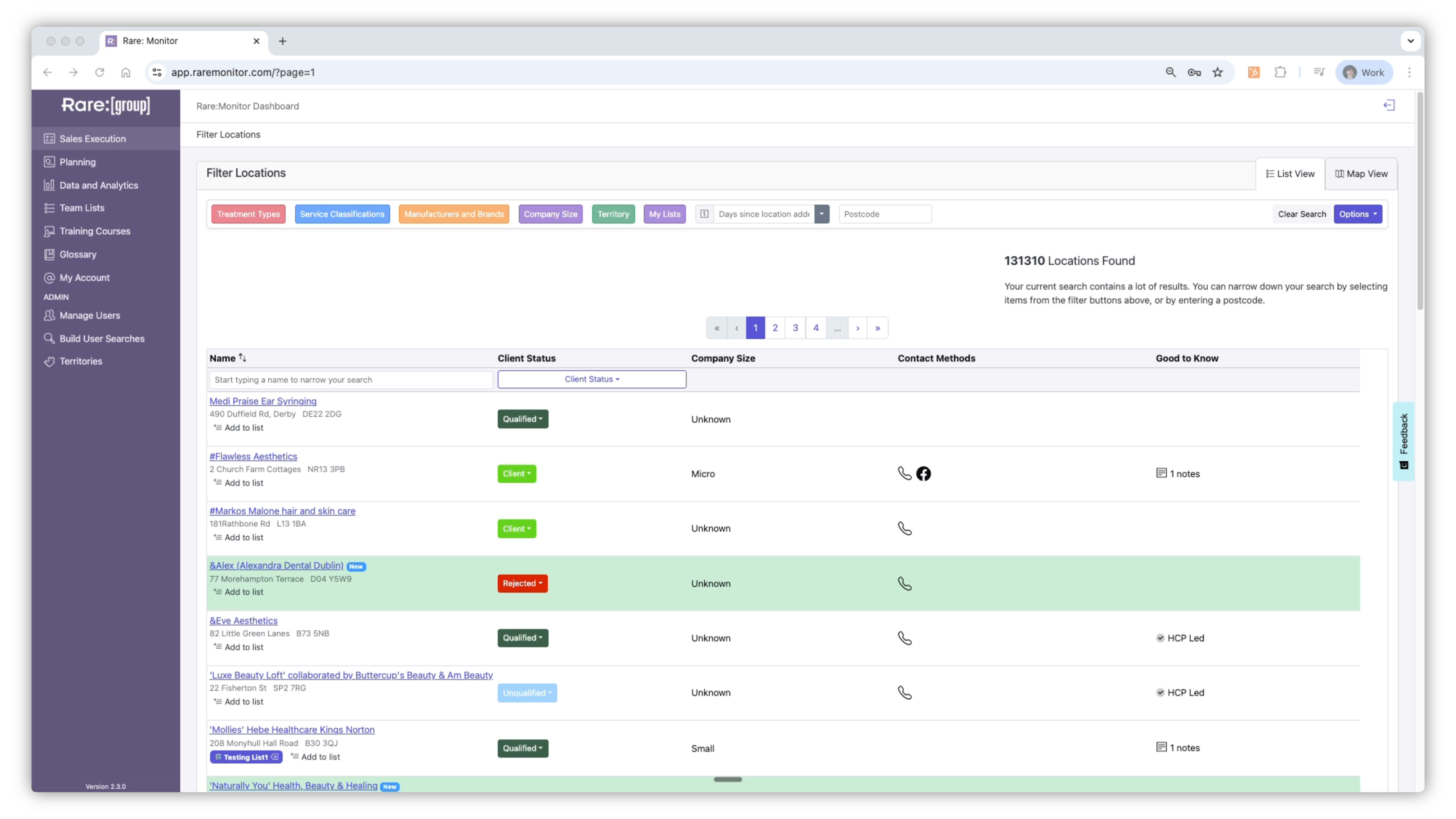
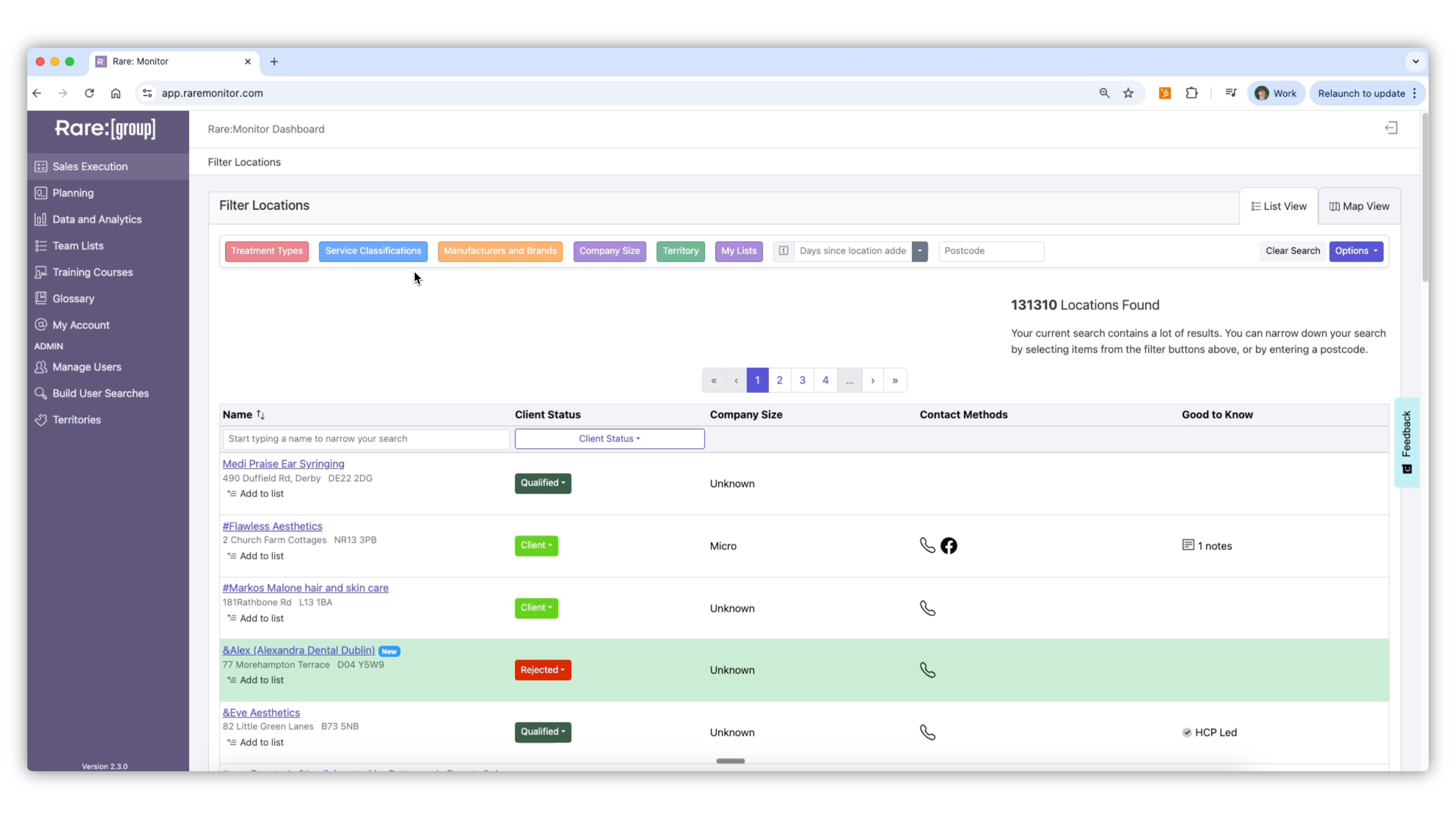
    1. Select Sales Execution from the left-hand menu. 2. Apply filters to define your audience (e.g., Include: Clear Aligners, Exclude: AlignTech). 3. The system will show a long list of matching businesses. 4. Apply further filters such as Company Size = Small or Location = Birmingham to narrow further.
    Screenshot from the Rare.Monitor how-to guide for Creating and Managing Lists, illustrating "Run Your Search".
  2. 02

    Save the List

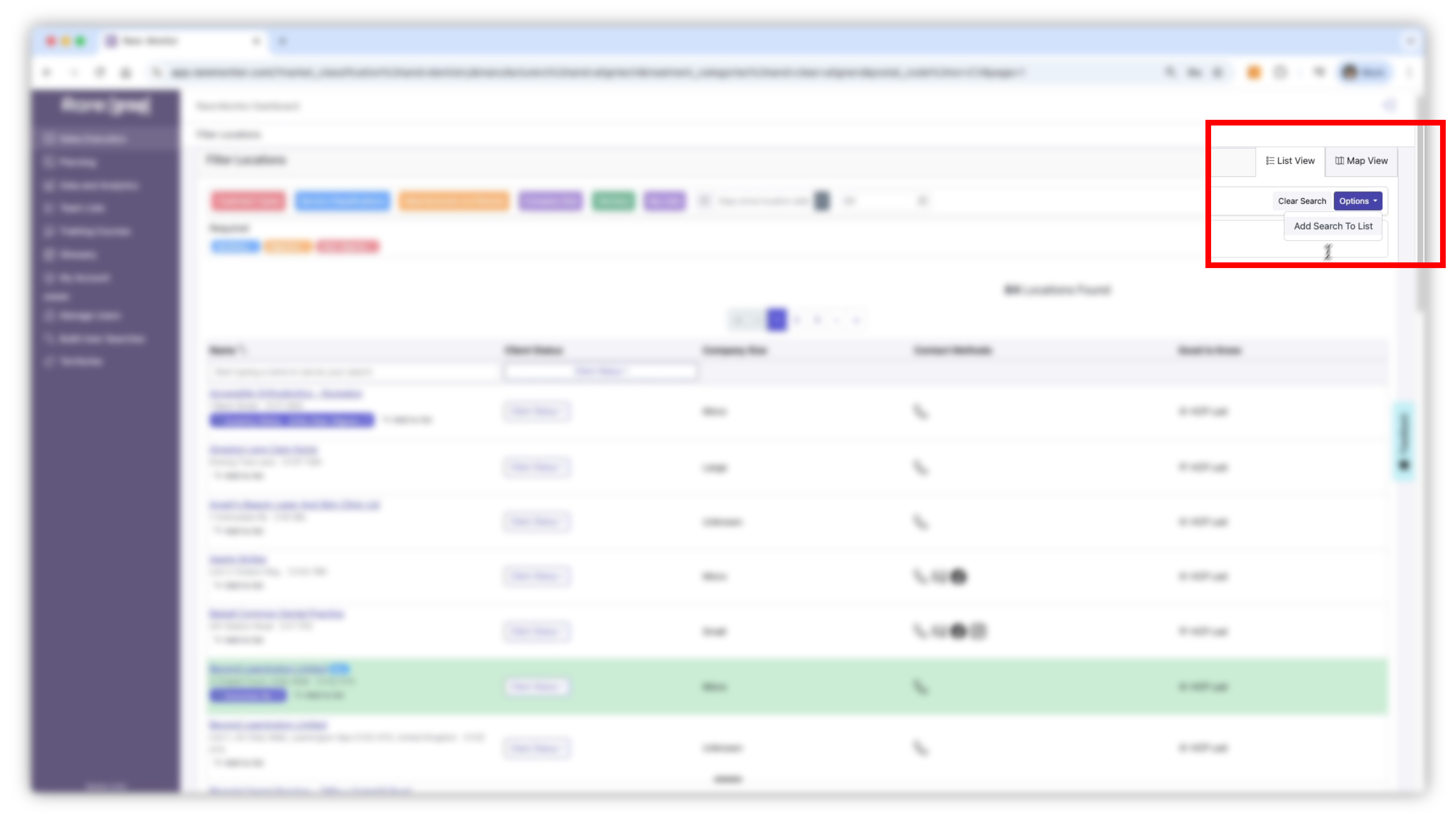
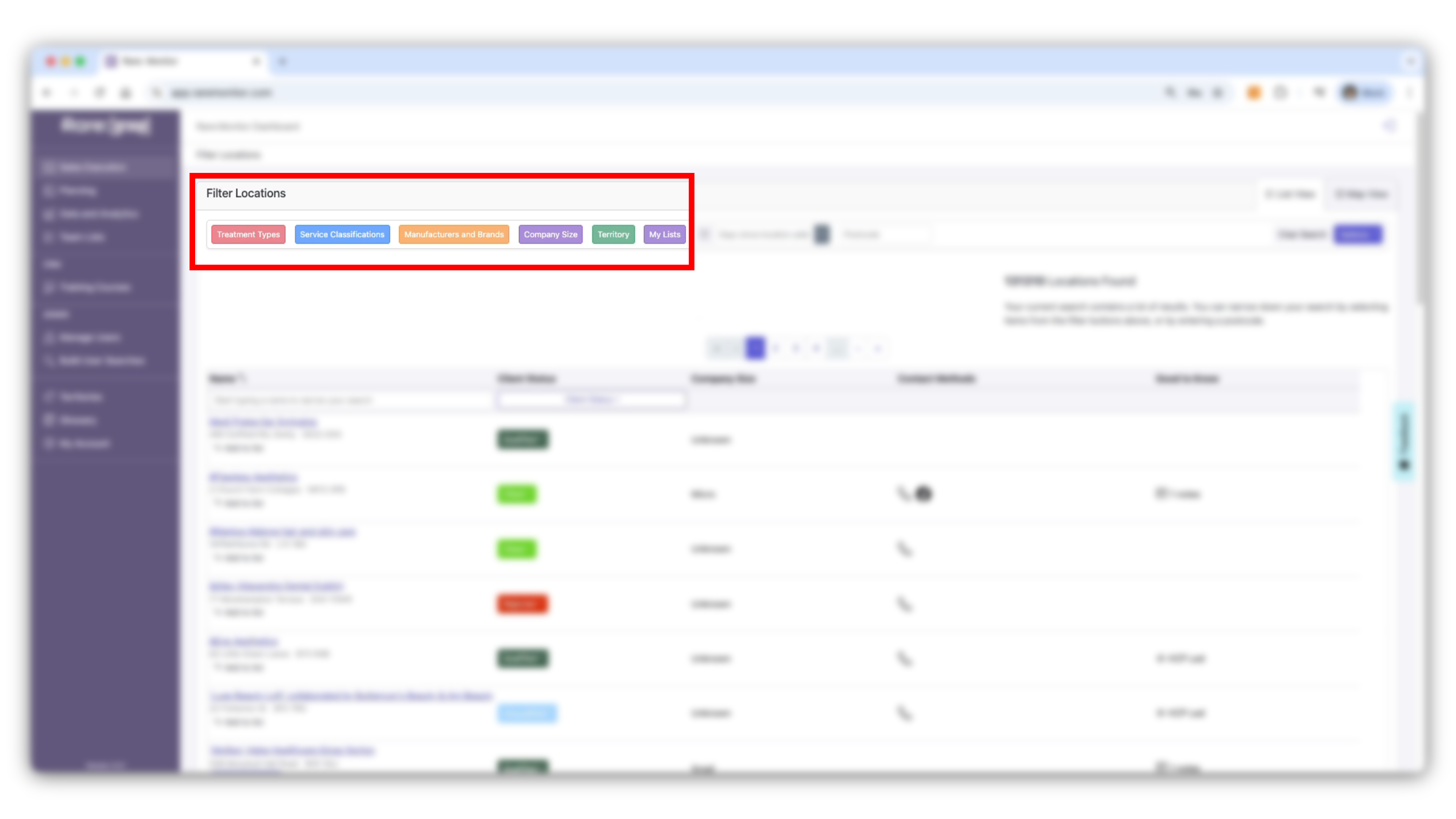
    1. Click Options in the top-right corner. 2. Select Save Search to List. 3. Enter a clear name (e.g., "Clear Aligners in Birmingham, Non-AlignTech"). 4. Click Save. 5. Your list will now appear in the Team Lists section on the left-hand navigation.
    Screenshot from the Rare.Monitor how-to guide for Creating and Managing Lists, illustrating "Save the List".
  3. 03

    Manage Your Lists

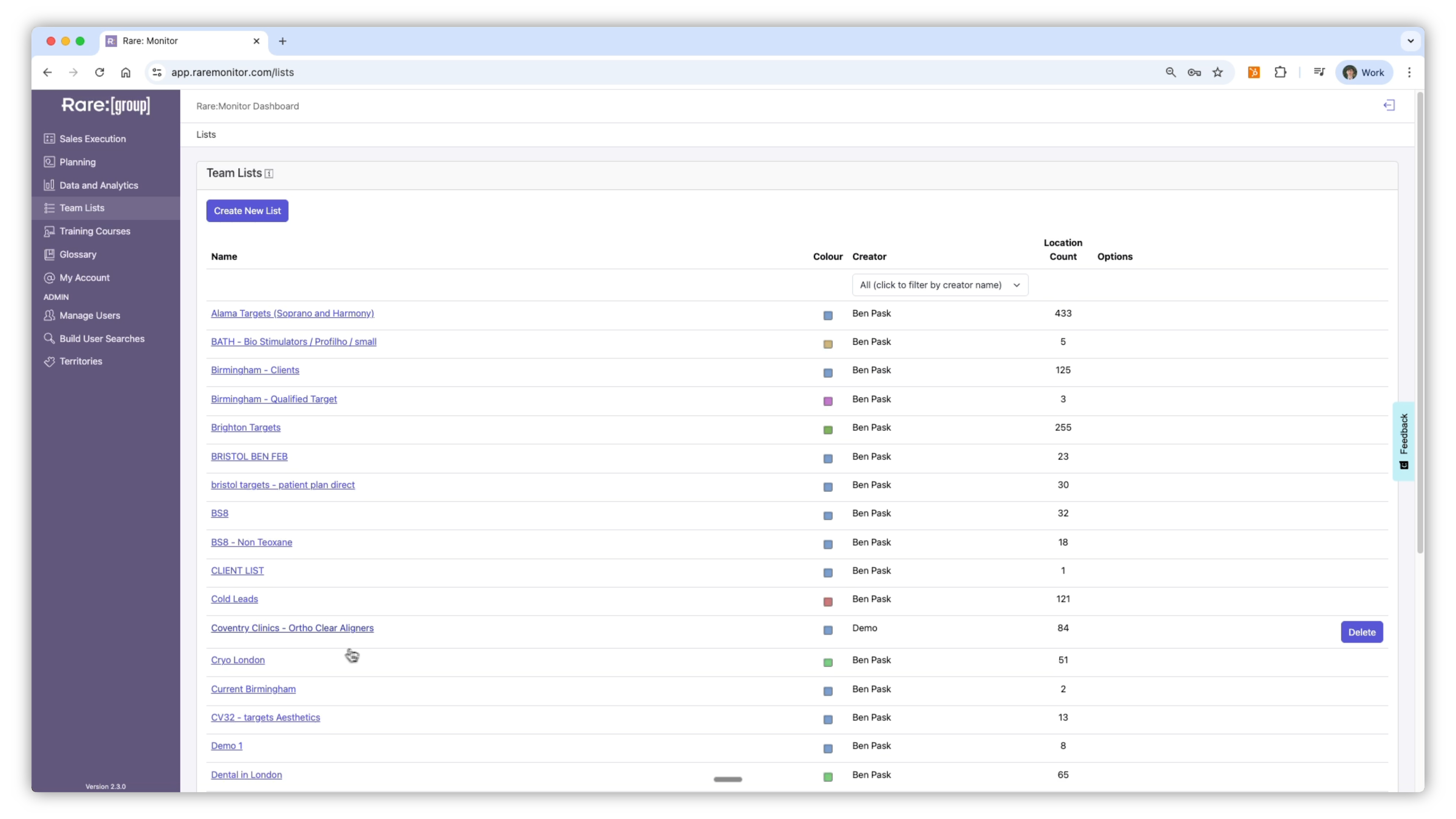
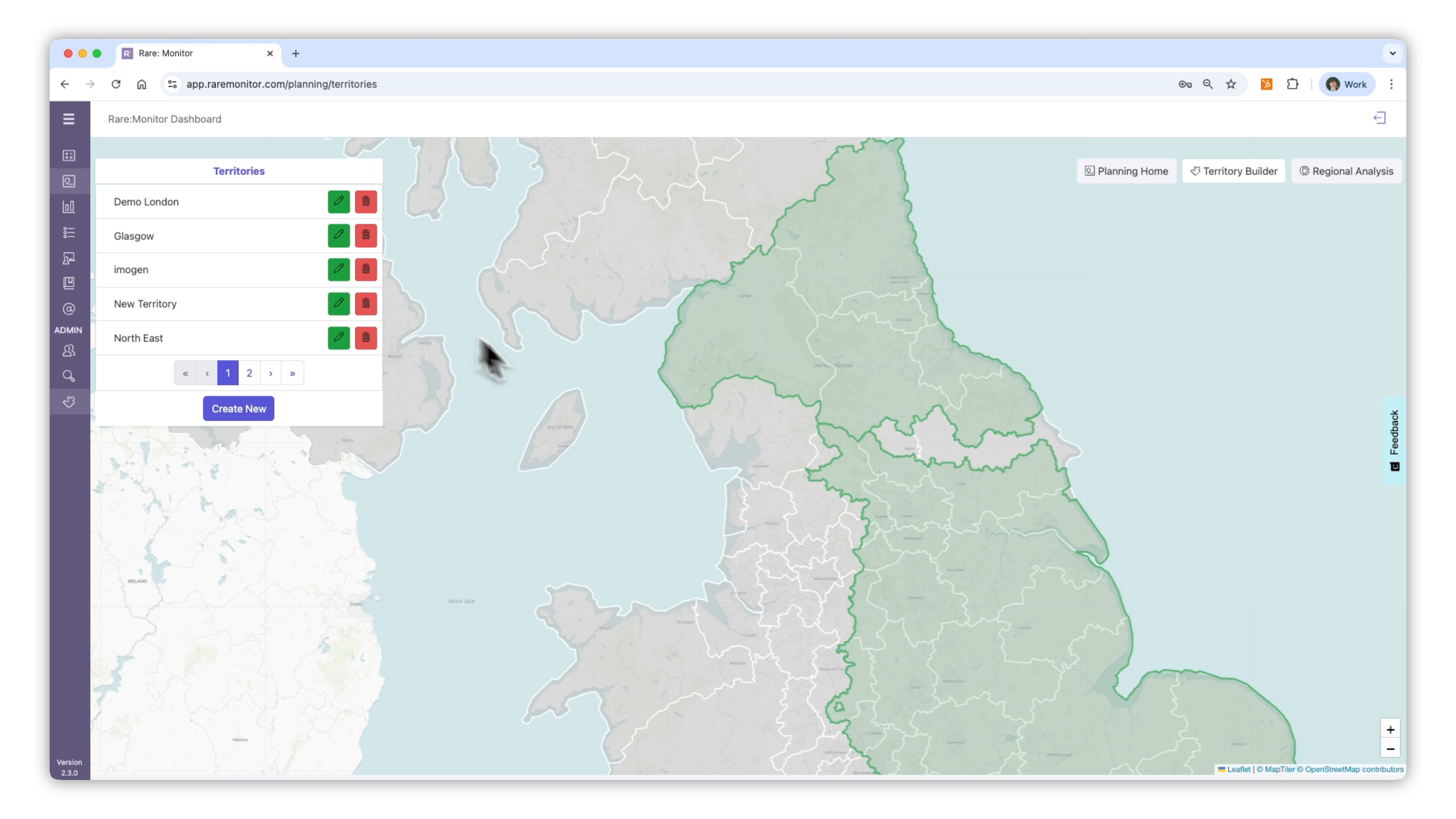
    1. Open Team Lists from the left-hand menu. 2. If you have multiple team lists visible, click Your Name at the top to show only your lists. 3. Select your list to view the clinics it contains. 4. From this view you can: export the list to your CRM or reporting tools; assign a colour to the list for easy identification later. 5. Click Export List to download your data.
    Screenshot from the Rare.Monitor how-to guide for Creating and Managing Lists, illustrating "Manage Your Lists".
  4. 04

    Visualise Your List on the Map

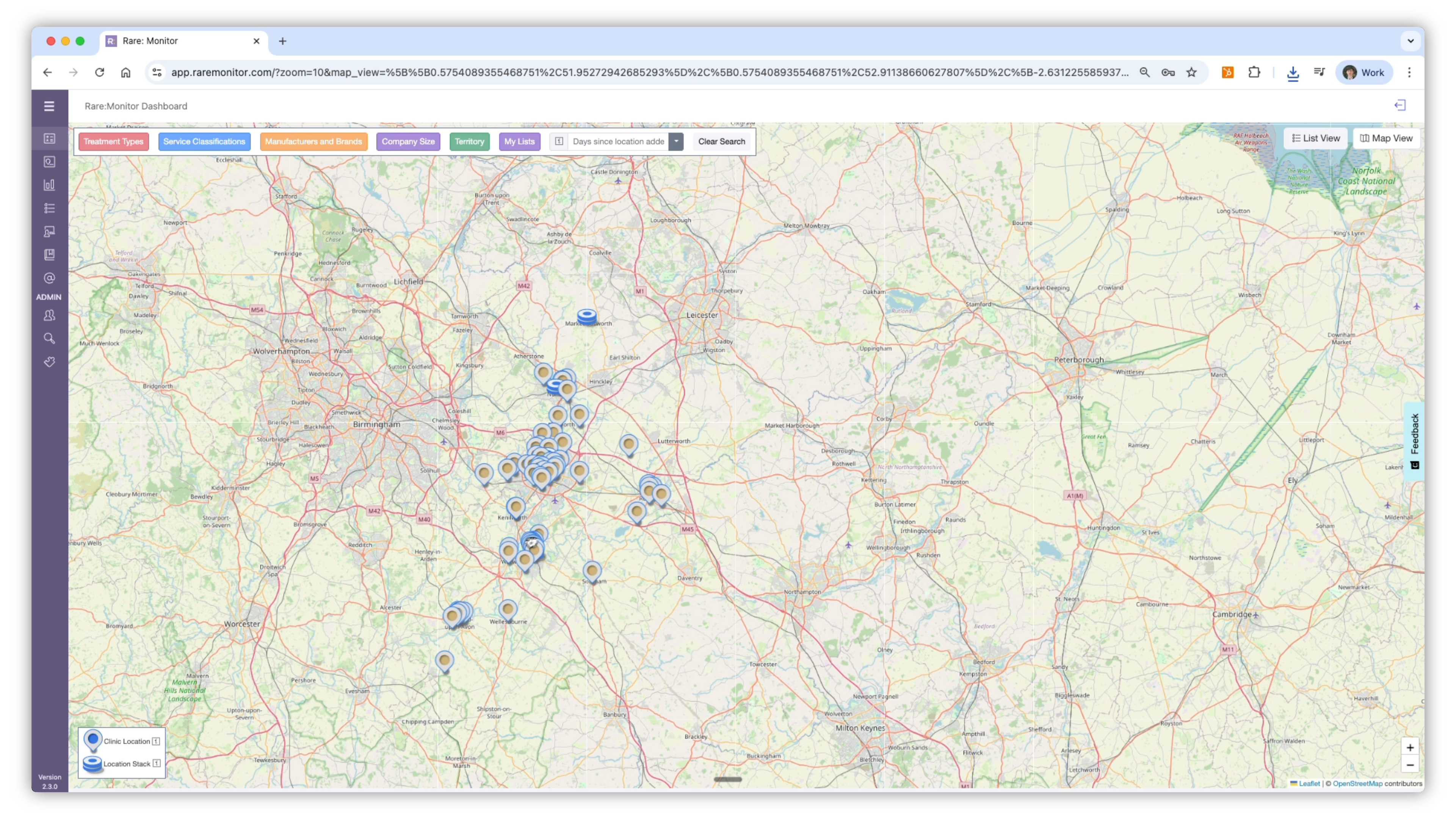
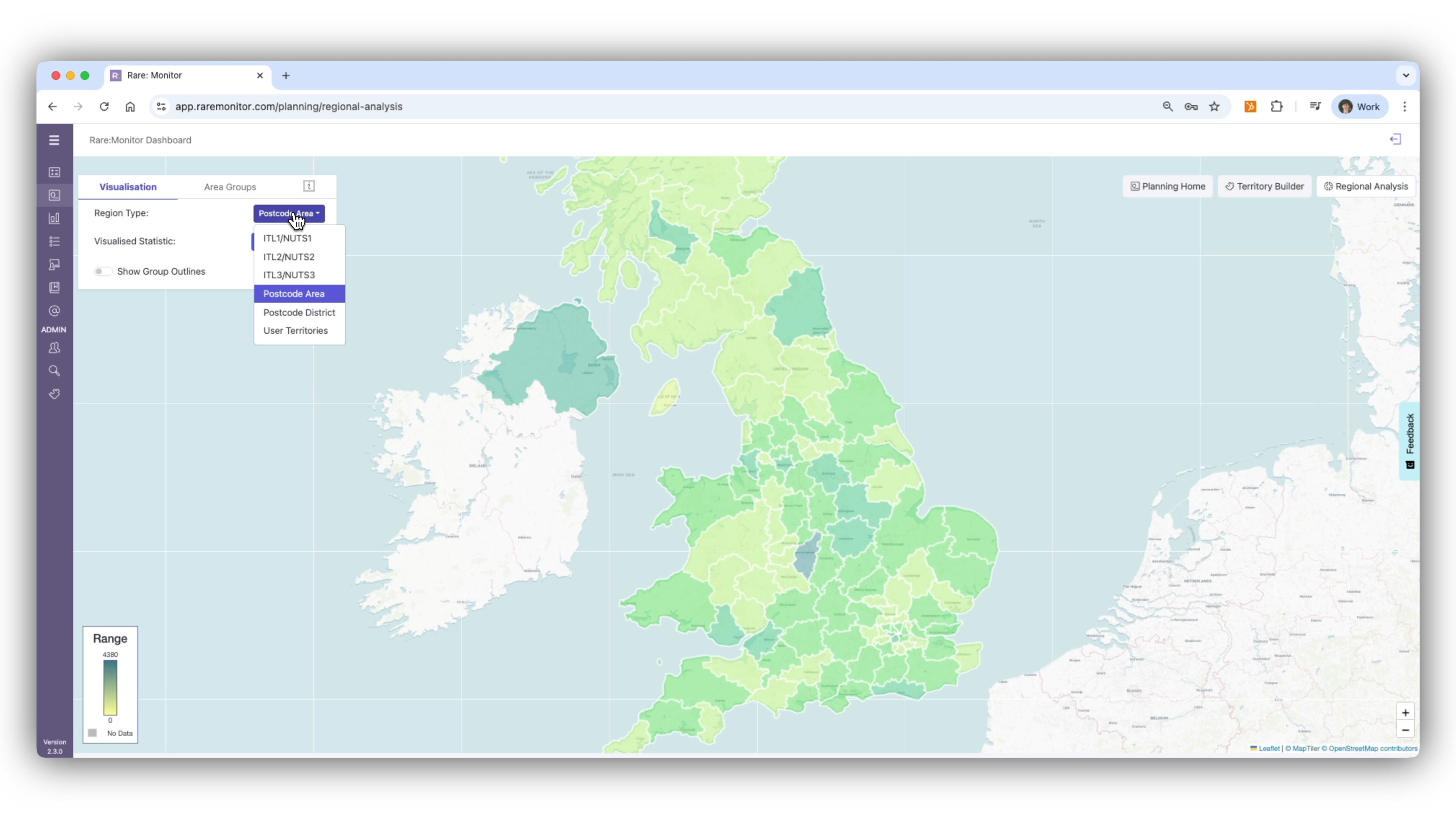
    1. From the navigation bar, go to Filters. 2. Click Show My Lists in the top left. 3. Switch to Map View to see your list plotted geographically. 4. Zoom in or out to see where your clinics are located and plan travel efficiently.
    Screenshot from the Rare.Monitor how-to guide for Creating and Managing Lists, illustrating "Visualise Your List on the Map".

Watch more in this series

Next: Regional Analysis. Lists are tactical. The next lesson goes broader, comparing whole regions to find where your best opportunities exist before you build a territory or a list.