The fastest path from your account credentials to your first prospect list.

Getting Started

Lesson overview

By the end of this lesson you can sign in to Rare.Monitor, navigate the dashboard, apply the top filters, and save a list of matching clinics. It's the starting point for every other lesson. Work through it first.

Step-by-step instructions

  1. 01

    Log in

    1. Go to www.raremonitor.com 2. Click Login 3. Enter the username and password sent by your account manager. 4. Haven't received your details? Email [email protected].
    Screenshot from the Rare.Monitor how-to guide for Getting Started, illustrating "Log in".
  2. 02

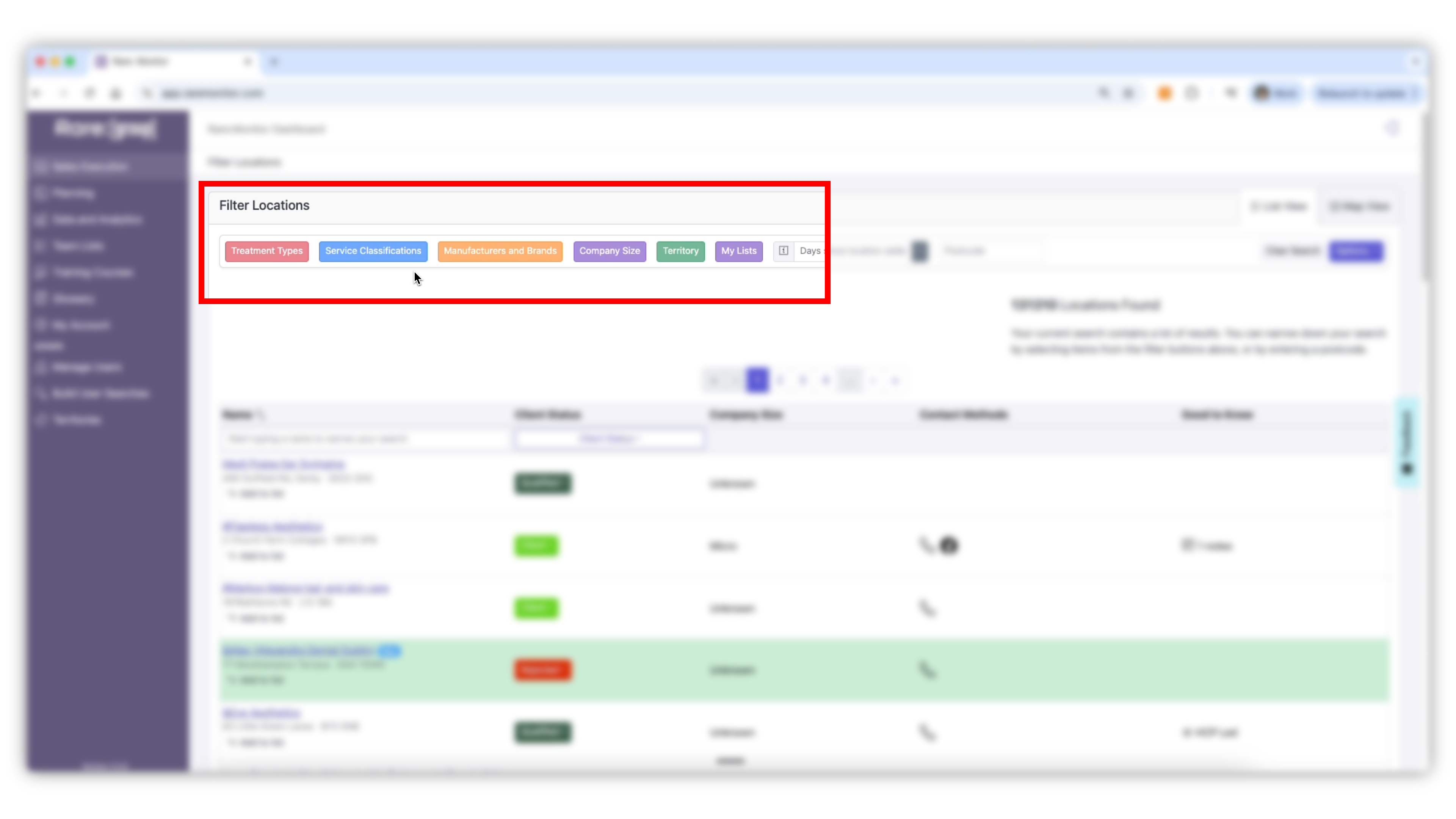
    Explore the Dashboard (top filters)

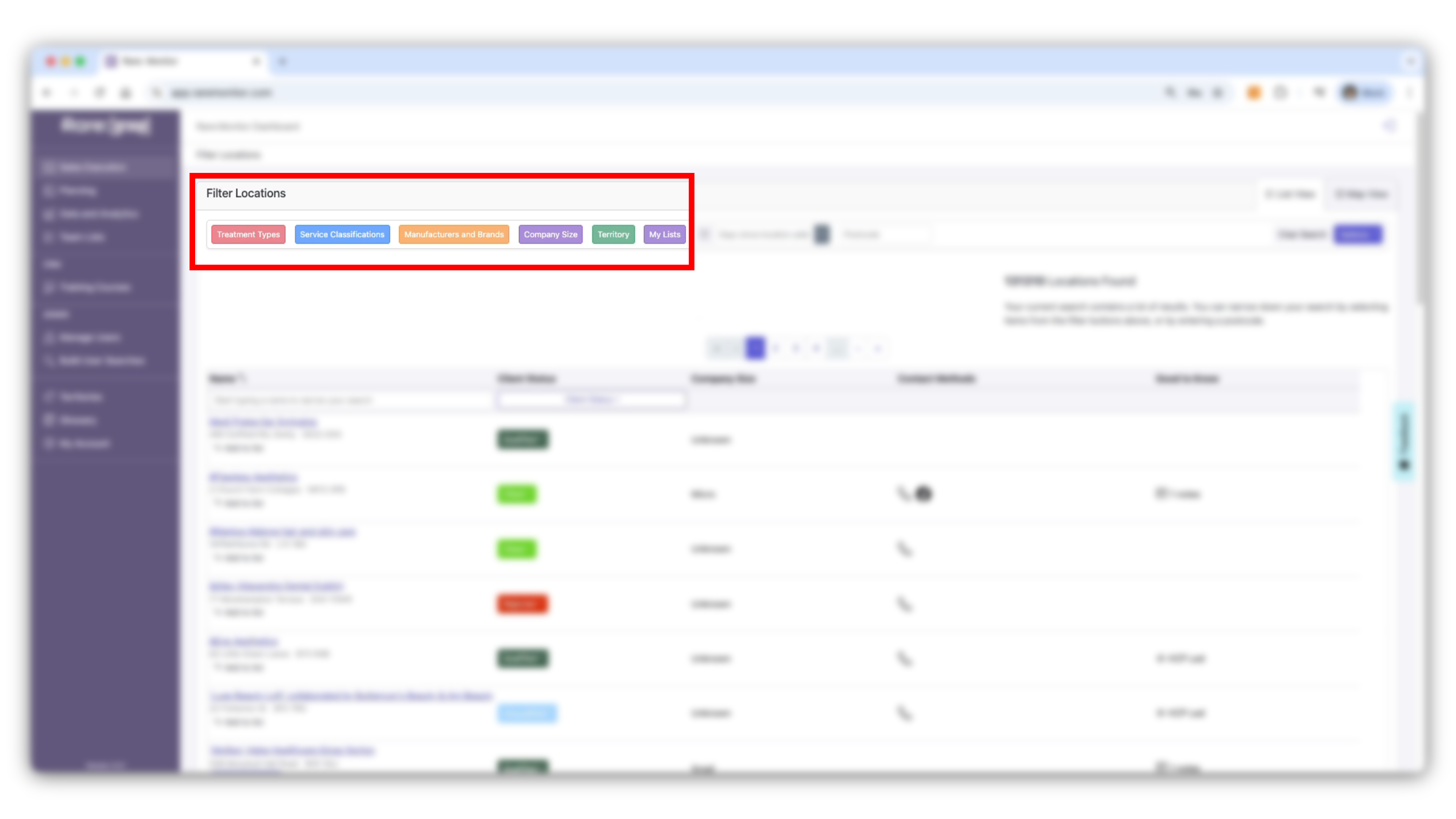
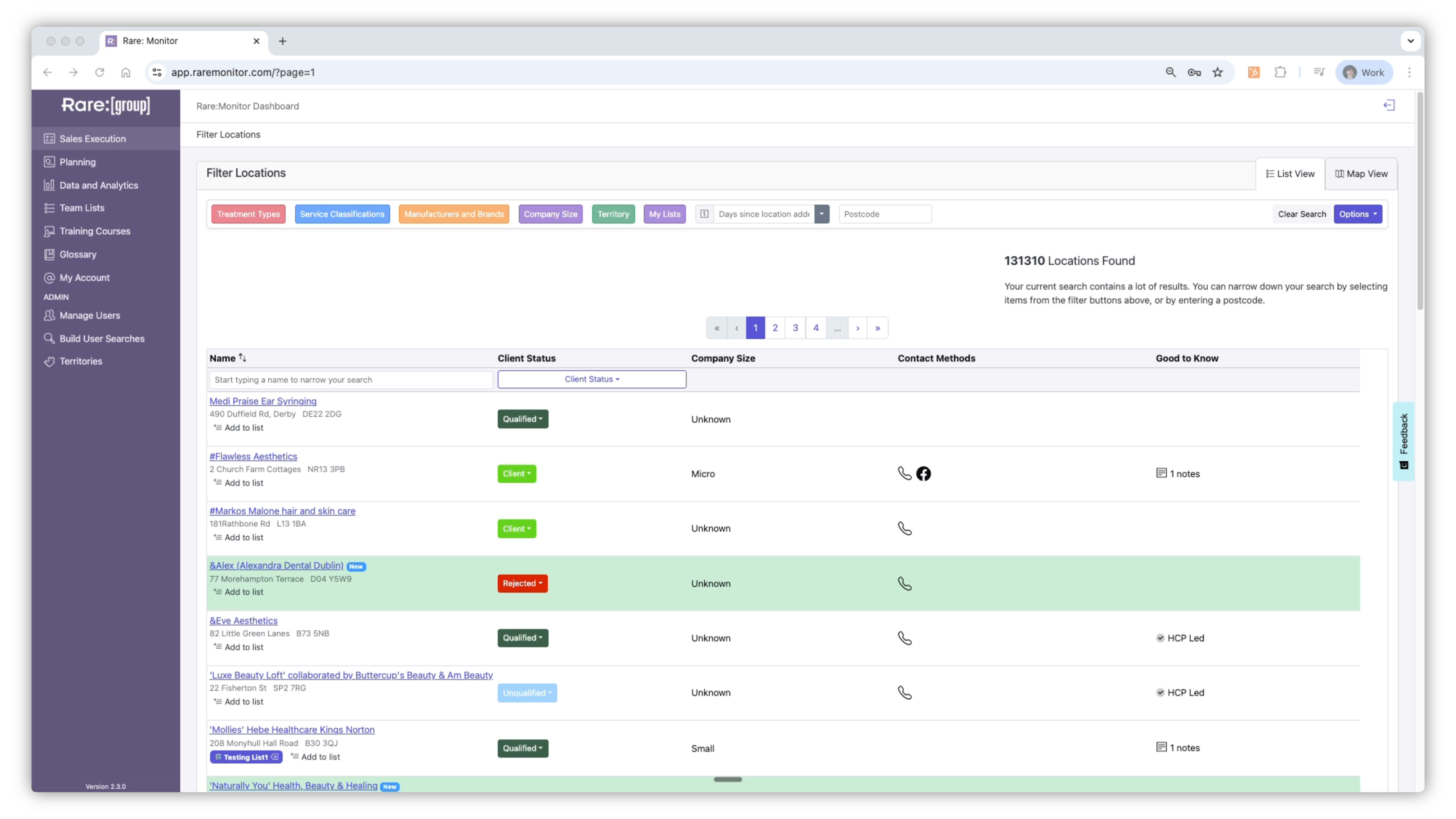
    At the top of the page you'll find filters to refine your search by Treatments, Service Classification, Brands or Manufacturers, Company Size, Territory, and Saved lists.
    Screenshot from the Rare.Monitor how-to guide for Getting Started, illustrating "Explore the Dashboard (top filters)".
  3. 03

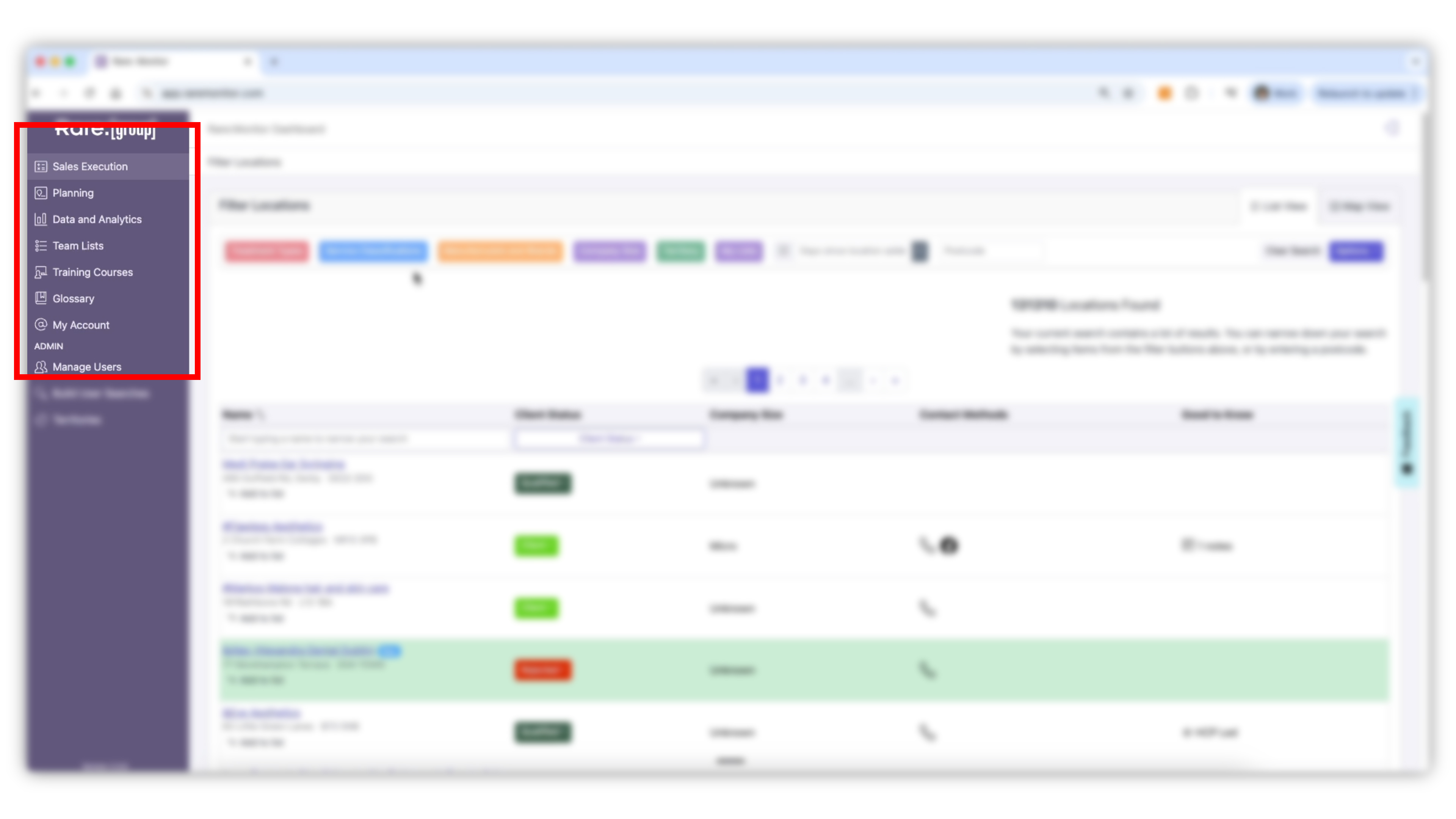
    Explore the Dashboard (left-hand menu)

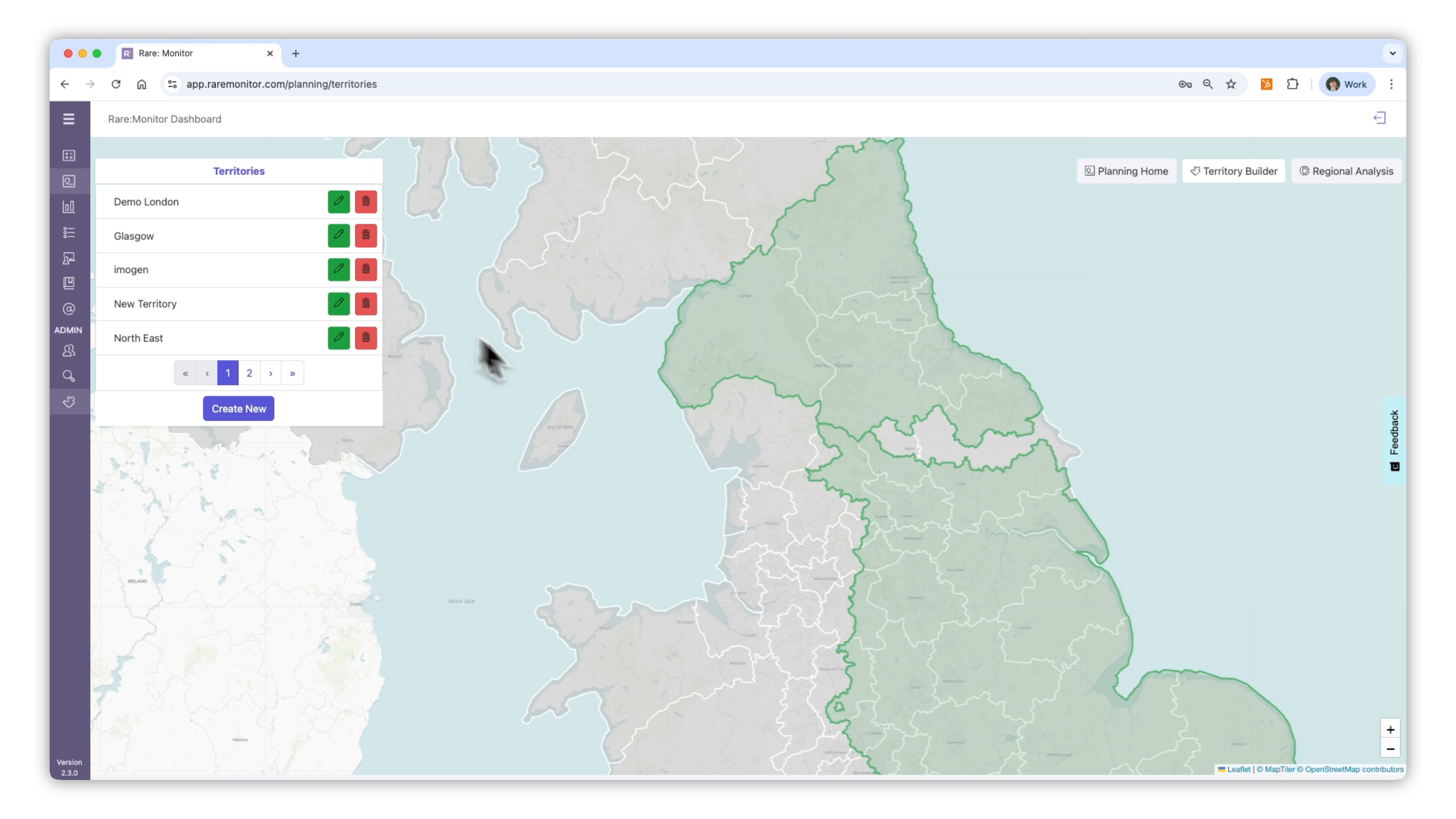
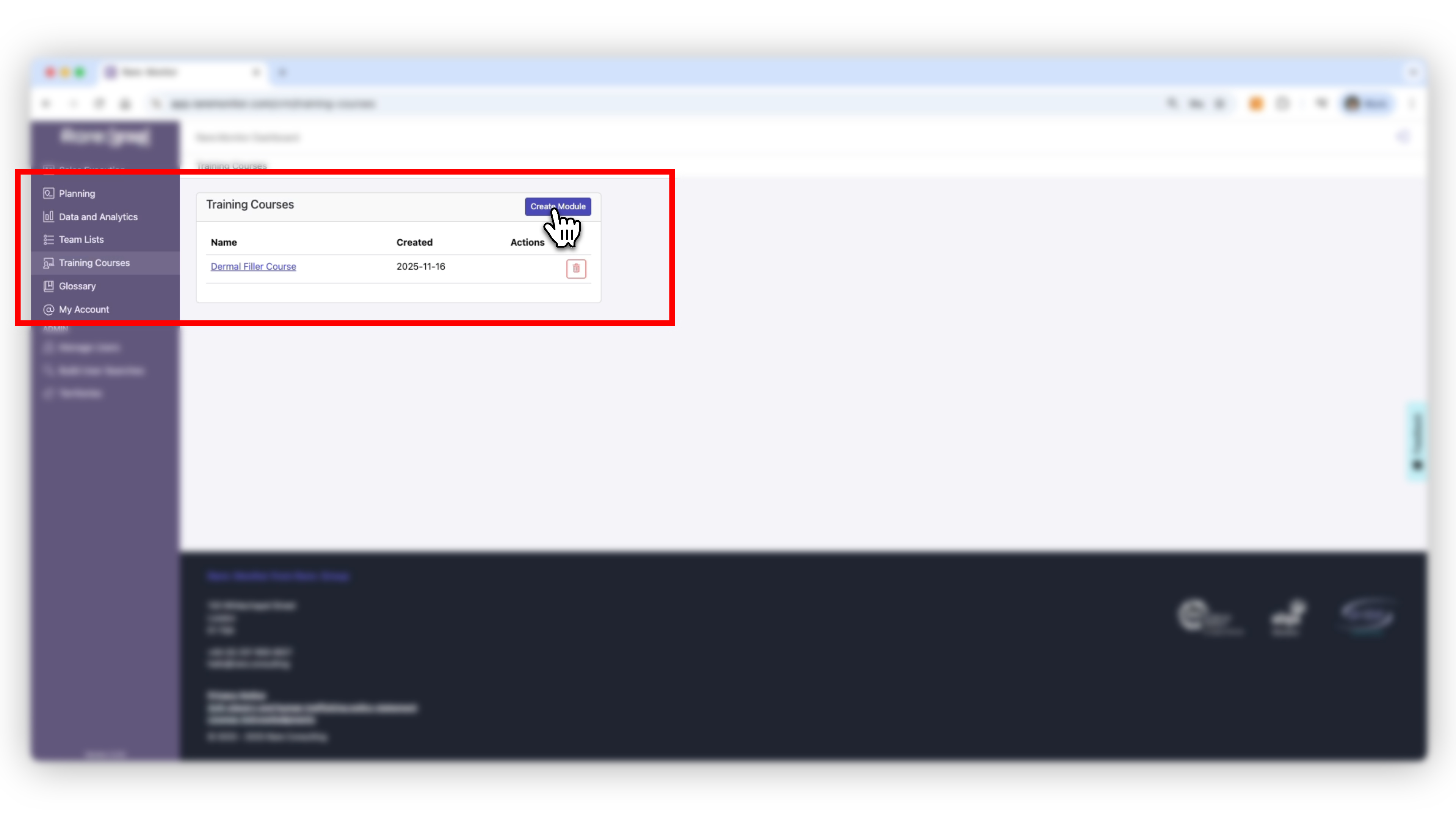
    On the left, use the main menu to access: - Planning: create territories, run regional analysis. - Team & Lists: manage prospect lists. - Training: create training events. - Data & Analytics: track performance and KAM activity. - Support: find all training videos.
    Screenshot from the Rare.Monitor how-to guide for Getting Started, illustrating "Explore the Dashboard (left-hand menu)".
  4. 04

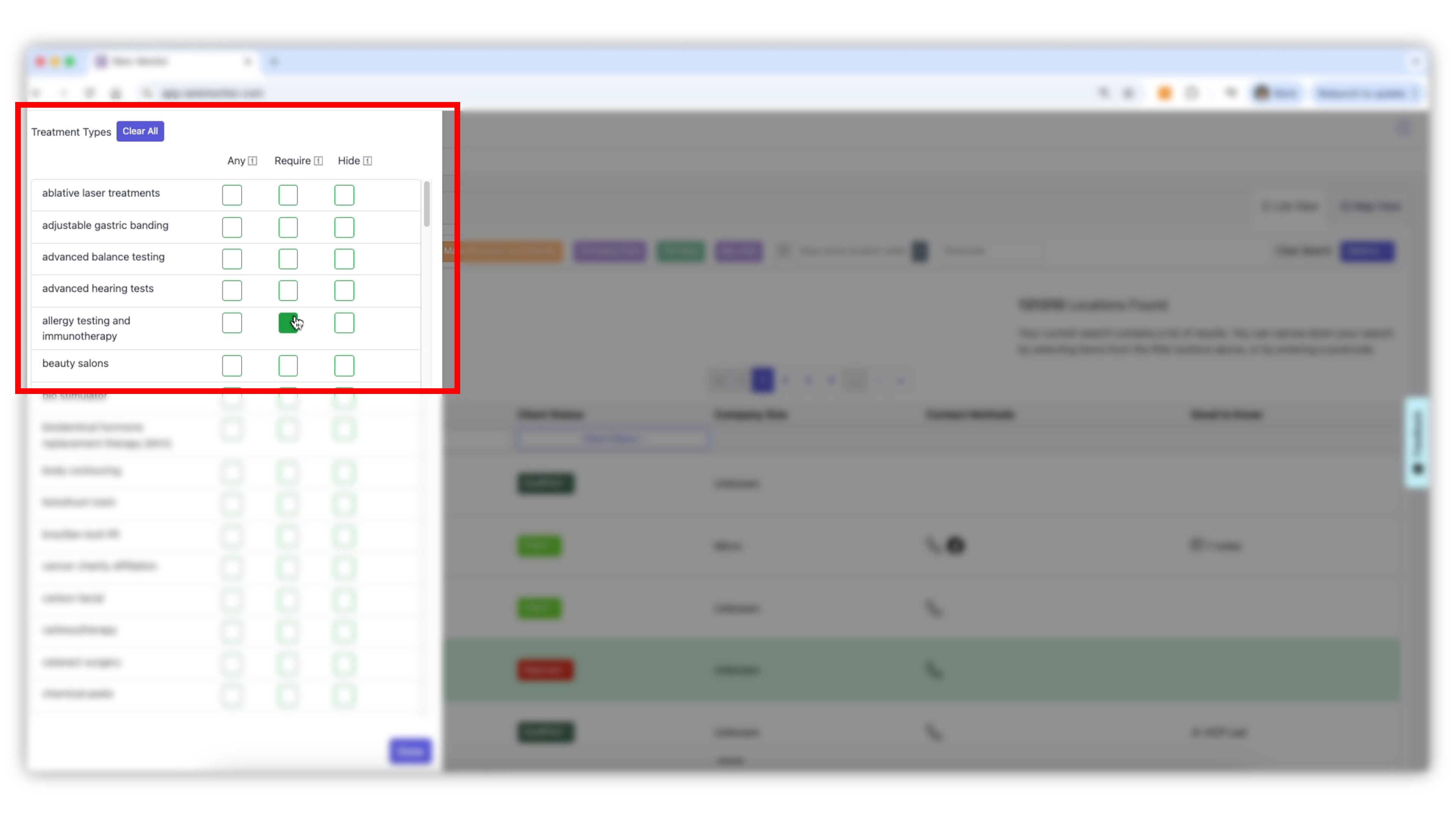
    Run Your First Search

    1. Click Sales Execution. 2. Use the filter options to refine your search. - 'Any' will show clinics that offer any combination of treatments you select. - 'Require' gives you a list of clinics that offer all the conditions you select. - 'Hide' excludes any results with that condition.
    Screenshot from the Rare.Monitor how-to guide for Getting Started, illustrating "Run Your First Search".
  5. 05

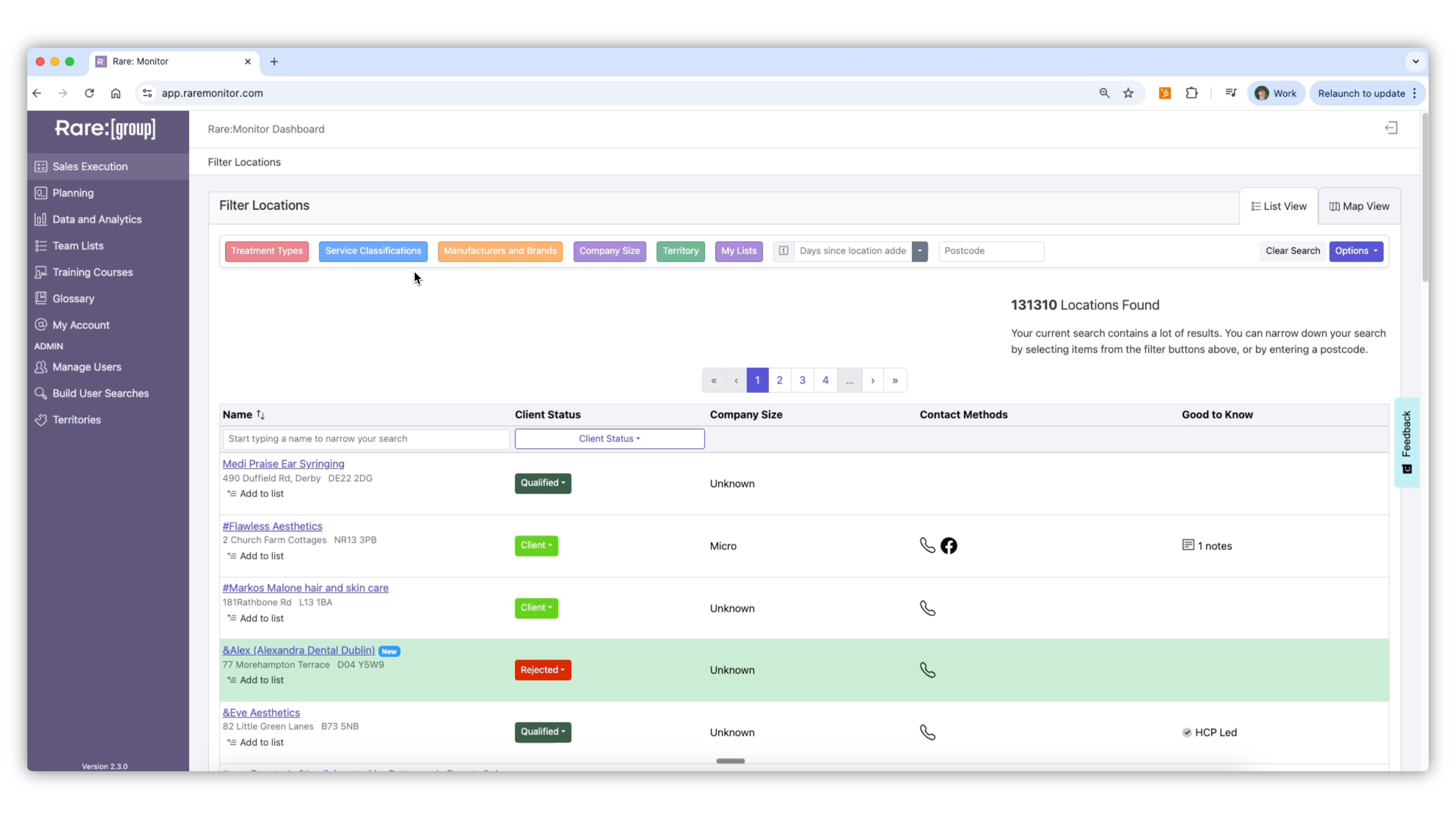
    Review Your Results

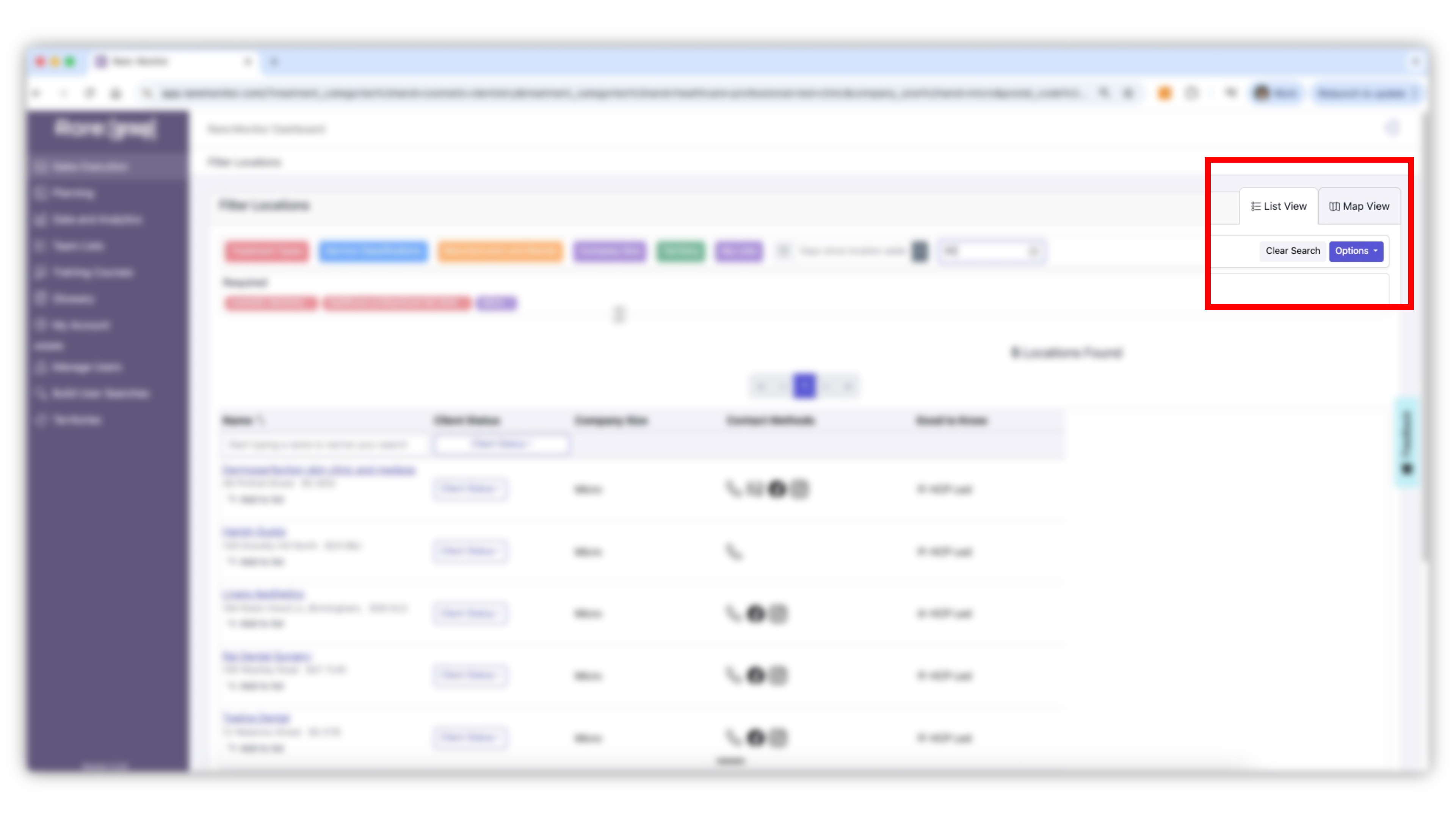
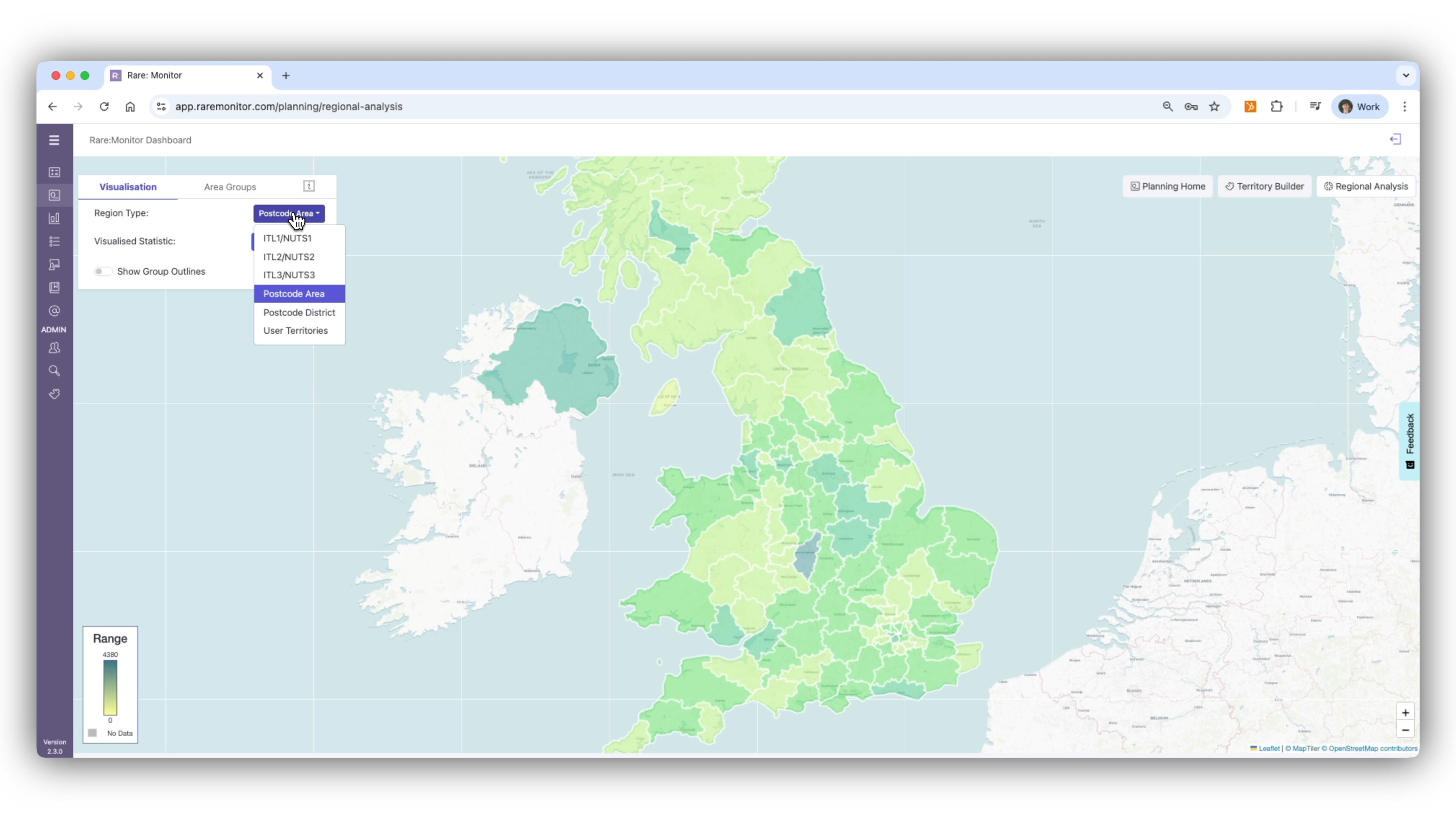
    1. Once filters are applied, your list shrinks from thousands to a practical target group. 2. Switch between List View and Map View. 3. Save your results for later campaigns using Lists. Click Options and 'Add Search to List'.
    Screenshot from the Rare.Monitor how-to guide for Getting Started, illustrating "Review Your Results".
  6. 06

    Review a Clinic

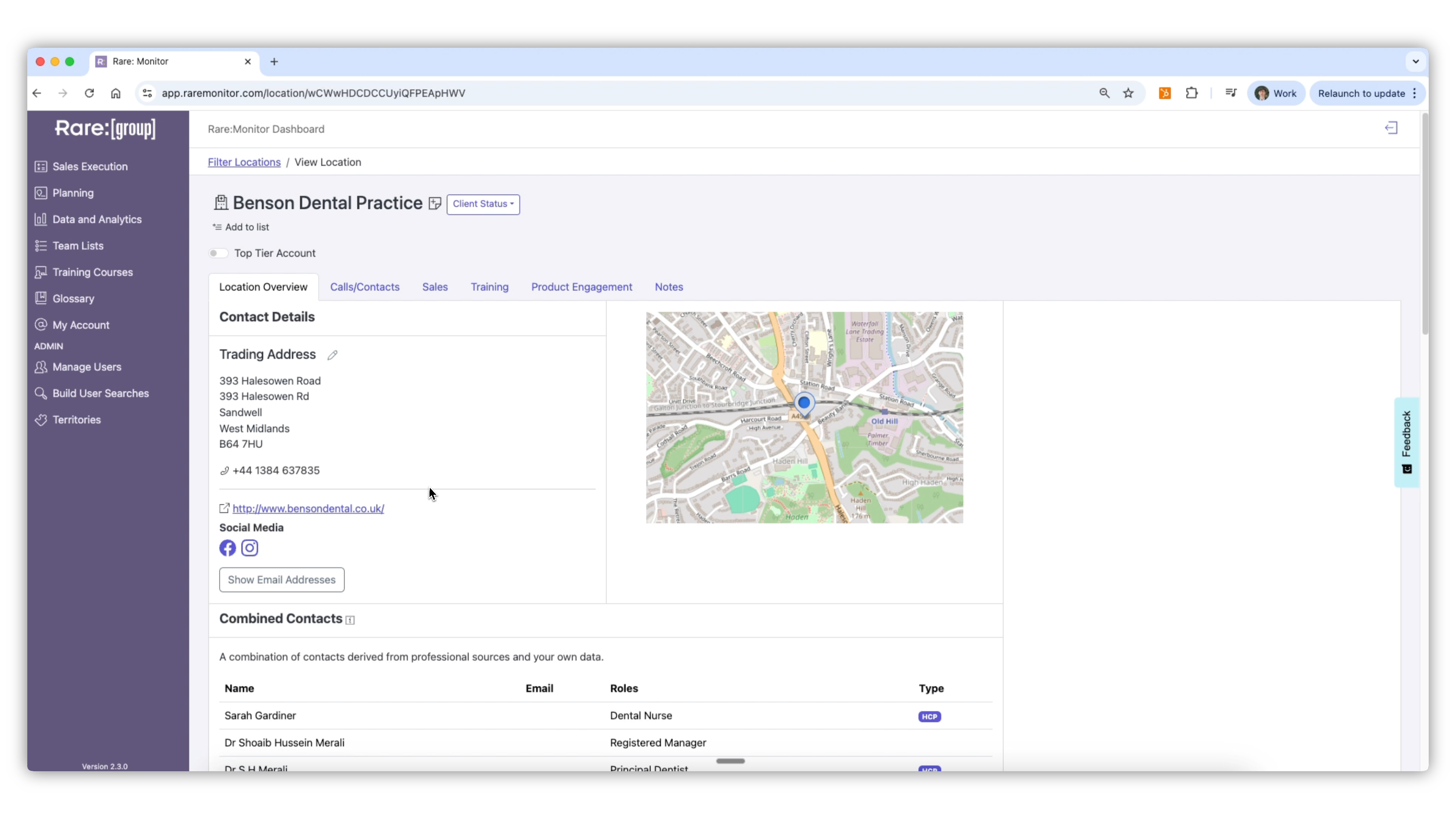
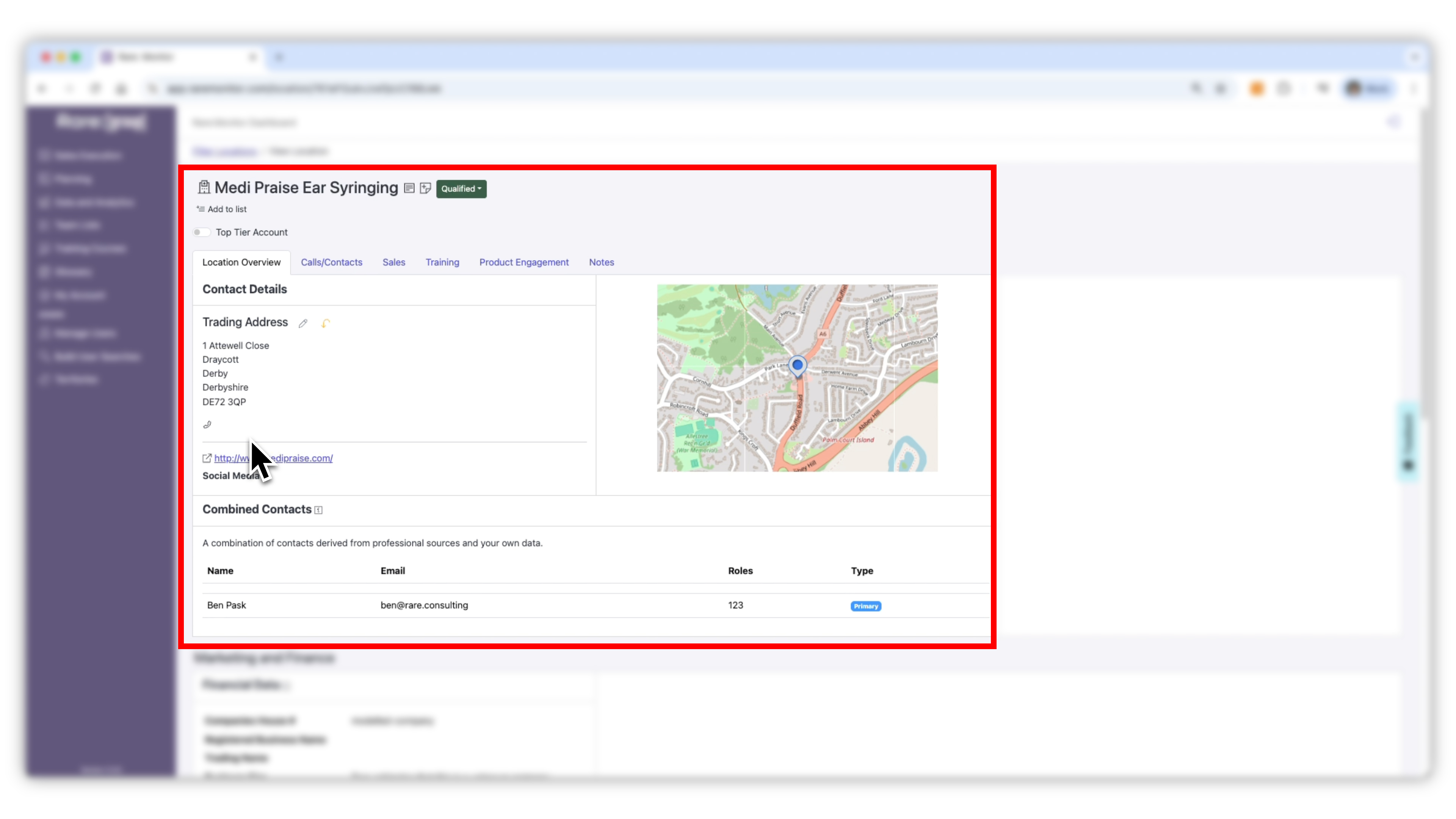
    Click into any clinic page and you'll see key contact information, names of the people that run the practice, location, and demographic data. Use the back arrow to return to the search screen.
    Screenshot from the Rare.Monitor how-to guide for Getting Started, illustrating "Review a Clinic".

Watch more in this series

Next: Using Filters. The next lesson goes deeper, combining treatments with brands, narrowing by company size, and refining by geography.