Compare regions side by side to spot where your opportunity is densest.

Regional Analysis

Lesson overview

Regional Analysis is Rare.Monitor's view of the UK as a heatmap. By the end of this lesson you'll know how to switch between geographic segmentations (NUTS 1, NUTS 2, NUTS 3, postcode districts), overlay your existing territories, and compare regions by population, treatment availability, or clinic density.

Step-by-step instructions

  1. 01

    Open Regional Analysis

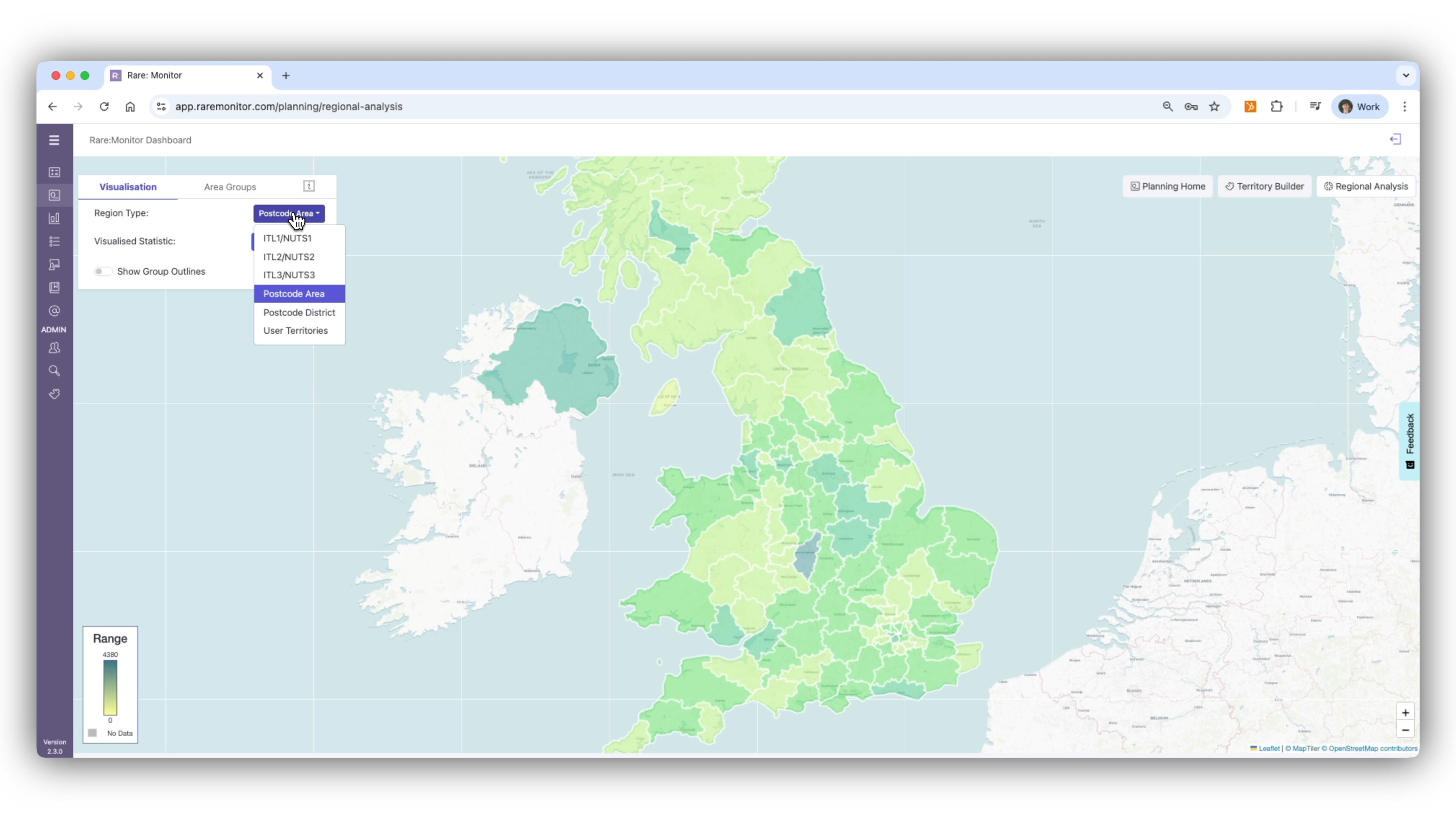
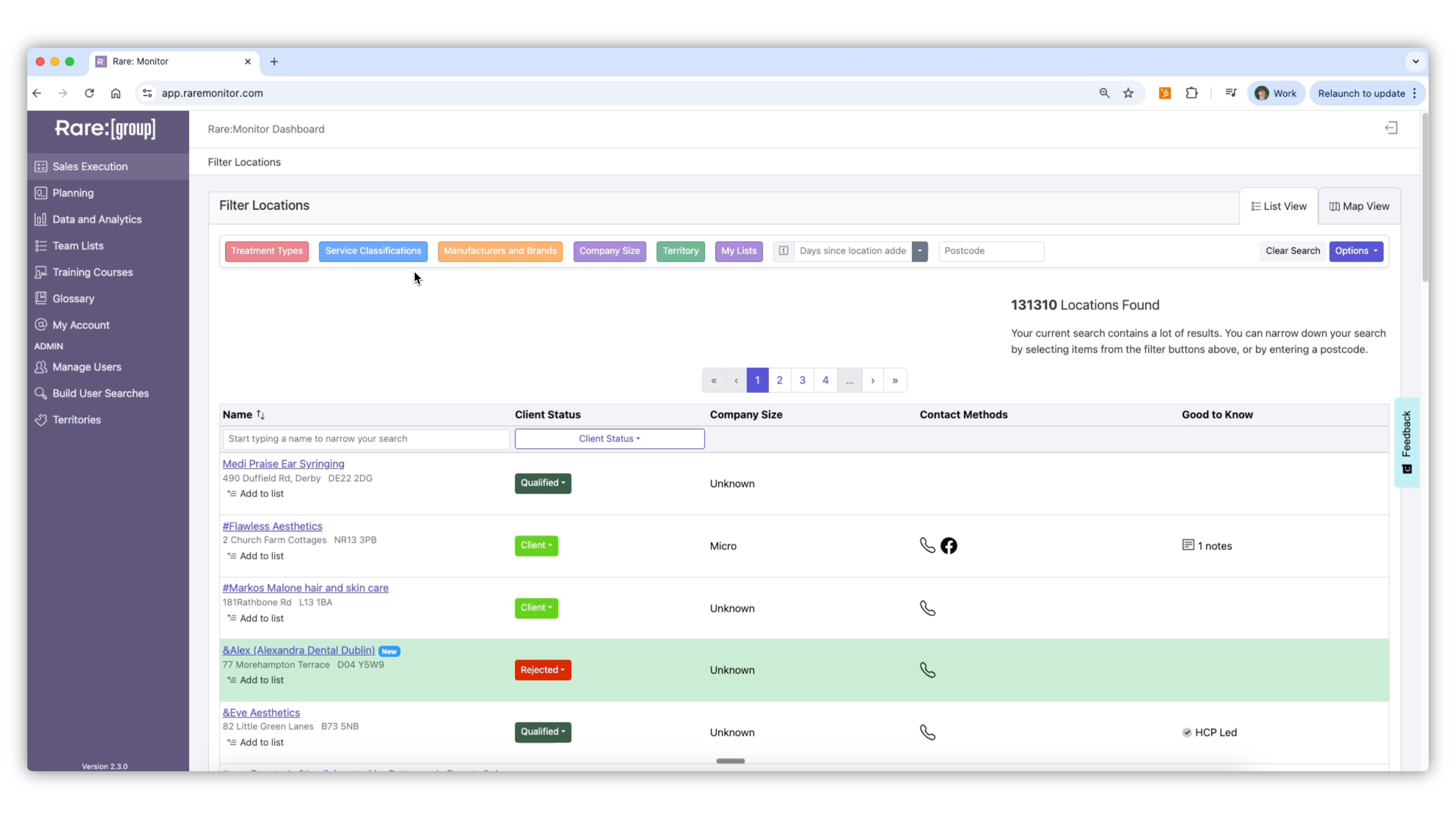
    1. From the left-hand navigation, select Planning, then choose Regional Analysis. 2. The map will load showing the UK divided into default regions. 3. On the left-hand panel, choose how you want to segment the map: - NUTS 1: broad areas such as Scotland or the South East. - NUTS 2 / NUTS 3: smaller, detailed regions. - Postcode Districts: for precise analysis.
    Screenshot from the Rare.Monitor how-to guide for Regional Analysis, illustrating "Open Regional Analysis".
  2. 02

    Compare Territories or Regions

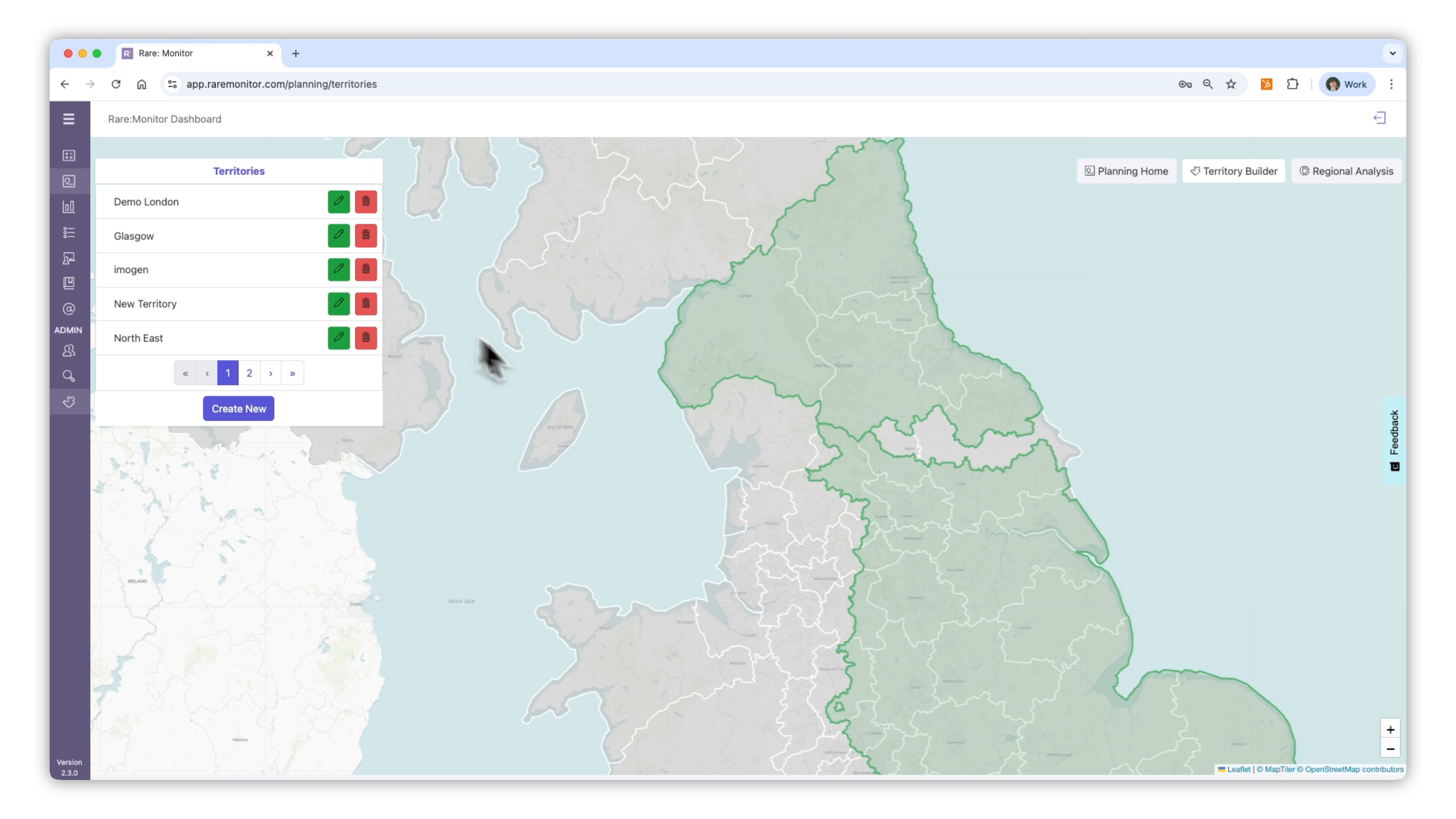
    1. Use the toggle to view User Territories you've already built in Territory Manager. 2. Compare existing sales areas against new regional data to see where density of opportunity is highest. 3. Identify areas that could benefit from re-balancing or future expansion.
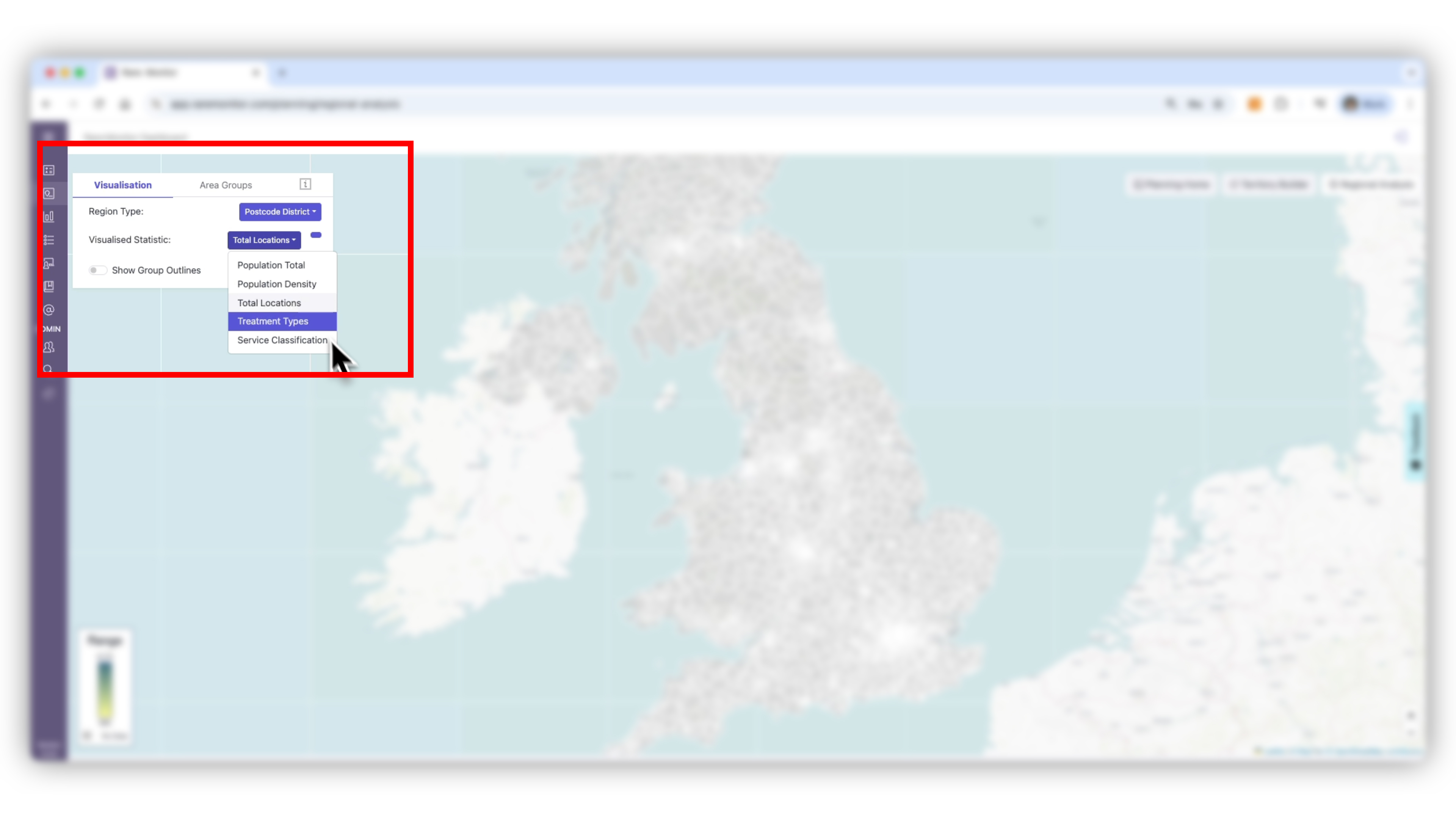
    Screenshot from the Rare.Monitor how-to guide for Regional Analysis, illustrating "Compare Territories or Regions".
  3. 03

    Explore Regional Data

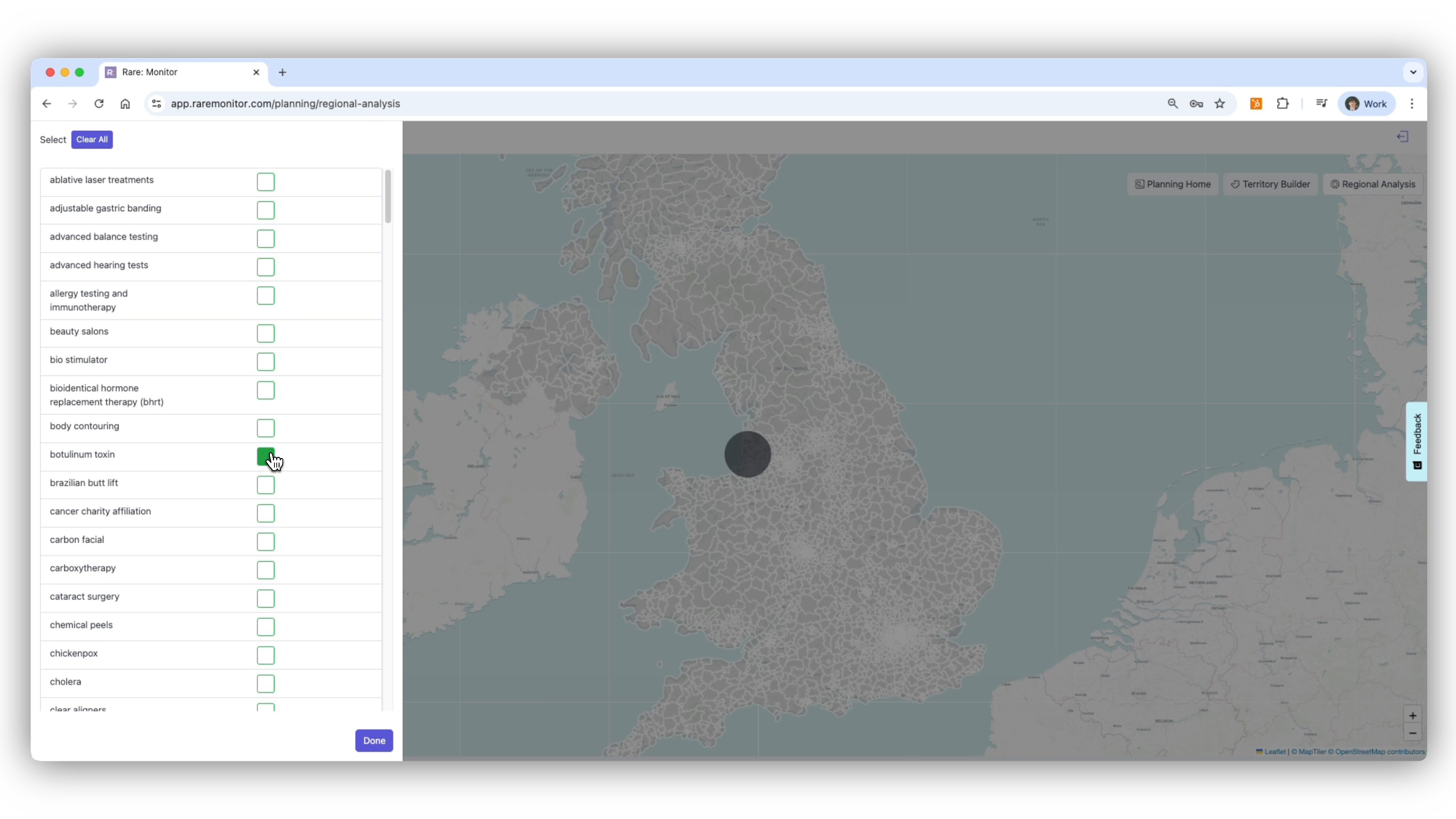
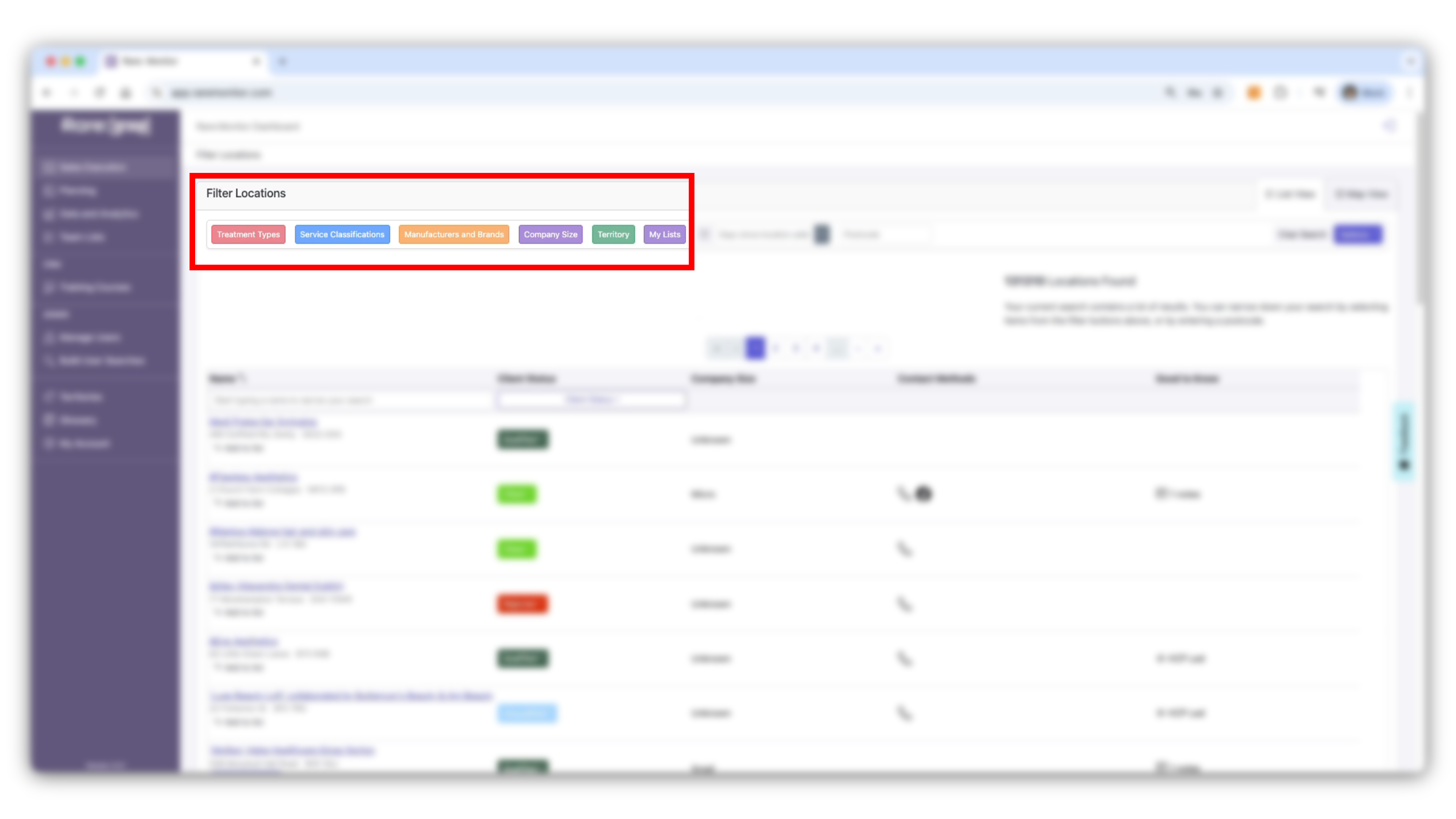
    1. Choose the type of data to analyse from the top filter bar. 2. To view general market size, select Population to see how many people live within each region. 3. To focus on potential customers, select Treatment Types and tick the treatments you care about (e.g., Botulinum Toxin, Body Contouring). 4. The map updates automatically, showing counts and heat intensity for each area.
    Screenshot from the Rare.Monitor how-to guide for Regional Analysis, illustrating "Explore Regional Data".
  4. 04

    Drill Down to Local Detail

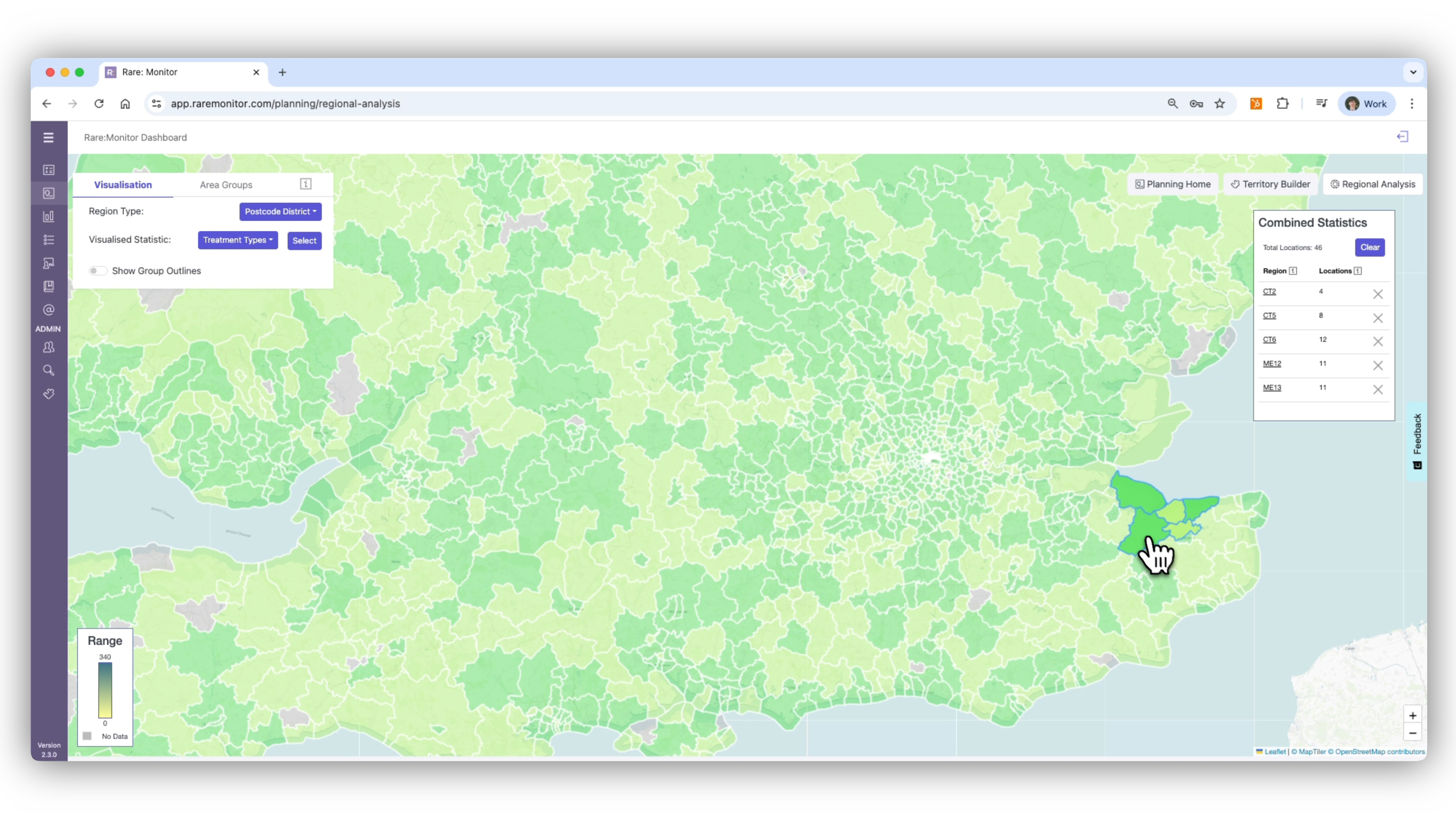
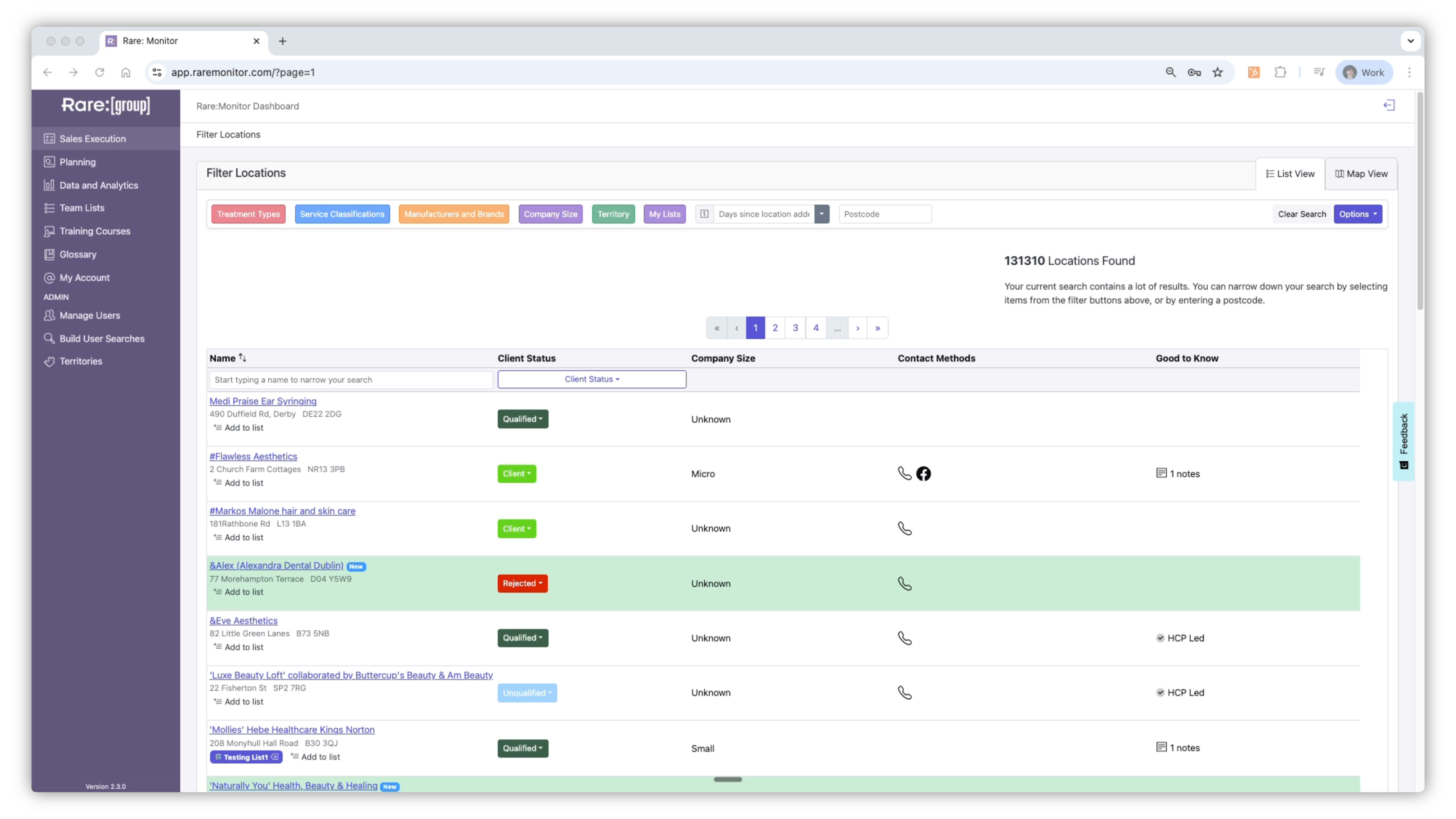
    1. Switch the map view to Postcode Districts for finer analysis. 2. Zoom into a target city (e.g., Brighton). 3. Compare local postcodes such as BN1 and BN3 to see where more clinics match your criteria. 4. Note high-density areas to prioritise in your planning.
    Screenshot from the Rare.Monitor how-to guide for Regional Analysis, illustrating "Drill Down to Local Detail".

Watch more in this series

Next: Create Training Courses & Modules. With the geography sorted, the next lesson moves to how Monitor tracks training activity, and links it to sales analytics.