Log calls, sales, training, and product engagement against every account.

Managing and Recording CRM Records

Lesson overview

Every clinic in Rare.Monitor has an account page where you record what happens with that account. By the end of this lesson you'll know how to add contacts, log calls and meetings, record sales, link training, track product engagement levels, and update client status. Everything that feeds the analytics dashboard.

Step-by-step instructions

  1. 01

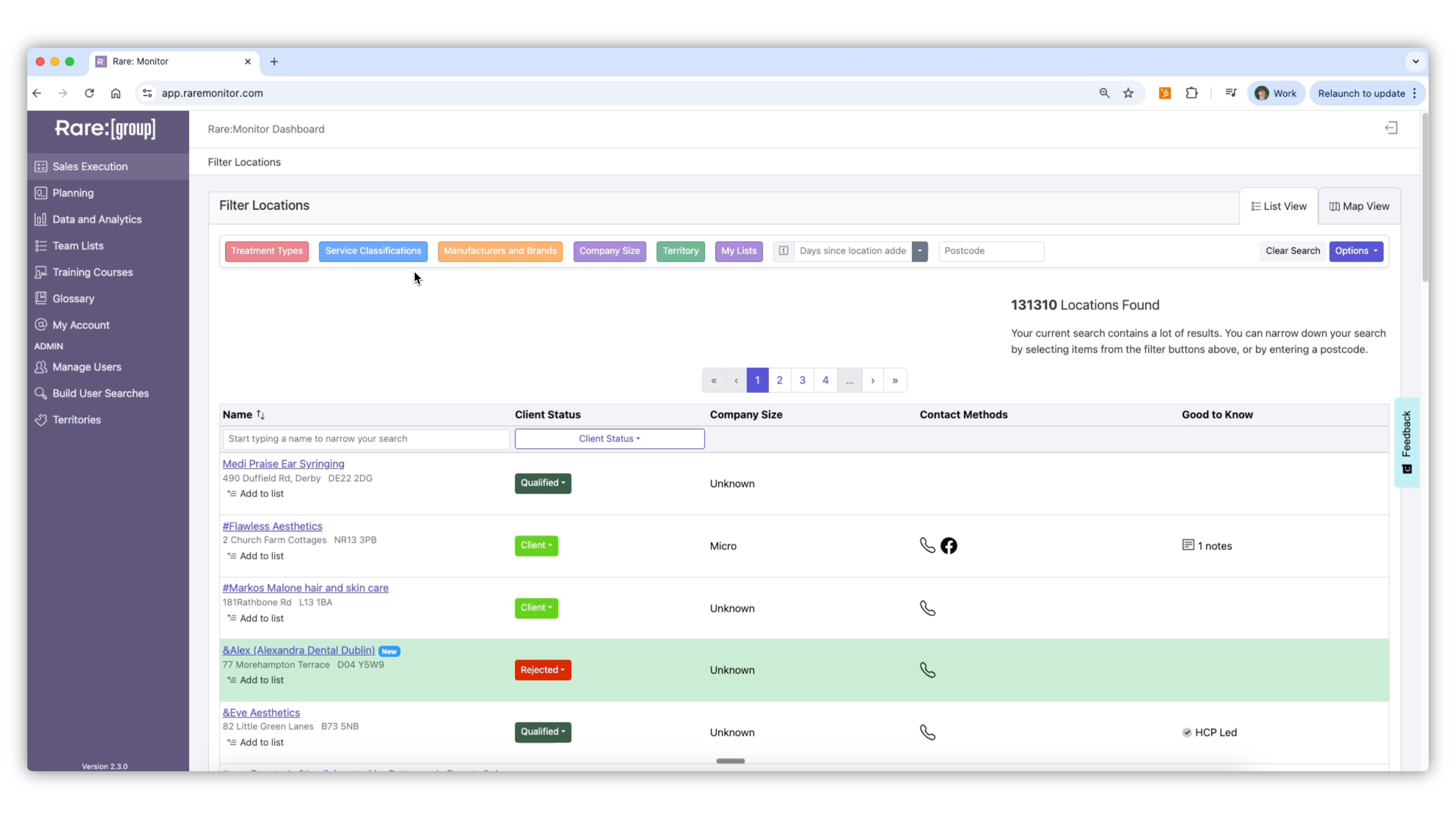
    Access the Account Page

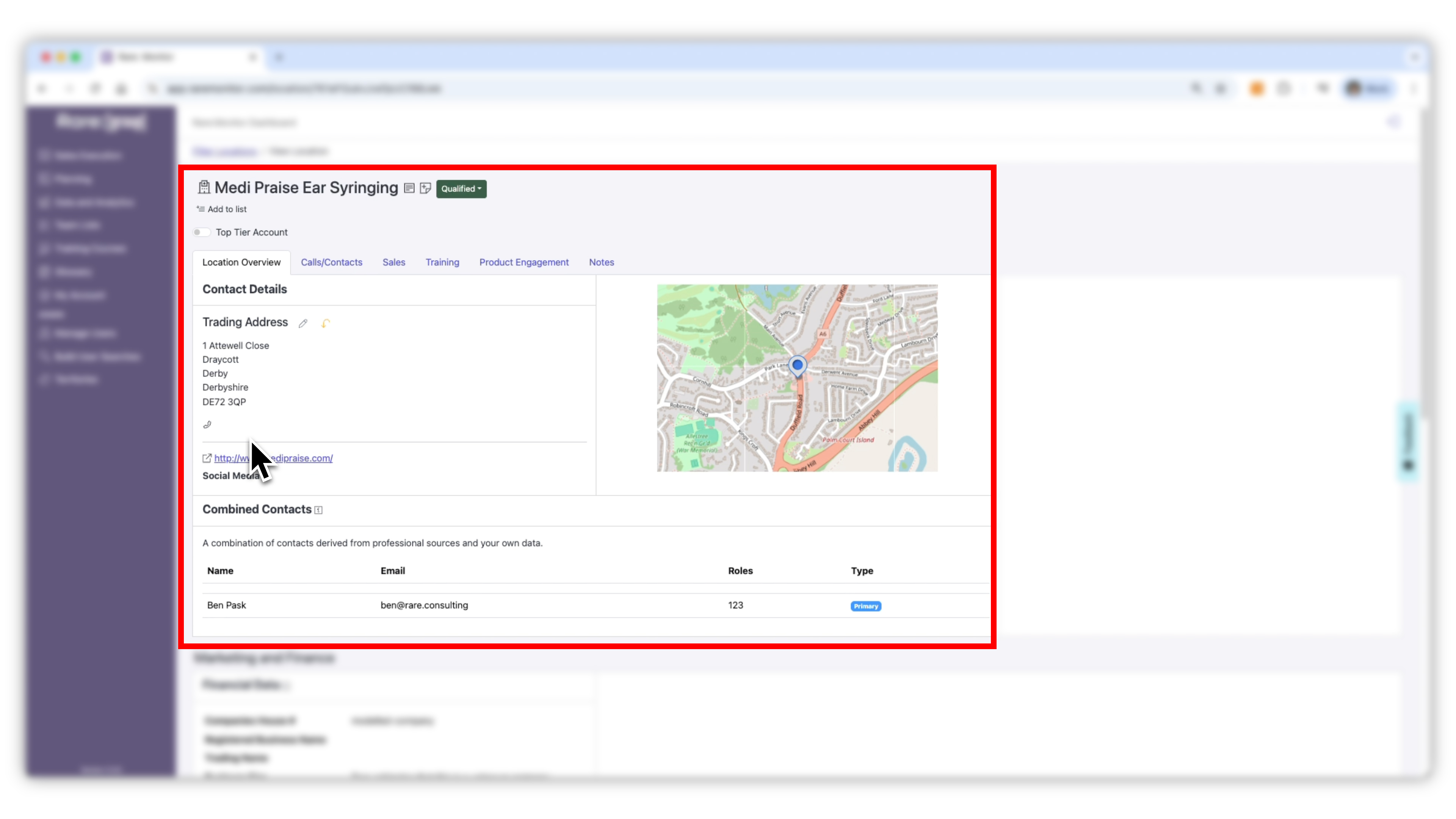
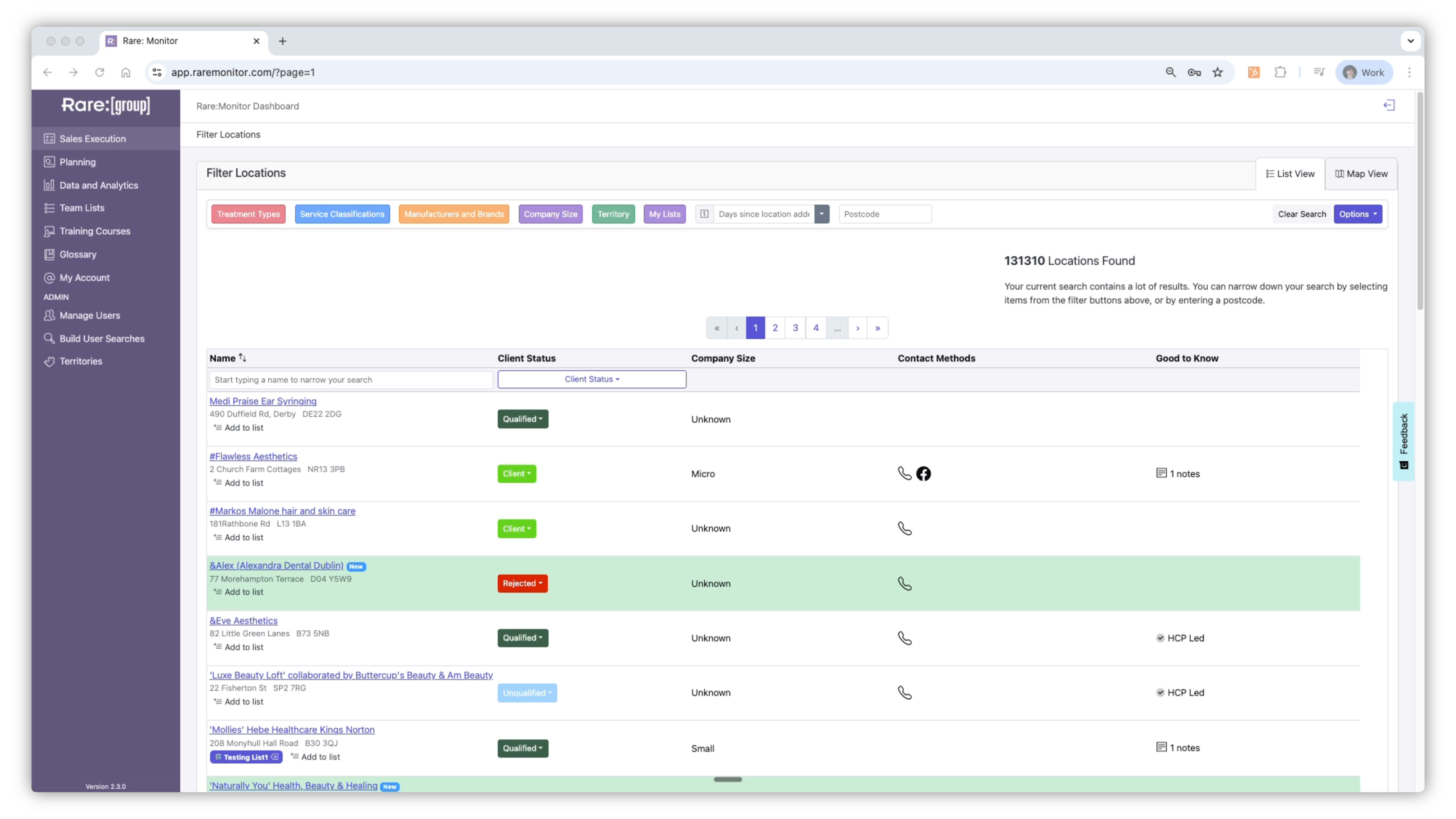
    1. Go to Sales Execution and select a business from your results list. 2. On the account page, review the information automatically pulled from the clinic's website and public data sources. 3. You'll see tabs for Contacts, Calls, Sales, Training, Product Engagement, and Notes at the top of the screen.
    Screenshot from the Rare.Monitor how-to guide for Managing and Recording CRM Records, illustrating "Access the Account Page".
  2. 02

    Add or Update a Contact

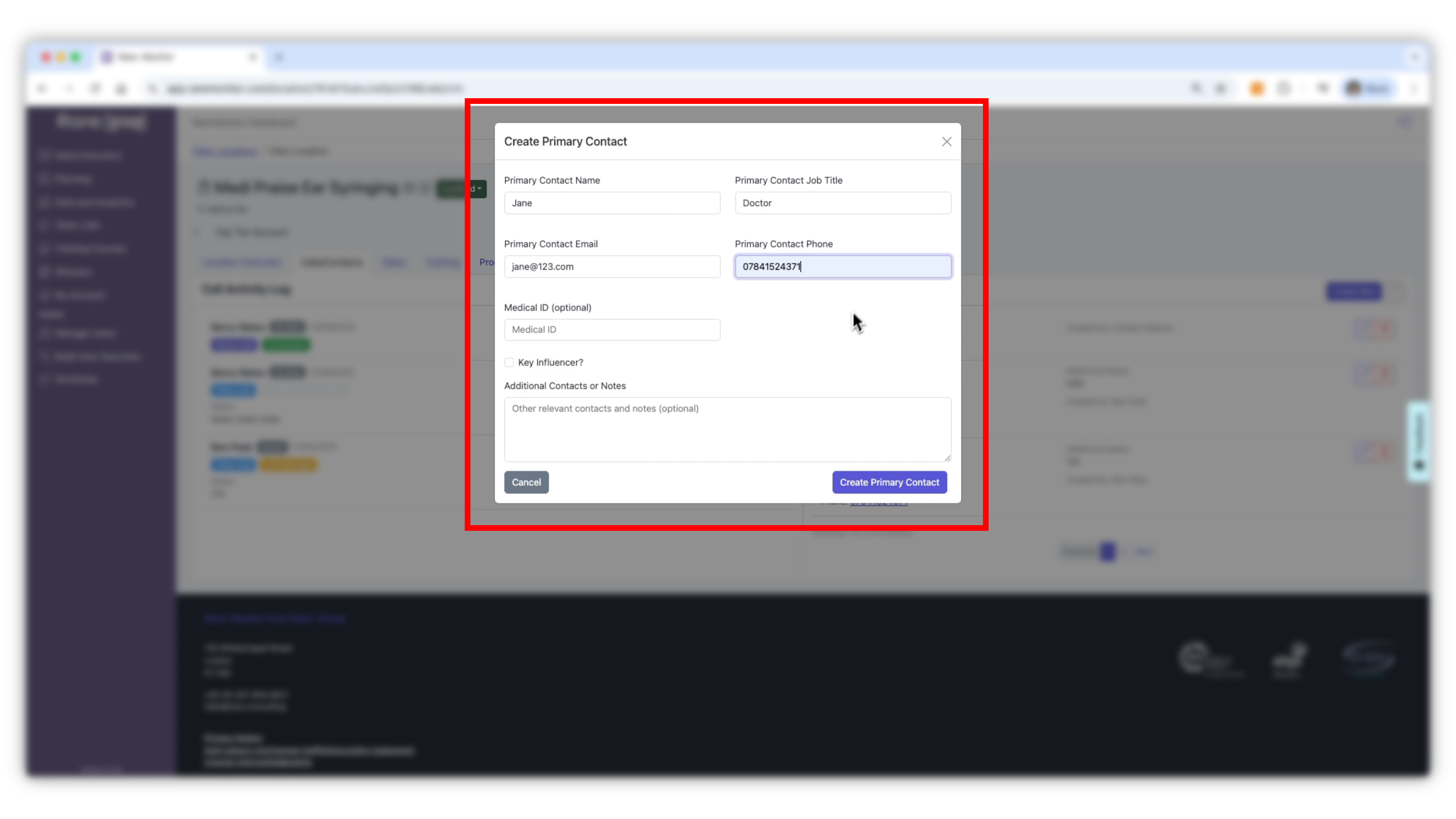
    1. In the Contacts tab, click Add Contact. 2. Fill in the person's name, job title and contact details. 3. Note whether they are a key decision maker or influencer. 4. Add any relevant notes about their role or preferences. 5. Click Save.
    Screenshot from the Rare.Monitor how-to guide for Managing and Recording CRM Records, illustrating "Add or Update a Contact".
  3. 03

    Log a Call or Meeting

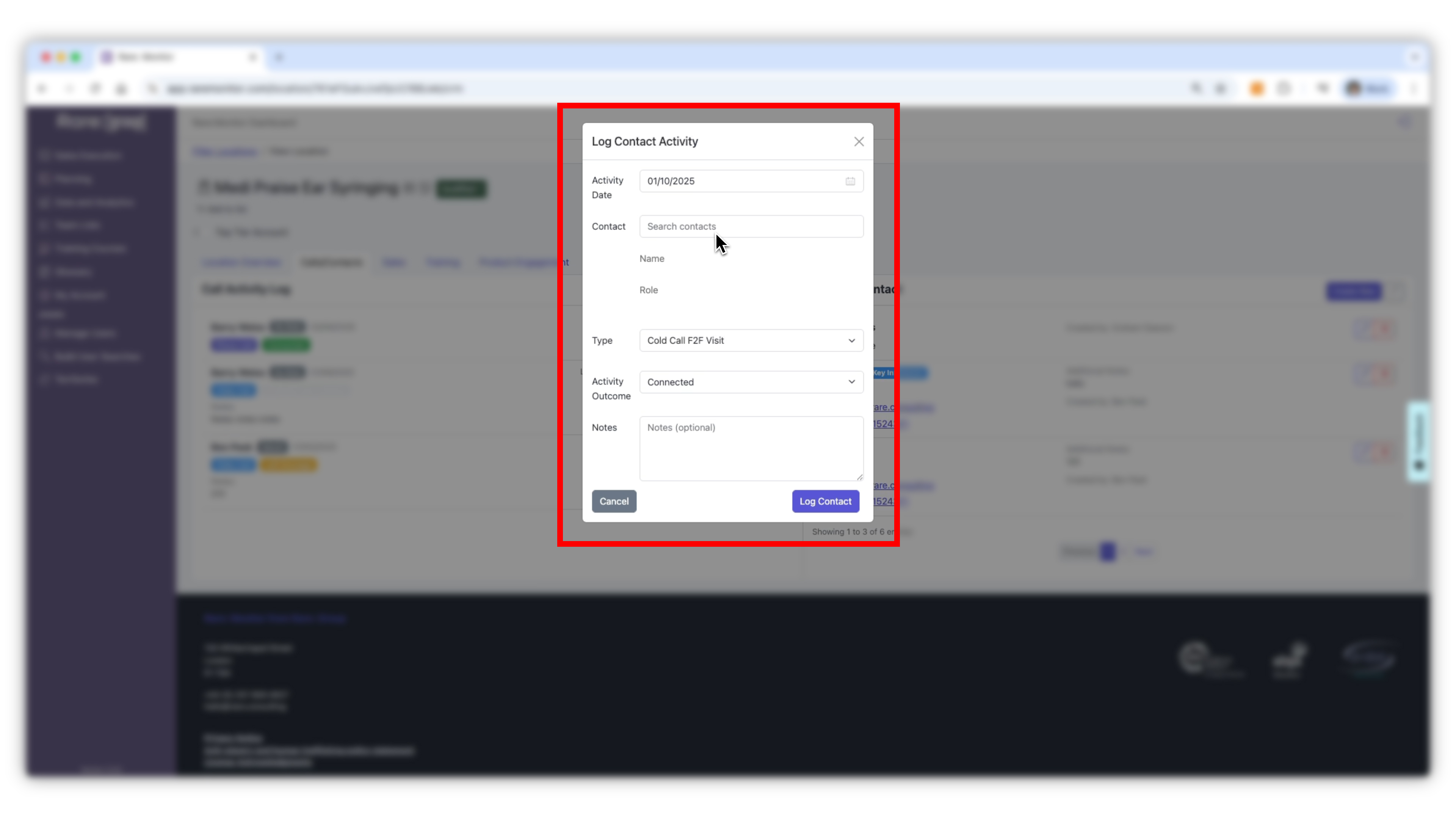
    1. Open the Calls tab and click Log New Call. 2. Select the date and contact you spoke with. 3. Under Interaction Type, choose: Phone call, Video call, Scheduled visit, Unscheduled visit, Email, or No contact. 4. Add an Outcome and any relevant notes. 5. Click Save.
    Screenshot from the Rare.Monitor how-to guide for Managing and Recording CRM Records, illustrating "Log a Call or Meeting".
  4. 04

    Record Sales

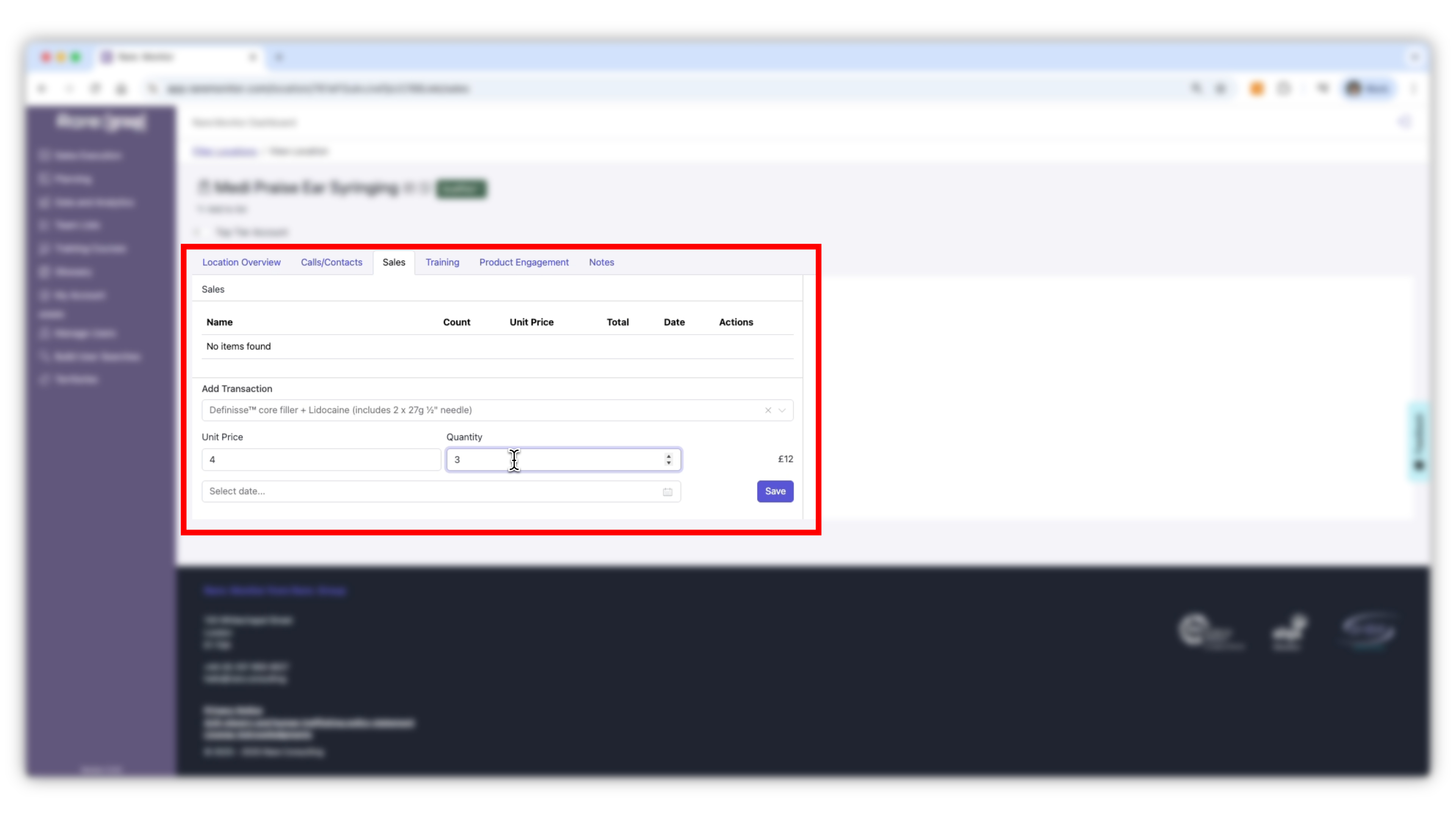
    In the Sales tab, add new sales activity by entering the purchase date and saving. This automatically updates your analytics and sales performance reports.
    Screenshot from the Rare.Monitor how-to guide for Managing and Recording CRM Records, illustrating "Record Sales".
  5. 05

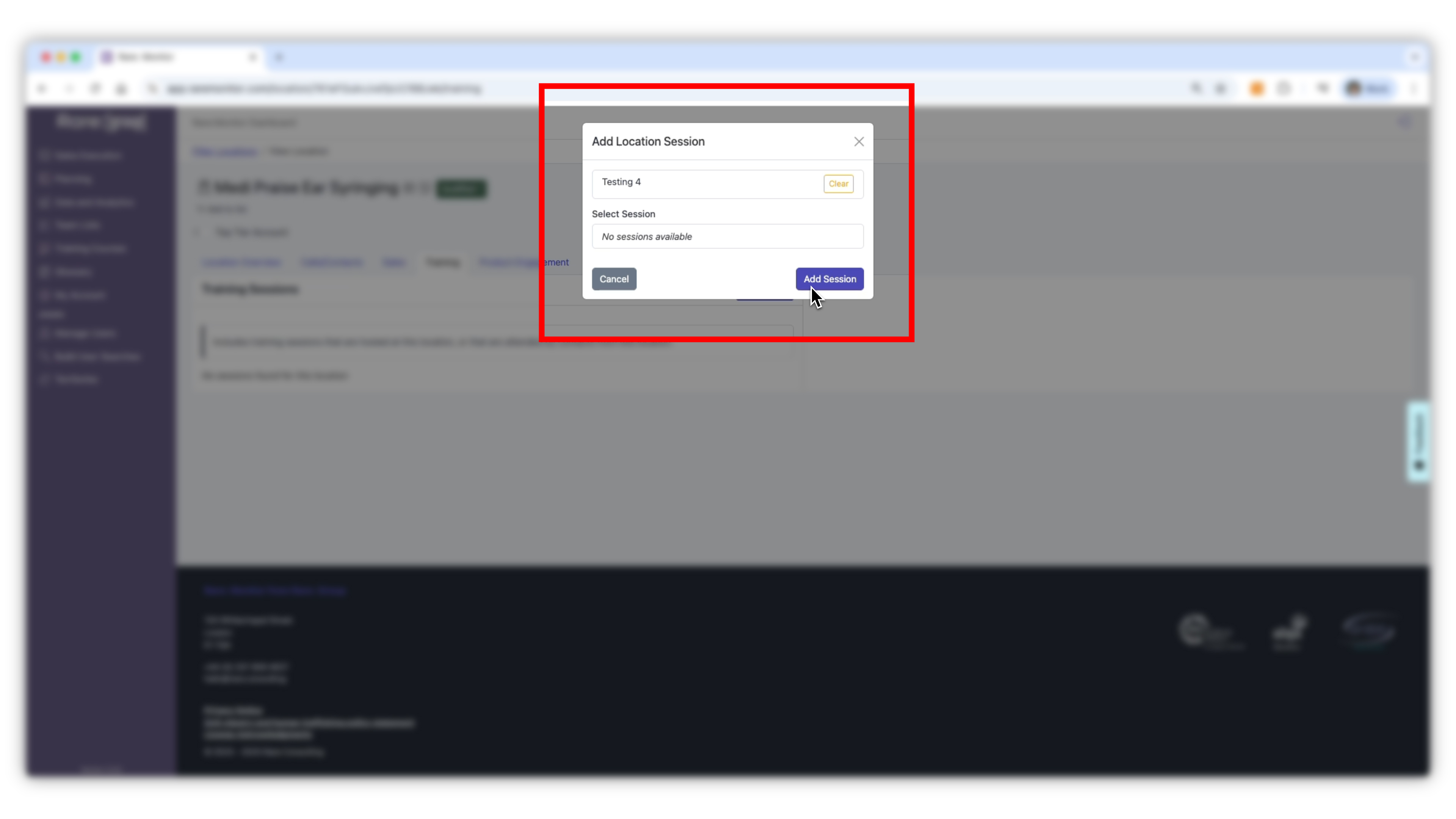
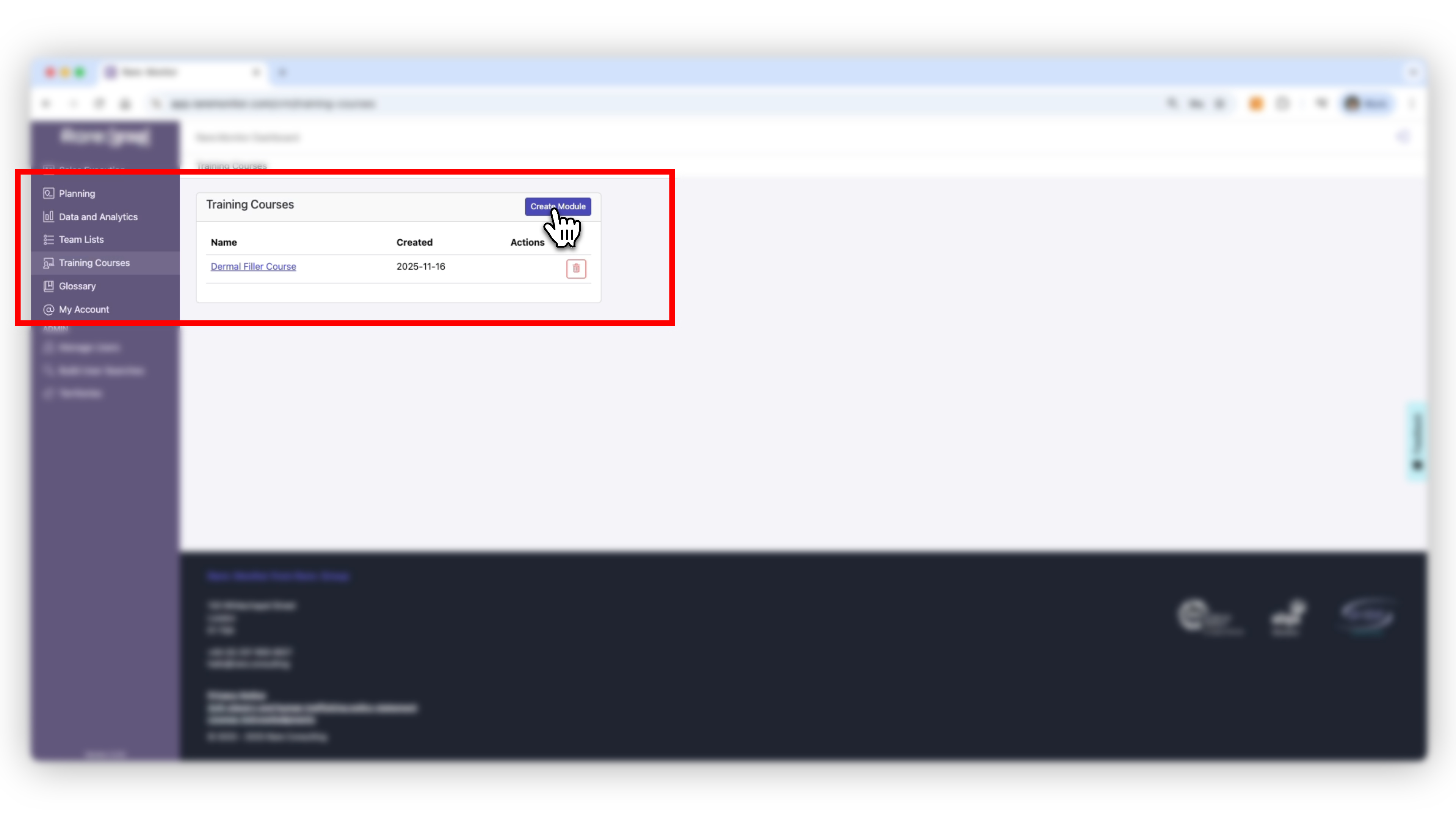
    Record Training

    In the Training tab, add the clinic or contact to a training course you've already created and select the relevant session. The activity will then appear in your training dashboard alongside the rest of the training history for that account.
    Screenshot from the Rare.Monitor how-to guide for Managing and Recording CRM Records, illustrating "Record Training".
  6. 06

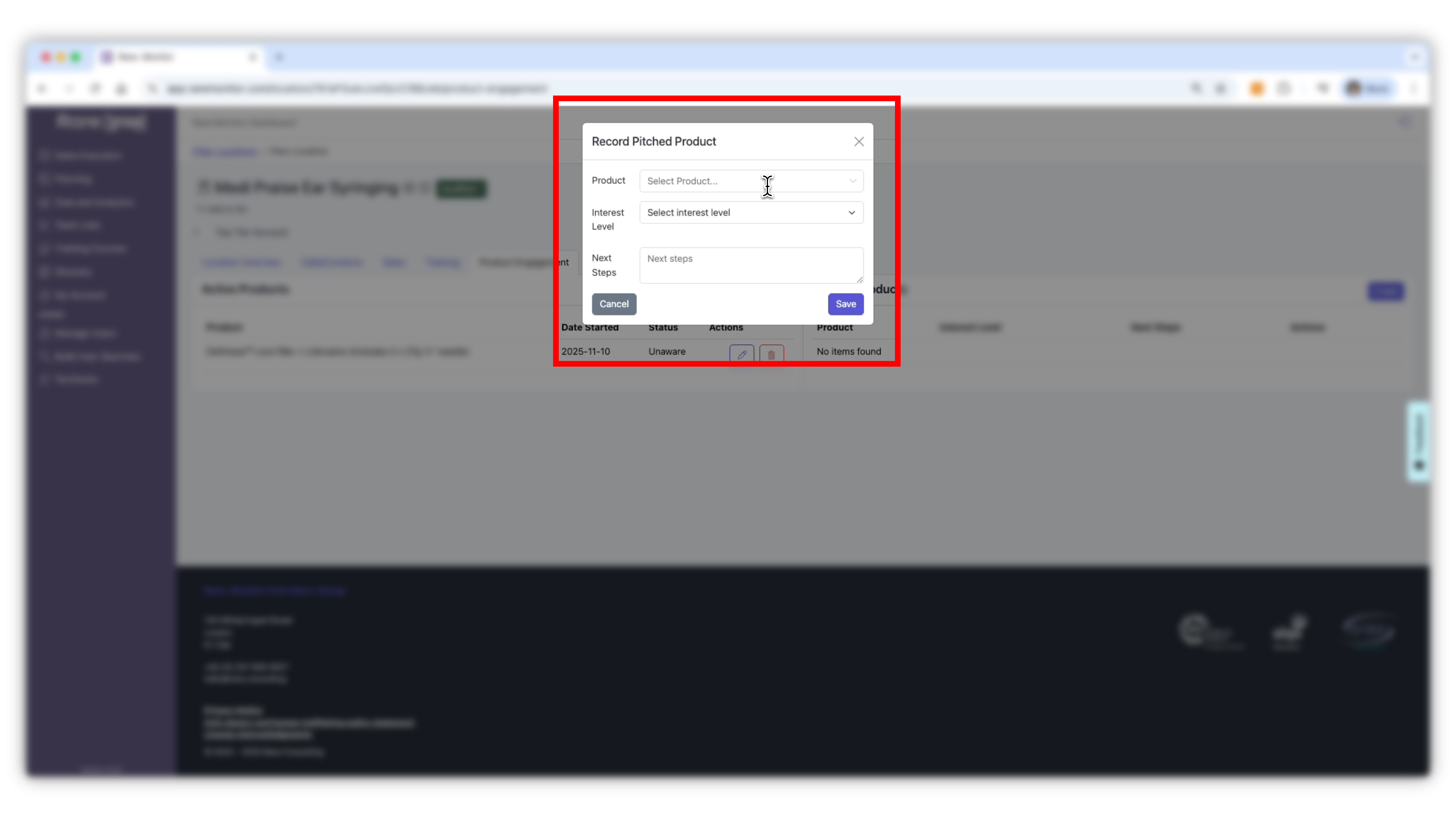
    Track Product Engagement

    1. Open the Product Engagement tab. 2. Under Active Products, record whether the clinic is Aware, In trial, or Using the product. 3. Under Pitched Products, log products you've discussed and their interest level. 4. Use this data to plan future campaigns and outreach.
    Screenshot from the Rare.Monitor how-to guide for Managing and Recording CRM Records, illustrating "Track Product Engagement".
  7. 07

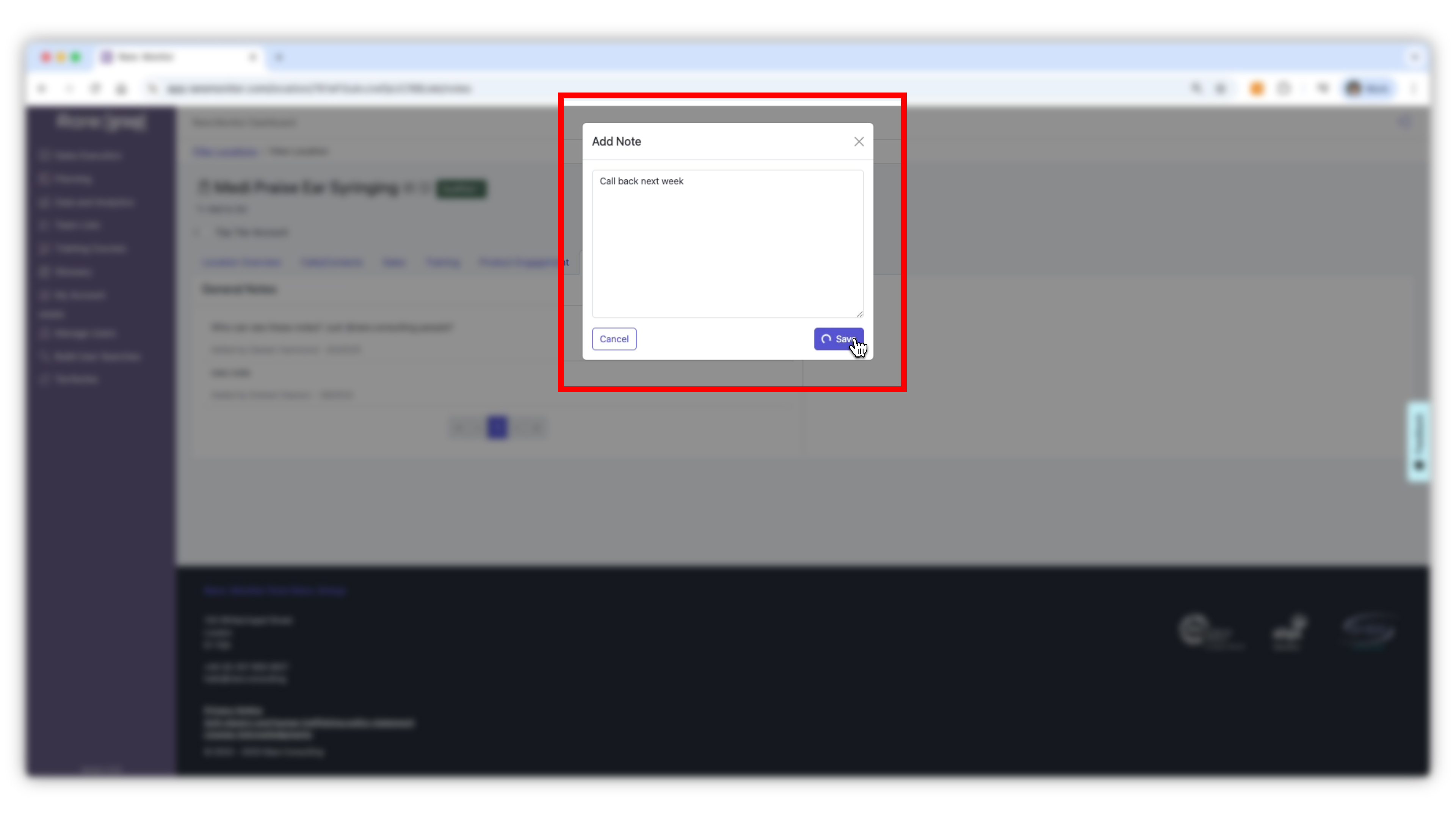
    Add Notes and Update Client Status

    1. Use the Notes tab to capture general observations, updates, or reminders. 2. At the top of the account, set the Client Status: Client, Lapsed, Qualified, Unqualified, Rejected, Nurturing, or Cold.
    Screenshot from the Rare.Monitor how-to guide for Managing and Recording CRM Records, illustrating "Add Notes and Update Client Status".

Watch more in this series

That's the seven lessons. From here you can revisit any lesson from the hub, browse the Rare.Monitor reports library to see how the dataset shows up in our published research, or book a one-to-one with the Rare team if you want help applying any of this to your role.