Combine treatments, brands, and geography to turn thousands of clinics into a workable target list.

Using Filters

Lesson overview

This lesson covers every filter Rare.Monitor supports: Treatments (with Any, Require, and Hide logic), Service Classifications, Manufacturers and Brands, Company Size, Territory, and saved Lists. By the end you'll know how to combine them to surface exactly the clinics you want, and save the result.

Step-by-step instructions

  1. 01

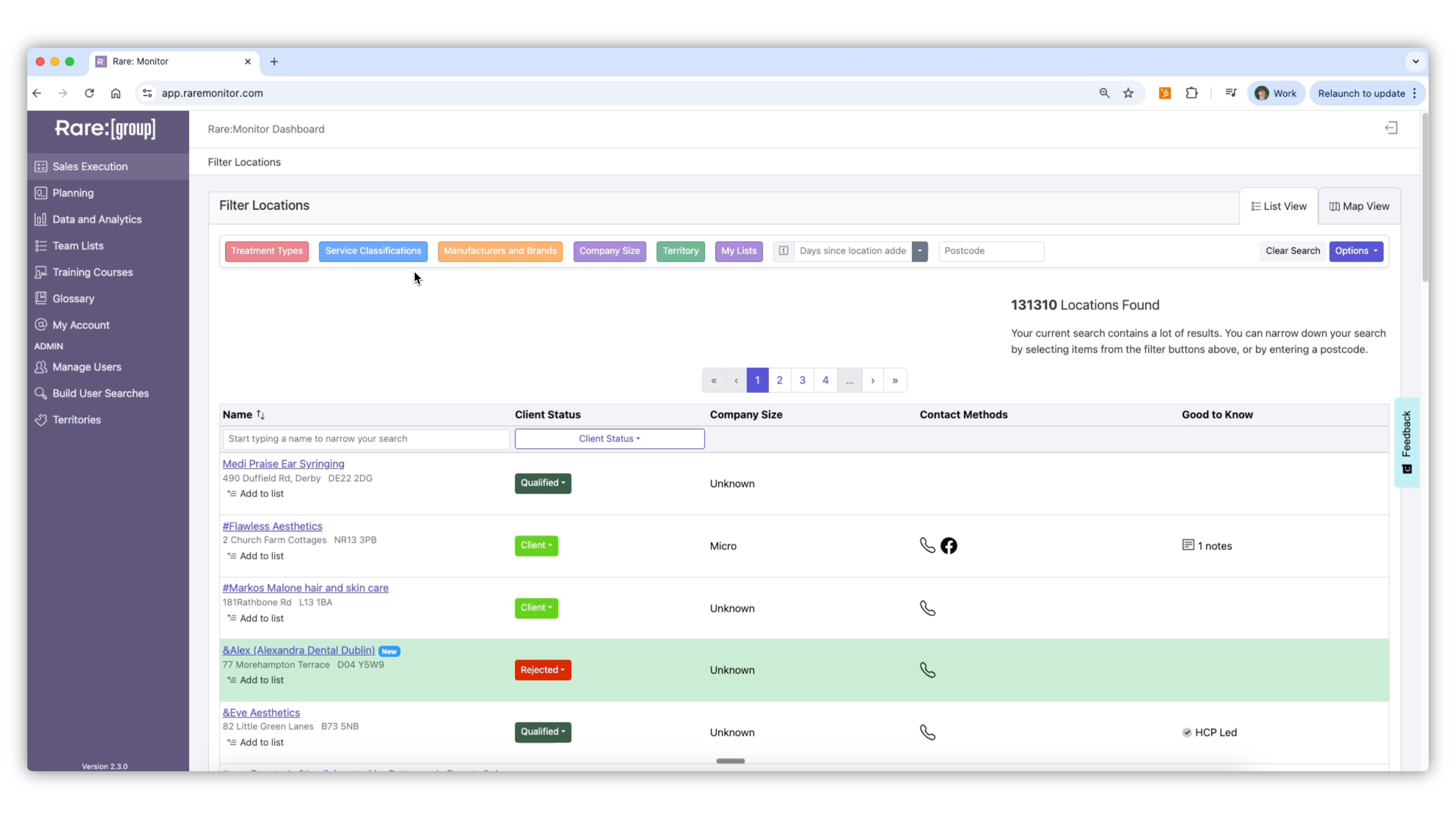
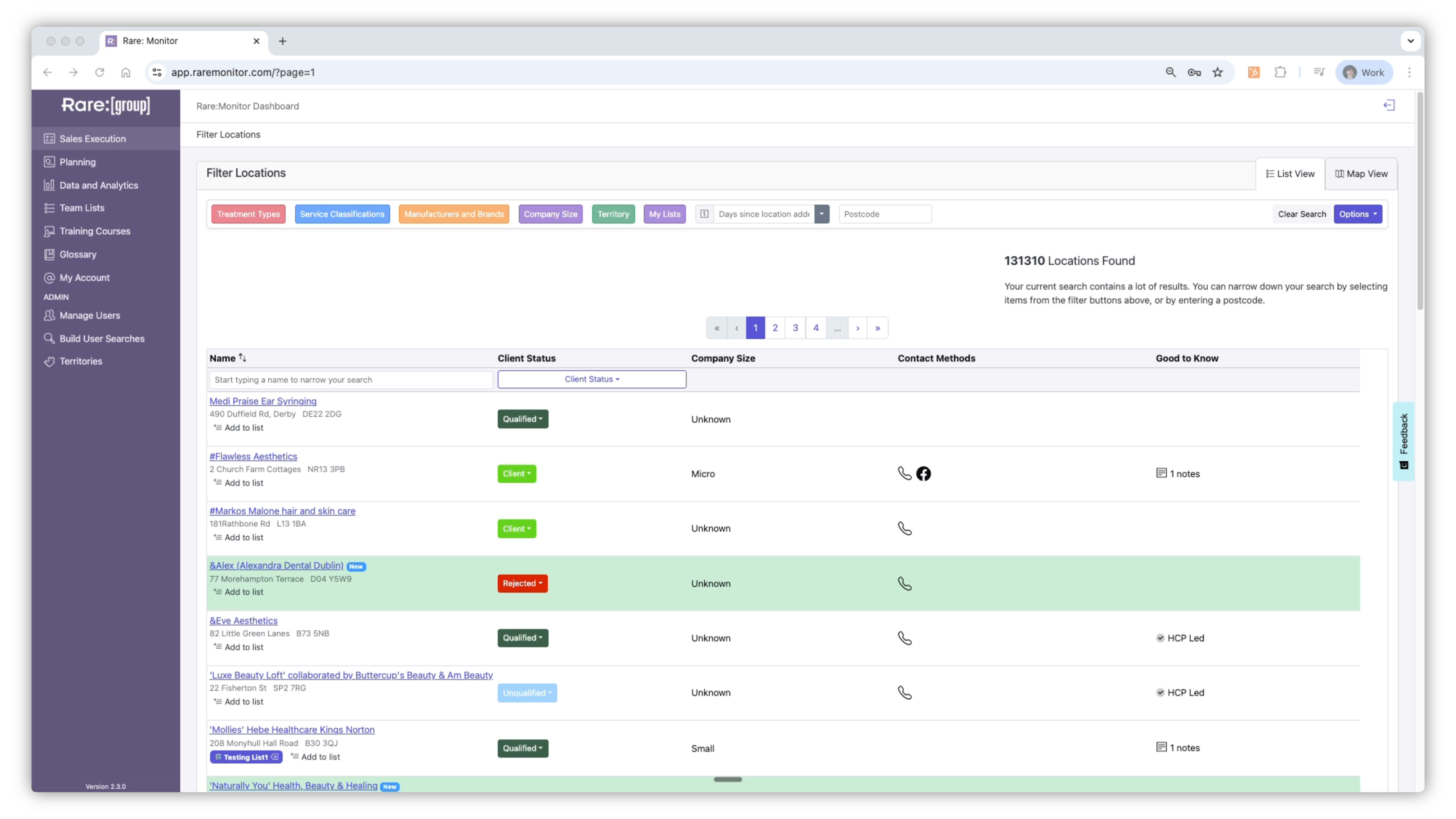
    Explore Filter Options

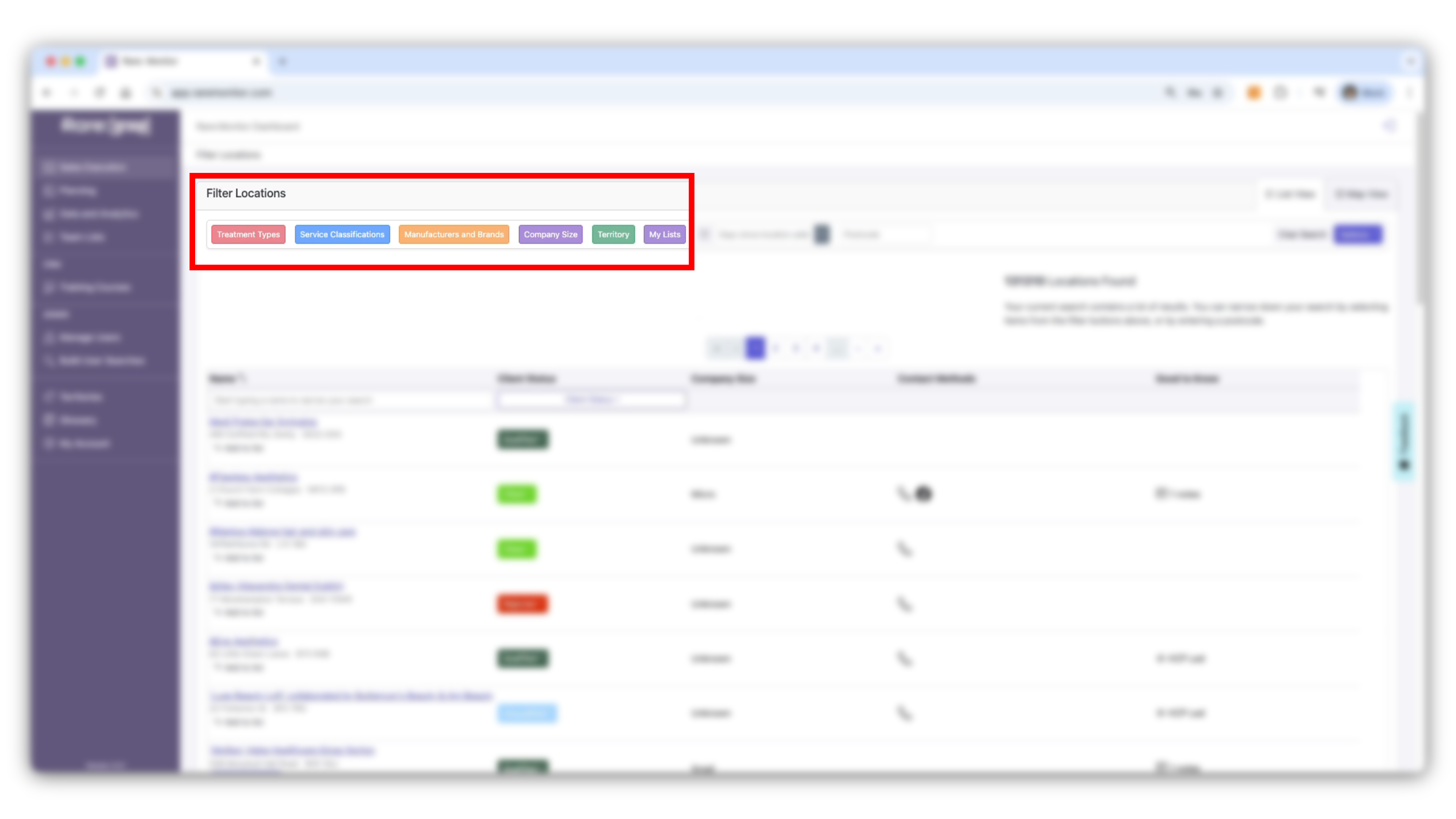
    After logging in, you'll land on the Sales Execution page. At the top, you'll find filter buttons: Treatments, Service Classifications, Manufacturers and Brands, Company Size, Territory, My Lists.
    Screenshot from the Rare.Monitor how-to guide for Using Filters, illustrating "Explore Filter Options".
  2. 02

    Apply Treatment Filters

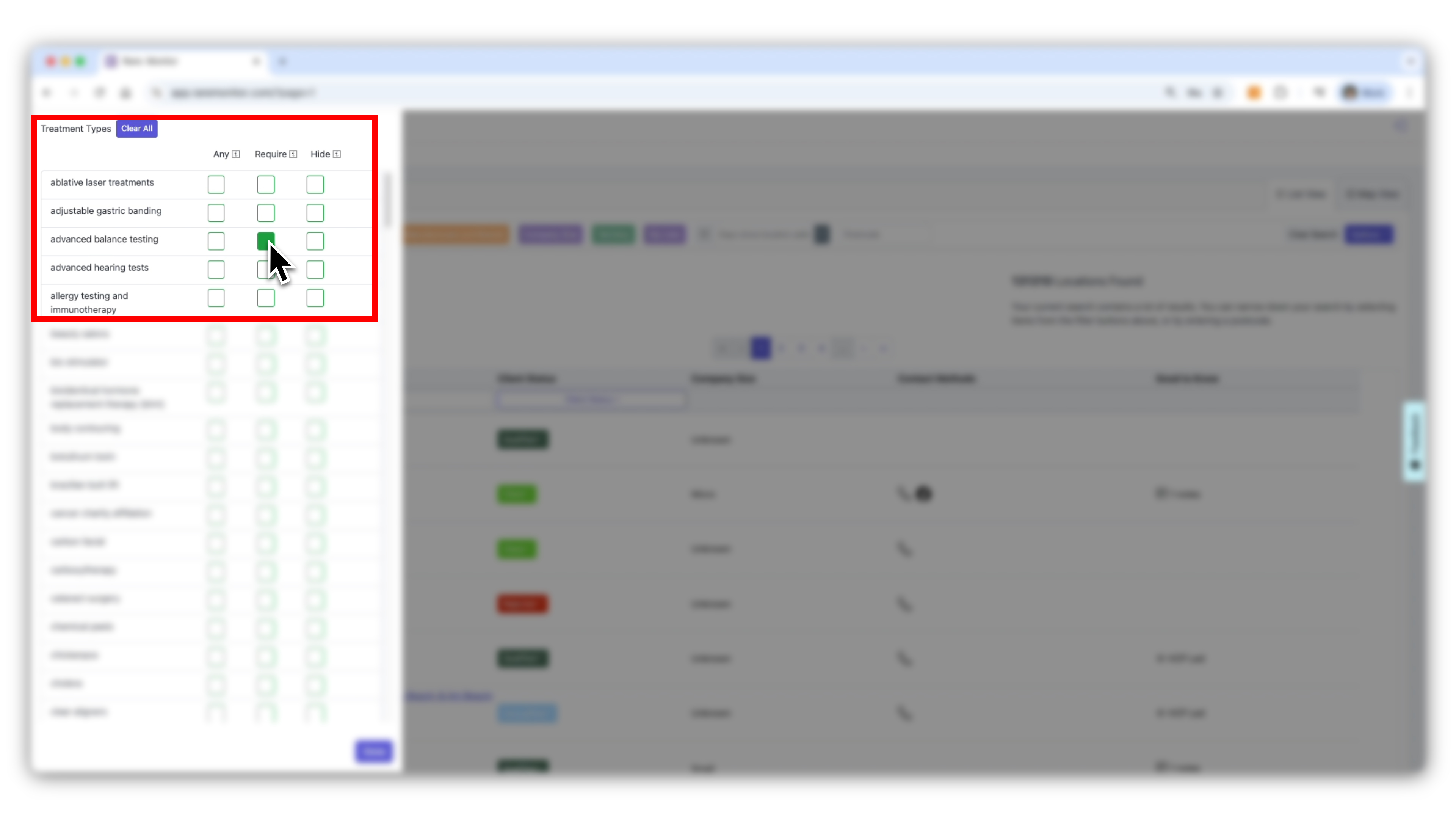
    Select the Treatment Types filter. There are three ways to apply filters based on the treatments offered: - Any: show clinics offering any of the selected treatments. - Require: show clinics that must offer all selected treatments. - Hide: exclude treatments you don't want in the results.
    Screenshot from the Rare.Monitor how-to guide for Using Filters, illustrating "Apply Treatment Filters".
  3. 03

    Refine by Classification and Brands

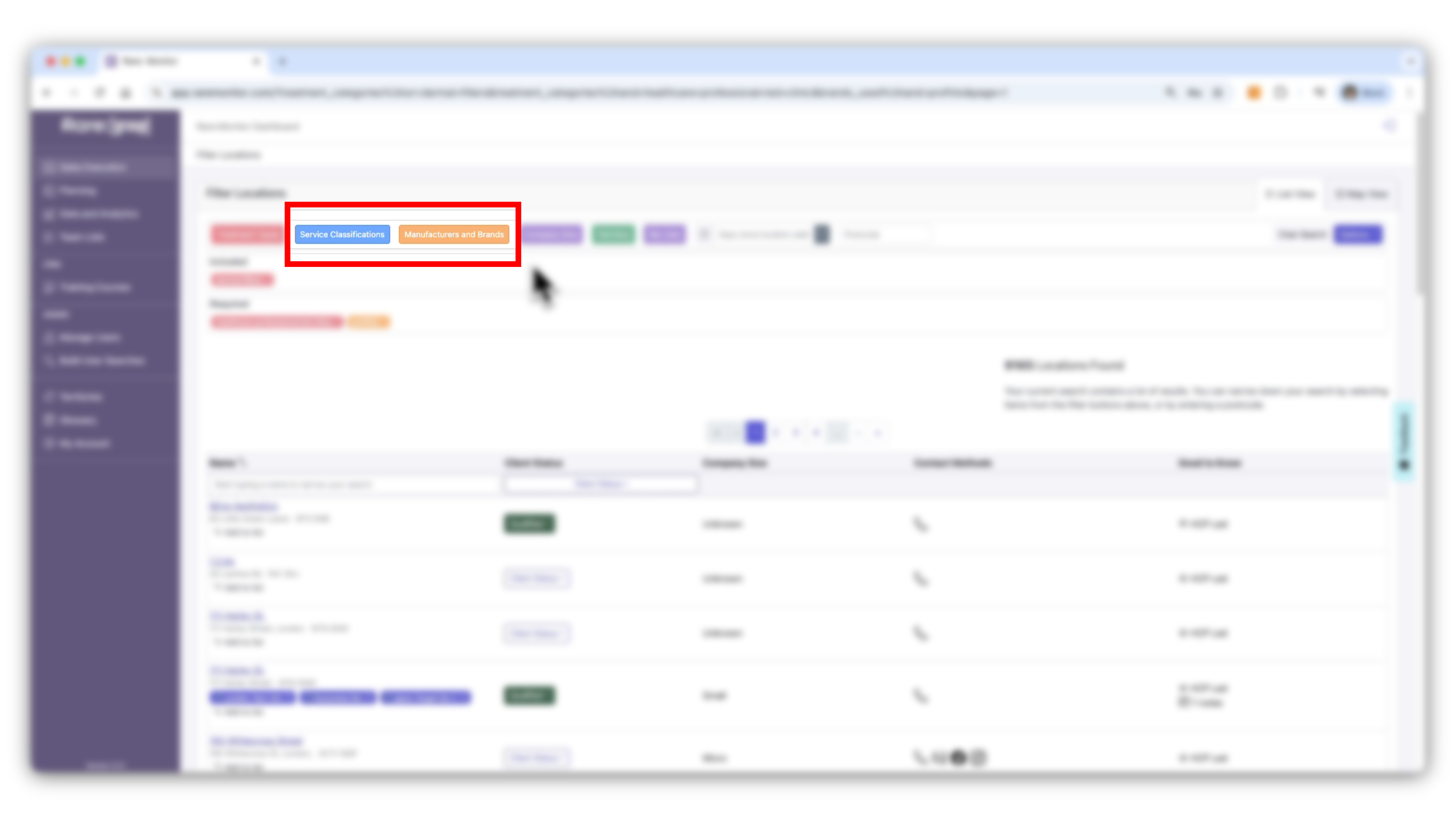
    Refine further by service classifications, brands and company size. - Add Healthcare Professional under Require to focus on qualified clinics. - Use Service Classification to filter by clinic type (e.g., beauty, dentistry). - Combine with Brands: select a manufacturer (e.g., IBSA) and product (e.g., Profhilo). - Filter by Company Size (micro, small, medium, large).
    Screenshot from the Rare.Monitor how-to guide for Using Filters, illustrating "Refine by Classification and Brands".
  4. 04

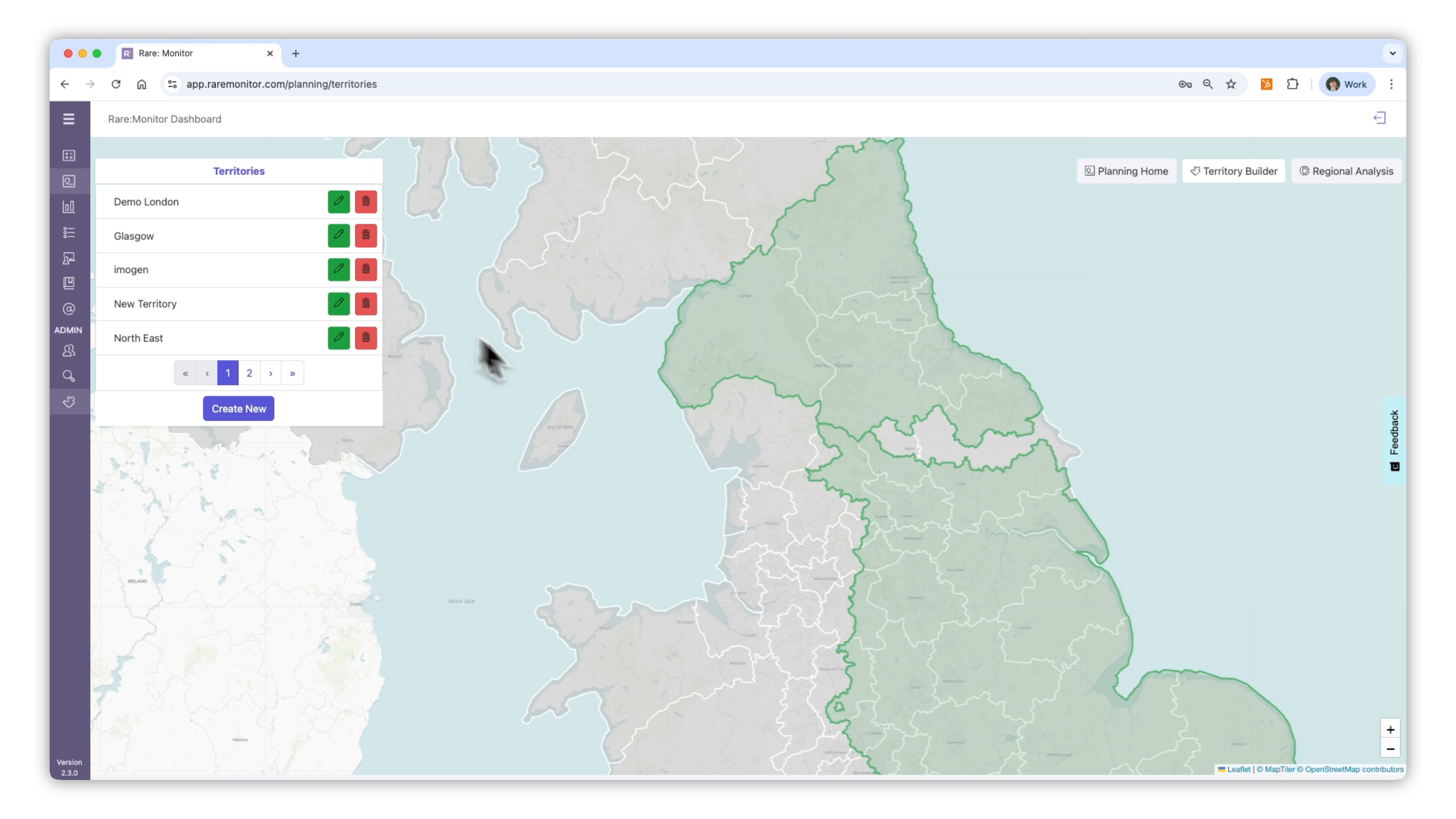
    Narrow by Size and Location

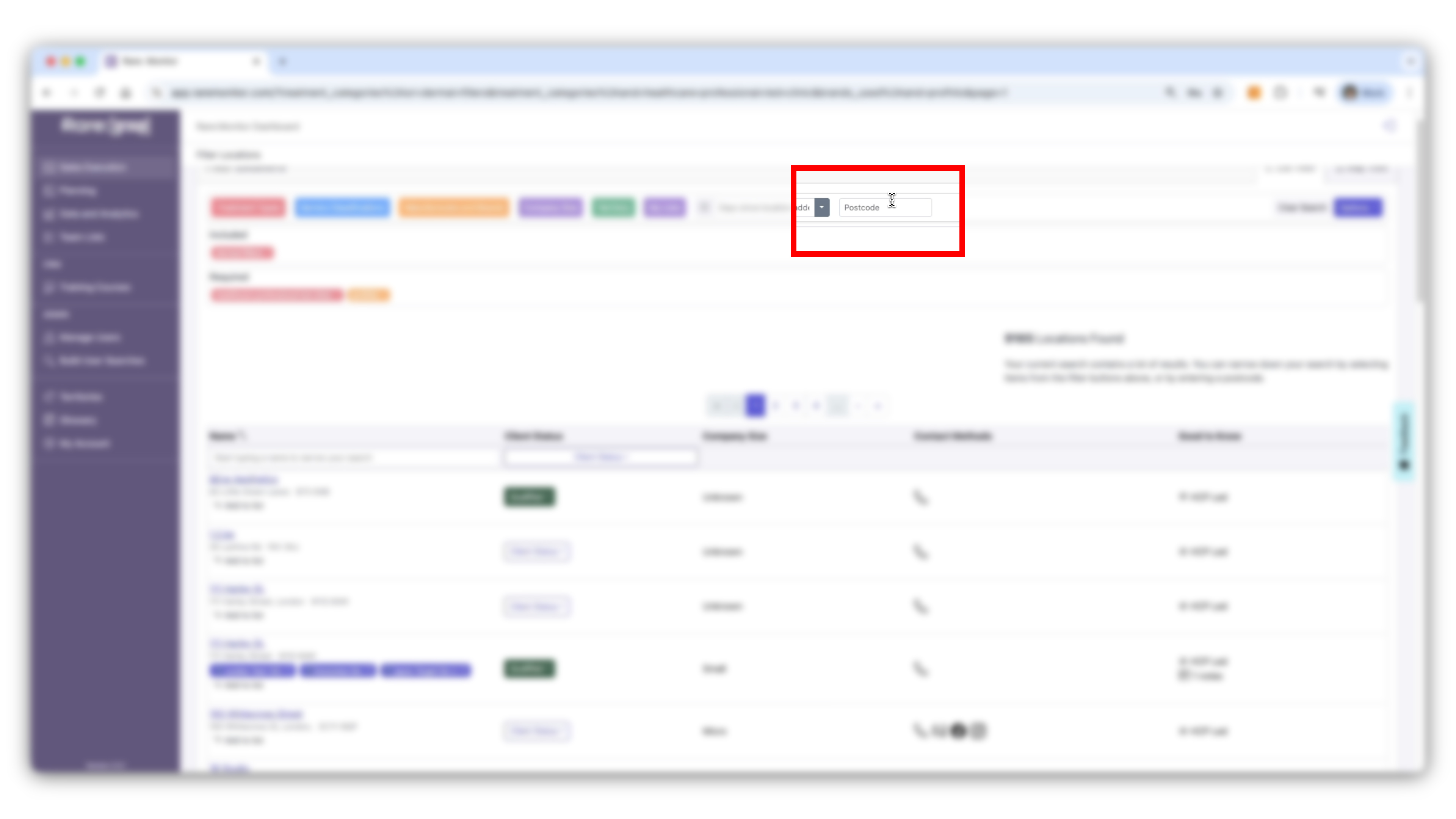
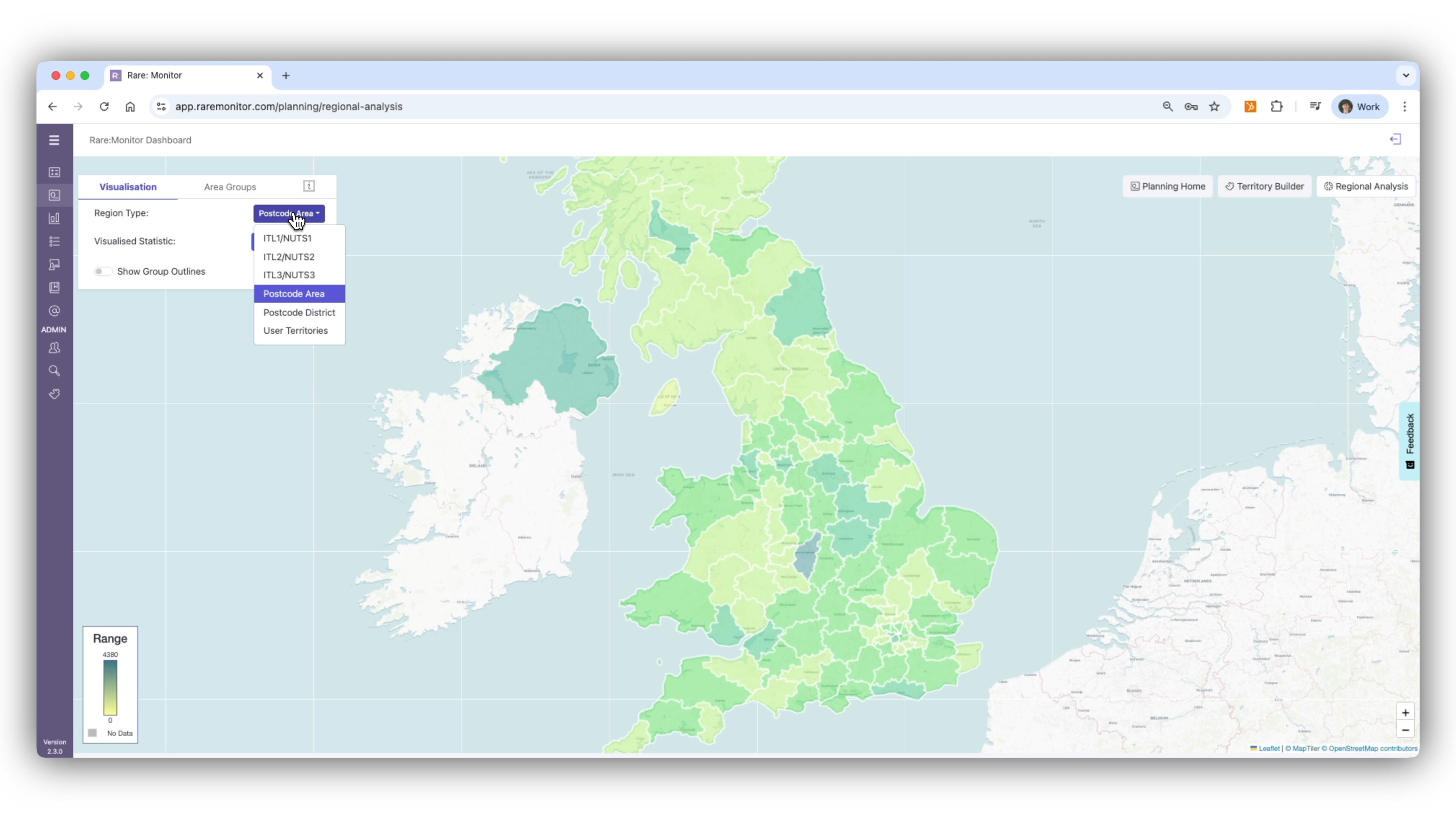
    Filter by location using a post code or the name of a city or town (e.g., B1 for Birmingham city centre).
    Screenshot from the Rare.Monitor how-to guide for Using Filters, illustrating "Narrow by Size and Location".
  5. 05

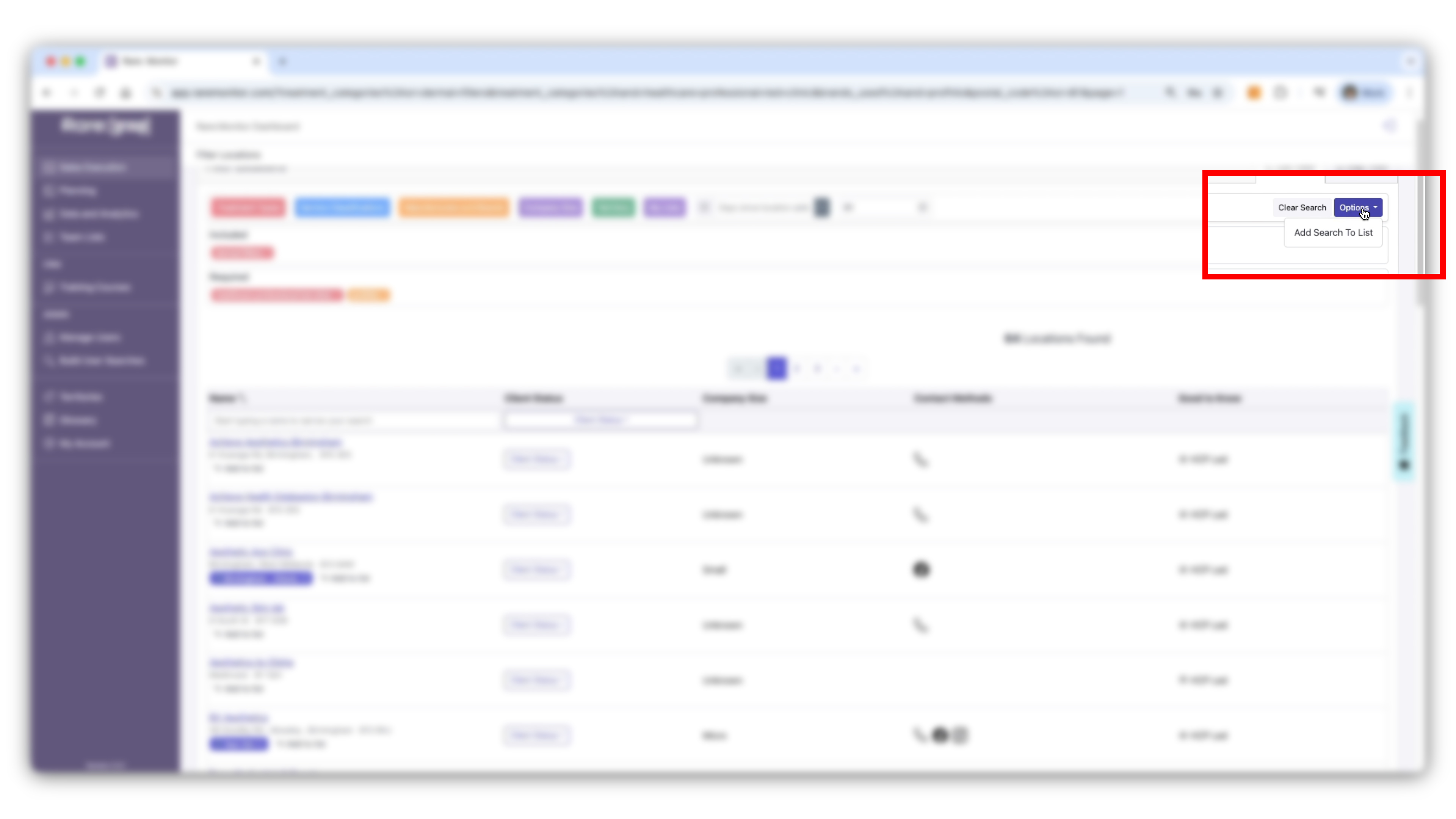
    Save to a List

    Once you have applied all relevant filters, save the results in a list for prospecting. Select Options in the top right and 'Add Search to List'. Lists can include up to 500 clinics from your search results.
    Screenshot from the Rare.Monitor how-to guide for Using Filters, illustrating "Save to a List".

Watch more in this series

Next: Territory Building & Mapping. Once you can filter, the next step is grouping clinics by region: drawing your own territories on the map and running searches inside them.